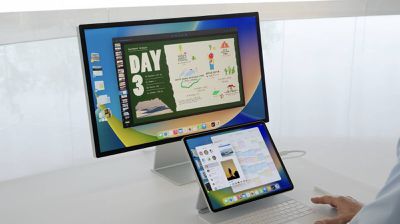
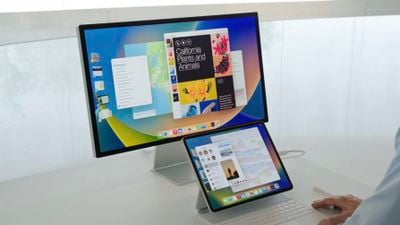
Alongside the release of iPadOS 16 on Monday, MacStories editor-in-chief Federico Viticci shared some candid feedback about Stage Manager, a new feature that allows for multiple overlapping windowed apps on the iPad. Viticci expressed his continued disappointment with Stage Manager, criticizing it as an "over-designed" and "poorly tested" feature with a "muddled constellation of missing features, bugs, and confusing interactions."
"Right now, Stage Manager is just another mode that was tacked onto existing iPad apps, disabled by default, slimmed down in scope, and shipped with a plethora of bugs," wrote Viticci. "It's disheartening to see Apple fumble this opportunity so badly."
Viticci shared a long list of bugs, technical issues, and challenges that he experienced while using Stage Manager and that he says are still present in the iPadOS 16 version released to the public this week. For example, he said there are keyboard-related bugs when QuickType predictions are enabled, layout bugs when switching the iPad from portrait to landscape orientation, full-screen app windows resizing incorrectly, and much more.
"There's the seed of a valid idea behind Stage Manager: create a continuum between the Mac and iPad that allows power users to go beyond what iPadOS has offered thus far," he wrote. "But that idea has been paired with the worst technical implementation of multitasking I've seen from Apple in the several years I've been using and writing about the iPad."
Viticci is hopeful that Apple will be open to feedback and continue to iterate on Stage Manager in future iPadOS 16 versions. He also hopes that Apple will release an API for developers next year that will allow apps to better support the multitasking feature.
Stage Manager supports up to four apps on an iPad's built-in screen, while another four apps will be supported on an external display on iPad models with the M1 chip and newer. However, Apple delayed external display support for Stage Manager and said the functionality will return in a software update later this year.
Today we're tracking a set of big sales across various Apple-related accessory brands on Amazon, including Eufy, Nanoleaf, and Beats.
Eufy
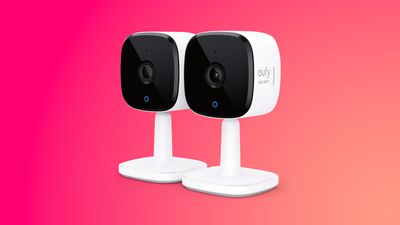
Starting with the Anker brand Eufy, you can save big on Eufy Security products this week thanks to a series of deals on Eufy indoor cameras (compatible with HomeKit), outdoor cameras, Wi-Fi doorbells, and smart vacuum cleaners. Some of these deals require you to clip on-page coupons, but otherwise they have all been applied automatically.
Note: MacRumors is an affiliate partner with Amazon. When you click a link and make a purchase, we may receive a small payment, which helps us keep the site running.
You can also save on many Nanoleaf products on Amazon today, ranging from a set of starter kits at up to $50 off to the company's HomeKit-compatible Smart LED Light Bulb and Lightstrip. All of these deals have been automatically applied on Amazon and don't require a coupon code.
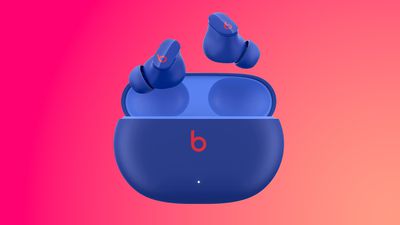
Lastly, Amazon is marking down a wide array of Beats headphones today, with the centerpiece deal on the Beats Studio Buds. You can get these accessories for $89.95 in five colors, down from $149.95, which is a new all-time low price on the earbuds.
Otherwise, there are deals on the Beats Fit Pro, Powerbeats Pro, and a few over-ear headphones, all of which you can find in the list below. These deals do not require any coupon codes.
Apple's $550 over-ear AirPods Max headphones are less effective at blocking out outside noise when using Active Noise Cancellation (ANC) following their latest firmware update, according to results from a detailed audio test.
A recent update to testing by RTings.com reveals that the AirPods Max ANC "blocks out a bit less noise between the mid-bass to high-bass range" after the 4E71 firmware update, which was released in May. "When it comes to the mid and treble ranges, this firmware update has slightly changed the level of isolation, but it's a relatively minor difference," RTings.com said following its test.
The decrease in ANC effectiveness was highlighted in an article by The Verge last month following months of discussion and complaints from AirPods Max users on Reddit and other discussion forums.
It's unclear why Apple adjusted the ANC performance in the latest update or if it plans to restore ANC effectiveness in a future update. Apple occasionally updates the firmware on AirPods Max and other AirPods models to deploy new features, fix bugs, and tweak performance.
Apple has been providing developers with beta versions of AirPods firmware since WWDC earlier this year, with the most recent beta version having been released earlier this month, but there's no word on whether there are any changes to ANC performance in the update.
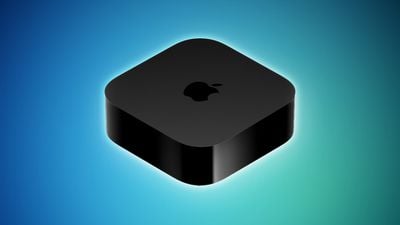
The Apple TV may not be the most obvious Apple device to consider upgrading – but with a series of minor upgrades in recent years, when should you consider buying a new one?
In terms of its set-top box offerings, Apple now only sells the Apple TV 4K (third-generation). The company launched its first modern Apple TV that runs tvOS, the Apple TV HD, in 2015. Since then, it has launched three new versions, each adding several new features and improvements over its predecessor, with some models offering more significant upgrades than others.
With a lower, $129 starting price and only one model year to choose from, new Apple TV buyers no longer face the same conundrum as in recent years when Apple offered multiple Apple TVs from different generations. Even so, first-time Apple TV customers may be able to obtain an older model second-hand or from a third-party retailer, so it will be important to weigh up exactly what was added with each new model.
See the detailed breakdown below for each new feature, change, and improvement that was added with each Apple TV model compared to its direct predecessor:
Apple TV 4K (Third-Generation, 2022)
A15 Bionic chip (3.23 GHz, 6-core), 50 percent faster CPU performance and 30 percent faster GPU performance
4GB memory, 33 percent more
Passive cooling with fanless design
"" logo replaces "tv" logo
Height of 1.2 inches
Weight of 208/214 grams, 50 percent reduction
Support for HDR10+
Gigabit Ethernet port available with 128GB model only
Thread support available with 128GB model only
64GB or 128GB storage
Second-generation Siri Remote (USB-C charging port) included
Apple TV 4K (Second-Generation, 2021)
A12 Bionic chip (2.49 GHz, 6-core)
Support for high-framerate HDR content up to 60 fps
Support for audio output with 7.1.4 surround sound channels with Dolby Atmos
HDMI 2.0a port
Gigabit Ethernet port
First-generation Siri Remote (white ring around Menu button) included
Apple TV HD (2015)
Apple A8 chip (1.5 GHz, 2-core)
2GB memory
"tv" logo
Height of 1.4 inches
Weight of 425 grams
Support for up to 1080p resolution
Support for SDR
Support for audio output with 7.1 surround sound channels
HDMI 1.4 port
10/100 Ethernet port
Wi-Fi 5
Bluetooth 4.0
32GB or 64GB of storage
First-generation Siri Remote included
Unlike many other Apple devices, the Apple TV offers a lot of specific technical features that not all users can take advantage of due to reliance on the specifications of other connected hardware like TVs and speakers. As such, this should be the main criteria you use to determine if you need to upgrade to a new Apple TV.
In other words, if you do not see features like high-framerate content, improved HDMI port specifications, more advanced HDR formats, and Thread support as worthwhile upgrades, it is unlikely that it will be worth buying a new model. Keen home cinema enthusiasts, audiophiles, and gamers that can use features like Dolby Atmos support, Gigabit Ethernet, and ARC and eARC support stand to benefit more from upgrading.
If you do not have a 4K HDR TV, it is probably that not much will be gained by upgrading to the latest model, but it may still be worth it if you can take advantage of better performance and more storage. If you have the first-generation Apple TV 4K, it will only be worth upgrading if you want features like high framerate HDR, Thread support, and more power for gaming.
Unless you specifically want HDR10+ support or 128GB of storage, there is little reason to upgrade from the second-generation Apple TV 4K to the third-generation Apple TV 4K.
It is important to note that the latest version of the Siri Remote, the second-generation model with a USB-C charging port, is available from Apple separately for $59. It works with all of the above Apple TV models, so the Siri Remote should not be a major factor in deciding to upgrade.
Apple has detailed macOS Ventura's and iOS 16's new Continuity Camera feature in a recently published support document, offering details, instructions, and tips for the feature.
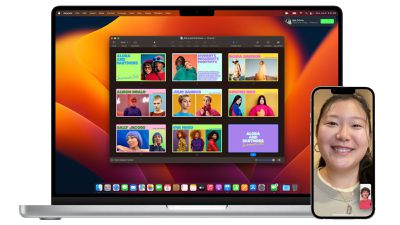
Continuity Camera is a new feature in macOS Ventura that allows users to use an iPhone as a webcam on their Mac. Continuity Camera works wirelessly or wired in FaceTime, Zoom, and other apps. With Continuity Camera, users will get video directly from their iPhone camera, which has significantly better quality than the built-in camera on Macs.
Continuity Camera also allows users to use different effects from their iPhones. For the first time on Mac, for example, users can use the Wide Camera on the iPhone to enable Center Stage. Studio Light, Portrait mode, and Desk View, which simultaneously shows a user's desk and face, are also available.
To attach an iPhone to a MacBook, users can purchase a new Belkin iPhone mount that attaches an iPhone to the top bezel of a MacBook. The mount retails for $29.95 and is available on Apple's online store.
According to the support document, users will need an iPhone running iOS 16 or later and a Mac with macOS Ventura to use Continuity Camera. Additionally, users must be signed into the same Apple ID on both devices with two-factor authentication enabled, and Bluetooth or Wi-Fi must also be enabled.
Apple this week released iOS 16.1, the first major update to the iOS 16 operating system since its public release, and also released iPadOS 16 to the public. While both updates brought many features to iPhone and iPad users, Apple still has more features planned for 2022.
Below, we've listed five features and new apps for iOS 16 and iPadOS 16 that Apple has promised to release before the end of 2022 through subsequent updates.
iPadOS 16: External Display Support
One of the hallmark features of iPadOS 16 is that the iPad is finally gaining proper support for external displays. The feature is incorporated into Stage Manager, a new multitasking windowing system for select iPad models.
While Stage Manager is available with iPadOS 16.1, released yesterday, external display support is not. Apple delayed external display support until "later this year," so we'll have to wait until possibly iPadOS 16.2 before we see it available.
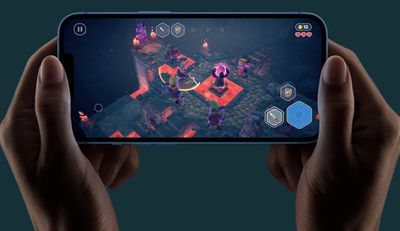
Gaming Together Over SharePlay
One new feature of SharePlay on iOS 16 and iPadOS 16 is that later this year, users will be able to use SharePlay to play games with friends and family over FaceTime. This will work for games with Game Center integration and that support multiplayer. In iOS 16 and iPadOS 16, Apple already expanded SharePlay to be built-in on apps like Messages.
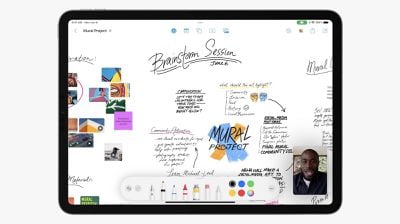
Freeform
A new app coming later this year from Apple is Freeform. Freeform is a productivity app where teams can easily collaborate in a single place with notes, shared files, web links, drawings, documents, photos, videos, and more. Freeform will be available on iOS, iPadOS, and macOS.
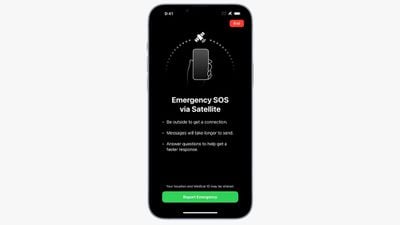
Emergency SOS Via Satellite
Exclusive to the iPhone 14 and iPhone 14 Pro and launching in November, users will be able to make emergency SOS texts via satellite on their iPhone. Emergency SOS via satellite will initially only be available in the U.S. and Canada and will be free for users for the first two years. Pricing beyond the first two years has not been made public.
Apple Music Classical
In August 2021, Apple acquired Primephonic, a streaming service that specialized in classical music. In that announcement, Apple said it would release a dedicated Apple Music experience app specifically designed and tailored for classical music in 2022.
With just a few months left before the end of the year, Apple has not yet released the app, but traces of its development have been found in iOS 16 code, hinting we could see its release alongside an upcoming iOS 16 update.
iPhone 15 Pro models will feature an increased 8GB of RAM, a USB-C port, and multiple camera improvements, according to Taiwanese research firm TrendForce.
In a press release today, TrendForce indicates that the iPhone 15 lineup will again consist of four models and that only the two Pro models will get Apple's latest processor, as was the case with the iPhone 14 lineup. Users can expect the Pro models to be equipped with the A17 Bionic chip, while the standard models would stick with the A16.
TrendForce predicts that the 15 Pro models will be equipped with an increased 8GB of RAM to complement the A17 chip, compared to 6GB for the iPhone 14 Pro models. The standard models will likely continue to have 6GB of RAM.
The switch from Lightning to USB-C has been widely rumored for iPhones as the European Union passed a law requiring such a change earlier this year.
In line with previous reports, the research firm expects the iPhone 15 Pro Max to feature a Telephoto lens with periscope functionality, allowing for 10x optical zoom or higher, compared to the current 3x limitation. The Pro models should have an upgraded Main lens with an "8P" design, which would be one extra optical element for better camera performance.
TrendForce says iPhone 15 models will remain equipped with a Qualcomm modem for 5G because Apple is not yet satisfied with the mmWave performance of its in-house modem. The research firm believes Apple will introduce its own 5G modem in 2024.
Apple will likely announce the iPhone 15 lineup in September 2023.
Apple today called on its suppliers to take new steps to decarbonize and address their greenhouse gas emissions.
In a press release, Apple said that it will evaluate the work of its manufacturing partners on a regular basis to encourage them to decarbonize their Apple-related operations and use 100 percent renewable energy, tracking and auditing progress annually. It added that Apple will specifically partner with suppliers that are "working with urgency and making measurable progress toward decarbonization," and is encouraging manufacturers to address their greenhouse gas emissions beyond their Apple production, offering suppliers a suite of free e-learning resources and live training courses through the Clean Energy Program.
Apple itself has been carbon neutral across its corporate operations since 2020, but has the long term goal of being carbon neutral across its entire global supply chain and the life cycle of every product by 2030. Apple has reduced its emissions by 40 percent since 2015, primarily thanks to improvements in energy efficiency, low-carbon design, carbon neutrality for corporate operations, and transitioning its supply chain to renewable electricity.
More than 200 suppliers representing more than 70 percent of Apple's manufacturing spend have already committed to using renewable energy like wind or solar for all Apple production, including Corning Incorporated, Nitto Denko Corporation, SK hynix, STMicroelectronics, TSMC, and Yuto.
Apple also announced new initiatives designed to help decarbonize the global economy and promote new climate-focused solutions, including investments to construct large-scale solar and wind facilities in Europe, partnerships to support businesses moving to clean energy, and Restore Fund projects to advance natural carbon removal and help carbon removal generate a financial return. For more information about Apple's latest environmental efforts, see the full press release.
Note: Due to the political or social nature of the discussion regarding this topic, the discussion thread is located in our Political News forum. All forum members and site visitors are welcome to read and follow the thread, but posting is limited to forum members with at least 100 posts.
Apple today released iOS 16.1 to the public after a little over a month of beta testing, adding essential new features to the iOS 16 operating system and debuting a version of iPadOS 16 for the first time.
iOS 16.1 adds features that were delayed from the iOS 16 update, plus it tweaks some existing capabilities and interface options. We've outlined everything new in iOS 16.1 below.
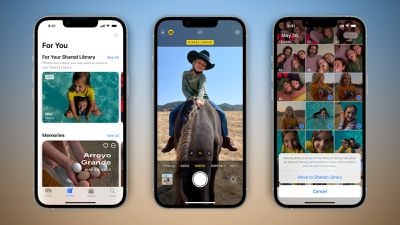
iCloud Shared Photo Library
Apple delayed iCloud Shared Photo Library in order to work out some of the bugs, but it is available in the iOS 16.1 update. With iCloud Shared Photo Library, a total of six people can share one Photo Library, making it easier to distribute photos among friends and family members.
Everyone who is a member of an iCloud Shared Photo Library can add, edit, favorite, caption, and delete photos, and users can have one personal library and one shared library. There are tools for swapping between two libraries, and choosing to upload photos to the Shared Library directly from the camera, when other library participants are nearby, and more.
iCloud Shared Photo Library is a complicated feature that you may have a lot of questions about, so we have created a dedicated guide that walks you through how to use it.
Live Activities
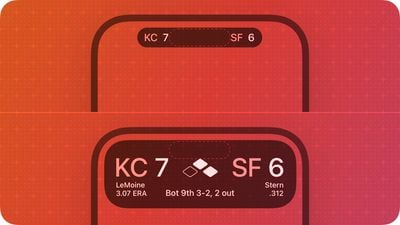
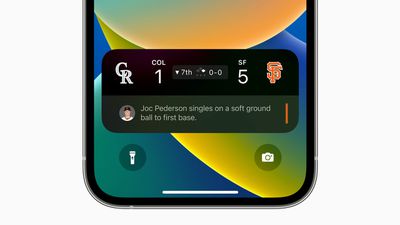
Lock Screen and Dynamic Island feature Live Activities has launched in iOS 16.1. Live Activities are a new notification type that allow you to follow along with something in real time, like an approaching Uber ride, a flight, a sports game, and more.
There is a Live Activities API available to developers in iOS 16.1, so alongside the launch of the update, developers will be able to add new Live Activities experiences into their apps.
Wallet Key Sharing
Car, hotel room, and other keys that are available in the Wallet app can be shared securely with others through Messages, WhatsApp, and other messaging apps.
Lock Screen/Home Screen Customization
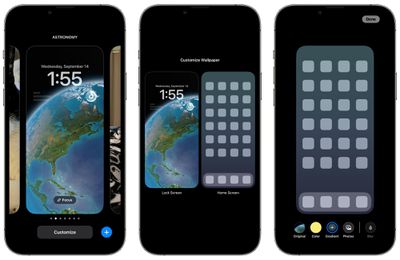
When tapping on the "Customize" interface on the Lock Screen, there's now an option to choose between customizing either the Lock Screen or the Home Screen, rather than just the Lock Screen. This makes it easier to customize the look of the iPhone from one spot without having to go through multiple steps.
Apple Fitness+ on iPhone Without an Apple Watch
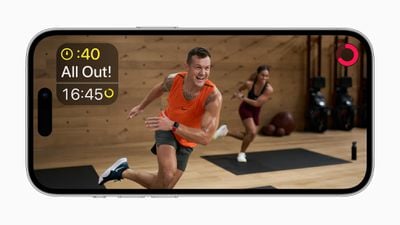
Apple Fitness+ is available even if you do not have an Apple Watch to use with both iOS 16.1 and tvOS 16.1. You can start a workout if you are an Apple Fitness+ subscriber, though you will be missing the Apple Watch metrics on the display.
You can subscribe to Apple Fitness+ without a watch after the updates have been installed.
Matter Support
iOS 16.1 adds support for the Matter smart home connectivity standard. Matter allows for interoperability between smart devices from different companies, so HomeKit, Alexa, and Google Assistant devices, for example, can work together.
Clean Energy Charging
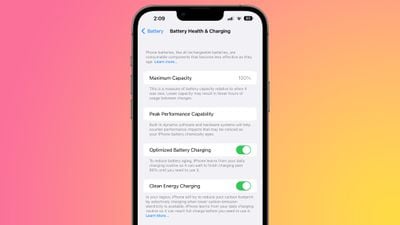
iOS 16.1 adds a toggle to enable "Clean Energy Charging" in the Battery section of the Settings app. Clean Energy Charging will try to reduce your carbon footprint by selectively charging when lower carbon emission electricity is available.
Apple says that the iPhone will still reach full charge before you need to use it based on your daily charging routine, and the feature can be toggled off if desired. It appears to be enabled by default when updating to iOS 16.1.
Delete Wallet App
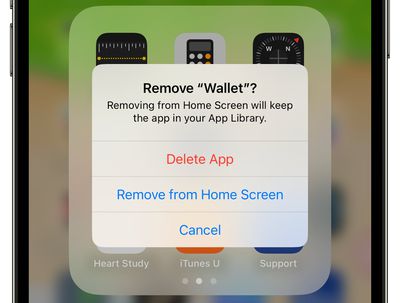
iOS 16.1 adds the option to remove the Wallet app from the iPhone entirely. In iOS 16 and earlier versions of iOS, the app could be removed from the Home Screen, but not deleted. It is now able to be deleted entirely for those who do not want to use Apple Pay or other Wallet features.
The option comes as Apple is facing a lawsuit accusing it of violating antitrust law by making Apple Pay the only available mobile wallet for tap-to-pay payments on iPhone.
Battery Percentage in Status Bar
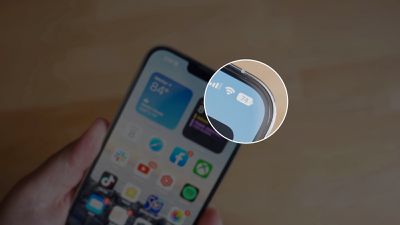
iOS 16.1 adds battery percentage to the battery icon in the status bar on the iPhone XR, iPhone 11, iPhone 12 mini, and iPhone 13 mini, all iPhones that did not support the feature in iOS 16.
Screenshot UI
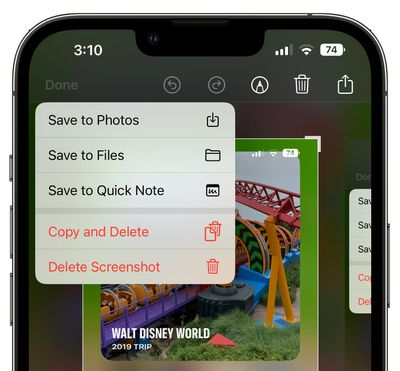
When you close the Screenshot editing tool, there is an updated interface in the upper right corner that gives the options to delete a screenshot, copy and delete, or save it. This menu used to be at the bottom of the iPhone, so this new implementation is sleeker and less in your face as it does not take over the bottom of the display.
Battery Status Bar Visual Charge Indicator
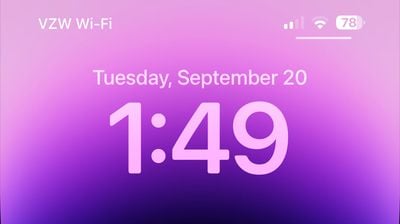
Apple in iOS 16 added battery percentage to the battery icon in the status bar on Face ID iPhones, and in iOS 16.1 beta 2, improved the feature to show a visual indication of the charge level.
The battery icon shifts throughout the day as the battery depletes or is charged, making it easier to see charge level at a glance. Prior to the beta, the battery indicator in the status bar showed percent, but the battery level was static and always full, making it sometimes confusing to determine the iPhone's charge with a quick look.
Battery Font
Apple has updated the font that's used for the battery icon, slightly increasing the size.
Lock Screen Charging Indicator
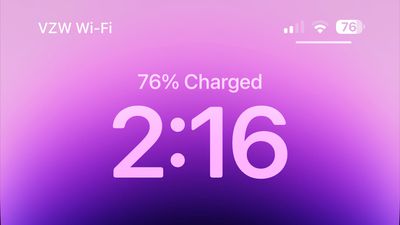
When charging an iPhone, the battery percentage is now displayed above the time both when the iPhone first starts charging and each time that it is woken from sleep during the charging process.
This allows for a clear indication of the charge level when tapping on the iPhone's display without unlocking the device. The always-on display does not show charge level and waking the screen on an iPhone 14 Pro model is required to get the battery level to show up.
Wallpaper Updates
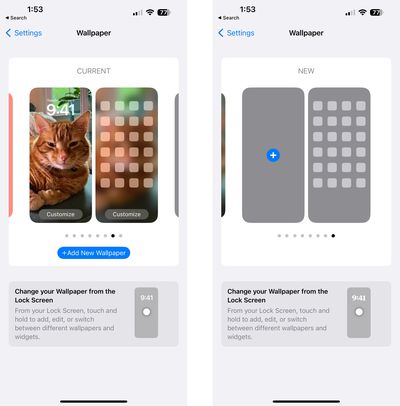
Apple has updated the Wallpaper section of the Settings app to allow users to swap between wallpapers from this interface. The design has also been tweaked, making the options to add new wallpaper more obvious.
Emergency SOS via Satellite
Apple is beginning to lay the groundwork for Emergency SOS via Satellite and Find My satellite integration, functionality that is coming to iPhone 14 models starting in November. Code in the update reveals some of the text we can expect to see.
Send your location using a supported iPhone from places where there are no cellular or Wi-Fi networks.
Send your Location via Satellite.
This friend sent you their location via satellite because they have no other network available.
Can send location again after X amount of time.
X hours ago - Last time your location was sent.
You can now text emergency services via satellite on your iPhone.
iPhone can try to use a satellite to text emergency services. When it's safe, exit the vehicle and follow the iPhone instructions.
iPhone is texting emergency services via satellite.
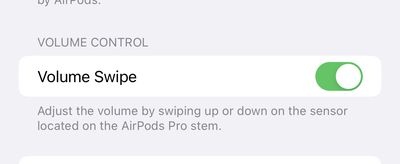
AirPods Pro 2 Volume Touch Control Toggle
The iOS 16.1 beta adds a new feature that allows the touch-based volume control of the AirPods Pro 2 to be disabled.
Preload In-App Content
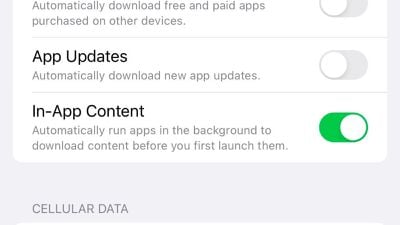
After you've downloaded an app from the App Store, there is sometimes extra content to download the first time you open it, especially if it's an app that has a large size. With iOS 16.1, there is a toggle to automatically run newly downloaded apps in the background to download content before you first launch them.
The setting is enabled by default and can be found in the Settings app under App Store > In-App Content.
Books App
In the Books app, reader controls are automatically hidden when you begin to read.
Bug Fixes
The iOS 16.1 update includes a number of bug fixes.
Deleted conversations may appear in the conversations list in Messages
Dynamic Island content is not available when using Reachability
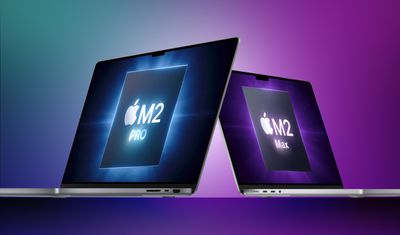
Apple's next-generation 14-inch and 16-inch MacBook Pro models with M2 Pro and M2 Max chips will be equipped with "very high-bandwidth, high-speed RAM," according to information shared by MacRumors Forums member Amethyst, who accurately revealed details about the Mac Studio and Studio Display before those products were announced.
The current 14-inch and 16-inch MacBook Pro models are equipped with LPDDR5 RAM from Samsung, with the M1 Pro chip providing up to 200 GB/s of memory bandwidth and the M1 Max chip topping out at 400 GB/s. On a speculative basis, it is possible that the next MacBook Pro models could be equipped with Samsung's latest LPDDR5X RAM for up to 33% increased memory bandwidth with up to 20% less power consumption. This would result in up to 300 GB/s memory bandwidth for the M2 Pro and up to 600 GB/s for the M2 Max.
Bloomberg's Mark Gurman expects the next MacBook Pros to have few other changes beyond the M2 Pro and M2 Max chips. At this point, it seems likely that the laptops will be announced in November at the earliest with press releases on the Apple Newsroom site. Apple has launched new Macs in November multiple times in recent years, including the original 16-inch MacBook Pro in 2019 and the first three Macs with the M1 chip in 2020.
The current 14-inch and 16-inch MacBook Pro models with the M1 Pro and M1 Max chips were released in October 2021 and featured a complete redesign with a notch in the display and additional ports like HDMI, MagSafe, and an SD card reader.
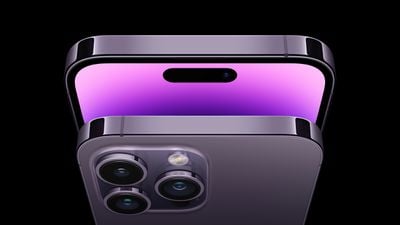
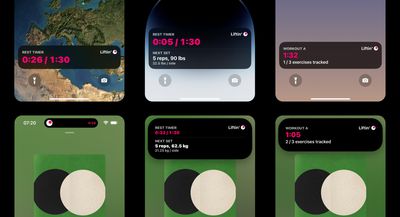
The iOS 16.1 update that was released today introduces support for Live Activities, a new type of lingering Lock Screen notification that lets you track information in real time. Live Activities are visible primarily on the Lock Screen, but if you have an iPhone 14 Pro or Pro Max, they also show up in the Dynamic Island.
Developers are beginning to implement support for Live Activities, and we've rounded up apps that are using the new feature.
Skiing and snowboarding app Slopes is using Live Activities to let users track two customizable stats, along with information about who else is riding at the resort. It also provides a daily timeline of performance. Users can choose stats that include vertical distance, speed, number of runs, time spent on the slope, and more.
Dynamic Island support is included for iPhone 14 Pro users, offering quick access to tools like pause and resume when taking a break.
Flight tracking app Flighty offers Live Activities for keeping an eye on upcoming and in progress flights. The Live Activity implementation shows on the Lock Screen three hours before a flight, offering up necessary information like time until departure, gate, flight status, booking code, seat number, and more.
After takeoff, the app includes an offline progress bar that lets you know how much time is left on a flight. On iPhone 14 Pro models, Dynamic Island integration provides flight information at the top of the iPhone whenever there is a critical update like a delay. The Dynamic Island Live Activity also displays departure countdown and gate number while other apps are in use.
The Live Activity can be used for free on the first flight, but after that, Pro is required. Flighty Pro is priced at $5.99 per month or $49.99 per year.
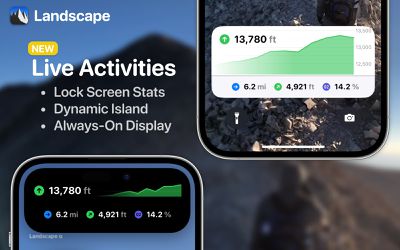
Mountaineering app Landscape is using Live Activities on the Lock Screen and Dynamic Island to provide real time stats, with a rolling elevation graph so you can keep an eye on your climb. The app shows elevation, total distance, and more.
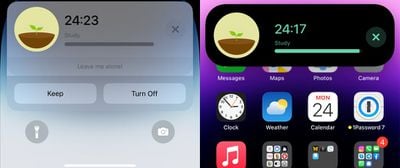
Time management and focus app Forest shows countdown times on the Lock Screen and in the Dynamic Island so you can see how long you have left on the project that you're working on. Forest is an app where you grow a tree by focusing on a singular task such as studying without otherwise using your device.
Using the Live Activity option requires deep focus mode to be disabled, which is the mode that requires the Forest app to stay open, preventing the use of other apps.
CARROT Weather will show an approaching storm when rain is expected within the next hour. Storm progress can be tracked on the Lock Screen or the Dynamic Island. You will be able to see upcoming precipitation levels over the next 60 minutes.
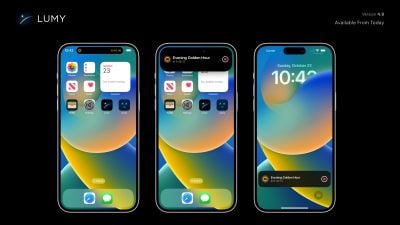
Designed for photographers and those who like to track the sun, Lumy is an app that lets you know the position of the sun in any location around the world. It offers up information on sunrise, sunset, first light, last light, golden hour, blue hour, moonrise, moonset and more.
With Live Activities and Dynamic Island integration, Lumy users can keep track of any sun event.
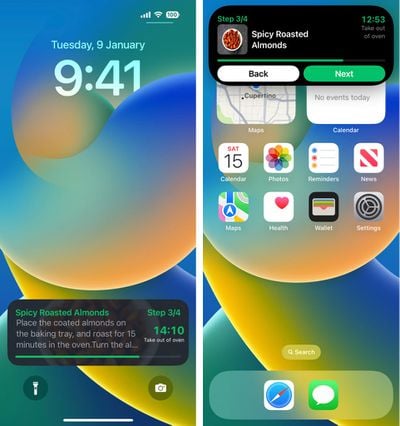
Meal planning and recipe app Crouton uses Live Activities and the Dynamic Island to display recipe timers and steps for each recipe so users can follow along with each step without having to open up the app.
Pestle's Live Activity lets you keep an eye on timers when using other apps, plus it shows current recipe steps. It also supports two timers at one time for different dishes being cooked simultaneously.
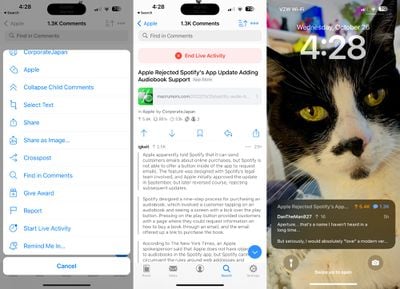
Reddit app Apollo uses Live Activities to let users follow along with comments on Reddit threads. Reddit users can go to a specific Reddit thread and then choose the "Start Live Activity" option. Apollo will then monitor the thread and show live, recent comments as they come in on the Lock Screen or in the Dynamic Island.
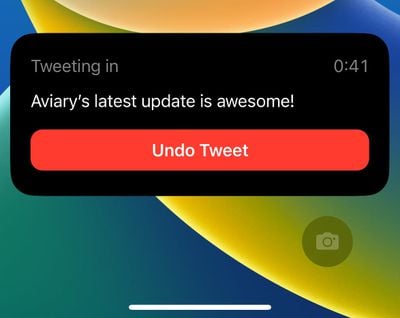
Twitter app Aviary uses the Live Activity feature to allow you to undo a tweet from the Lock Screen or the Dynamic Island. Tweets can be undone for up to 30 minutes after being sent.
Activity tracking app Steps uses Live Activities to allow users to see their workout progress from the Lock Screen and the Dynamic island.
Steps now supports the Dynamic Island and Live Activities! We've added live progress while recording a workout -- it's great for checking in quickly while walking. pic.twitter.com/qGLHn0Cvt1
— Steps - Activity Tracker (@StepsApp) October 23, 2022
Other Apps With Live Activities and Dynamic Island Support
PosturePal - Keeps track of a posture session on the Lock Screen, letting you know if you tilt your neck in a way that will impact back, neck, and shoulder health.
MoneyCoach - Tracks how much you've spent on a specific budget category.
Calzy - Keeps track of a calculation on the Lock Screen and in the Dynamic Island.
SmartGym - Allows users to track the progress of a workout from the Lock Screen or Dynamic Island.
Sticky Timers - Sticky Timers is designed to let you keep track of multiple timers at the same time using the Dynamic Island.
TV Remote - Allows users to access up to four TV remote buttons from the Lock Screen or Dynamic Island.
Subjects - Student planner app Subjects lets users track class schedules, homework, grades, and GPA, and with Dynamic Island integration, it shows the current class and the time remaining.
Cowboy - Electric Bikes Created for Cowboy brand electric bikes, the Cowboy app integrates Live Activities to allow users to see their ride progress in real time.
Grocery - Creates a Lock Screen Live Activity that shows your grocery list or recipe timers.
GPS Tracks - GPS Tracks uses Live Activities for tracking a route that you're on and for navigating to a set waypoint.
Plantry Meal Planner - Plantry supports Live Activities for running timers when cooking.
Marvis Pro - Music app Marvis Pro uses the Dynamic Island and Lock Screen Live Activities for Now Playing and Up Next information for songs. The app integrates with Apple Music.
Live Activity Requirements
To use Live Activities, an iPhone running iOS 16.1 is required. The Dynamic Island component requires an iPhone 14 Pro or iPhone 14 Pro Max.
iOS 16.1 includes a Clean Energy Charging option that is designed to allow iPhone users to cut down on their carbon footprint. Clean Energy Charging selectively charges when lower carbon emission electricity is available for those who want a greener charging method.
Apple today published a support document on Clean Energy Charging, providing more specific details on how it works, how to disable it when necessary, and which settings need to be active to get it to work.
Clean Energy Charging is limited to the United States, and it requires Location Services, System Customization, and Significant Locations to all be enabled in the System Services section of the Settings app in order to function.
It is on by default, and those who want to turn it off will need to do so by going to Settings > Battery > Battery Health & Charging.
When enabled, Clean Energy Charging allows the iPhone to get a forecast of carbon emissions in the nearby energy grid, using that to charge the iPhone during times of cleaner energy production.
Apple says that Clean Energy Charging works with Optimized Battery Charging to learn a user's habits, engaging only when the iPhone is charged for long periods of time, such as at home or work. It does not engage if charging habits are variable or when the user is in a new location, such as when traveling.
When Clean Energy Charging turns charging off, a notification on the Lock Screen provides details when the iPhone will be fully charged, similar to Optimized Battery Charging. Touching and holding on the notification brings up a "Charge Now" option to set the iPhone to charge the iPhone to full.
With the release of iOS 16.1 and iPadOS 16.1, Apple has updated the App Store review guidelines that are provided to developers who create apps for iPhones and iPads.
Apple is now requiring that apps provide the App Review team with full access to an app, with an active demo account or demo mode for apps that include account-based features. The change will make it easier for app reviewers to investigate all of the parameters of an app.
In regard to NFTs, or non-fungible tokens, Apple allows apps to sell NFTs and services related to NFTs, as long as in-app purchases are used. Apps can offer minting, listing, and transferring capabilities, and can use NFTs to unlock in-app content when in-app purchases are used.
Apps can also allow users to view already-owned NFTs, but already-owned NFTs cannot be used to unlock features or functionality within an app as a way to skirt in-app purchases. Apple's full wording is below:
"Apps may use in-app purchase to sell and sell services related to non-fungible tokens (NFTs), such as minting, listing, and transferring. Apps may allow users to view their own NFTs, provided that NFT ownership does not unlock features or functionality within the app. Apps may allow users to browse NFT collections owned by others, provided that the apps may not include buttons, external links, or other calls to action that direct customers to purchasing mechanisms other than in-app purchase."
Apple says that apps created for the sole purpose of allowing advertisers to purchase and manage advertising campaigns across media types do not need to use in-app purchases, while also clarifying that digital purchases such as "boosts" within social media apps such as Facebook do indeed need to use the in-app purchase function. From the guidelines:
"Advertising Management Apps: Apps for the sole purpose of allowing advertisers (persons or companies that advertise a product, service, or event) to purchase and manage advertising campaigns across media types (television, outdoor, websites, apps, etc.) do not need to use in-app purchase. These apps are intended for campaign management purposes and do not display the advertisements themselves. Digital purchases for content that is experienced or consumed in an app, including buying advertisements to display in the same app (such as sales of “boosts” for posts in a social media app) must use in-app purchase."
The updated guidelines also ban any concepts that attempt to capitalize or profit from "recent or current events, such as violent conflicts, terrorist attacks, and epidemics." With the Matter smart home standard now integrated into iOS, apps that support Matter must use Apple's support framework for Matter to initiate pairing.
Other guideline changes prevent music from iTunes and Apple Music previews from being used for entertainment value, and allow apps to facilitate cryptocurrency transactions so long as the functionality is only offered in countries where the app has appropriate licensing.
Alongside macOS Ventura, iOS 16.1, and iPadOS 16.1, Apple has introduced Safari 16.1, which brings a number of new features to Safari on Apple's platforms. Safari 16.1 is built right in to iOS 16.1, iPadOS 16.1, and macOS Ventura, but it is also available on macOS Monterey and macOS Big Sur.
The update includes Web Push for macOS Ventura, allowing websites and web apps to send notifications using the same standards as other browsers. Notifications can be delivered even when Safari isn't running, and managed in the Notifications Center.
Web Push functionality that has already been implemented for a web app or website will automatically work in Safari, and it uses the same Apple Push Notification service that powers native push on Apple devices.
With Safari 16.1, passkeys can be used on iPads and Macs running iPadOS 16, macOS Ventura, macOS Monterey, and macOS Big Sur in addition to devices running iOS 16. Passkeys are designed to replace passwords, and websites like PayPal are already implementing support.
For new iPad Pro models, Safari 16.1 adds support for hover with Apple Pencil, a feature that allows the iPad Pro's display to detect the Apple Pencil when it is up to 12mm away. In Safari 16.1, users will be able to see hover states for links, animations, and more.
Apple today released macOS Ventura, the latest version of the company's Mac operating system. macOS Ventura is a significant update that introduces a new multitasking experience in the form of Stage Manager, overhauls multiple stock apps like Mail and Messages, and adds updated capabilities across the platform.
Below, we've selected 50 new features and lesser-known changes that are worth checking out if you're upgrading, and we've put together a video highlighting 25 of them. Note that macOS 13 is compatible with 2017 and later Macs.
Have you seen any other improvements not listed here? Let us know in the comments.
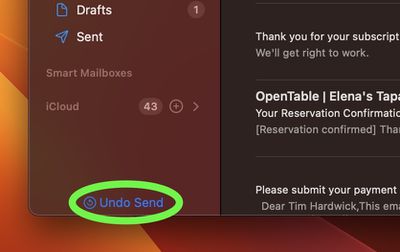
1. Undo Send Email
In Apple Mail, if for whatever reason you regret sending a message immediately after you pressed Send, you can now unsend the email – as long as you act quickly.
After sending the email, an Undo Send option will appear at the bottom of the sidebar (if you don't have the sidebar showing, select View -> Show Sidebar in the menu bar). By default, you have 10 seconds to click it before the option disappears, after which the message cannot be unsent, but the interval can also be set to 20 or 30 seconds or turned off entirely for immediate sending.
2. Use Nearby iPhone as Microphone Input
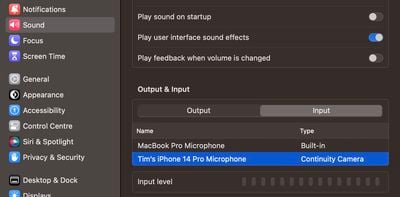
Ventura's new Continuity Camera feature lets you use your iPhone's camera as a webcam for your Mac, but it also allows you to choose your nearby iPhone as a microphone input, sans video.
To enable it, go to System Settings -> Sound, then click the Input tab under "Output & Input," and you should be able to see and select the name of your iPhone, listed as type "Continuity Camera."
3. Mail Follow-up
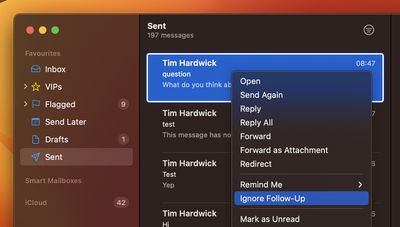
If you send an email querying something with someone and you haven't received a reply for a while, Mail will intelligently surface the message in your inbox and ask if you want to "Follow Up" the email.
If you don't need a response to the email in question, swipe left on the trackpad to dismiss it, or right-click the message and select Ignore Follow-Up in the contextual menu.
4. Remind Me to Respond to Email
If you receive an email that you would rather respond to at a later time, Mail can remind you so you don't forget.
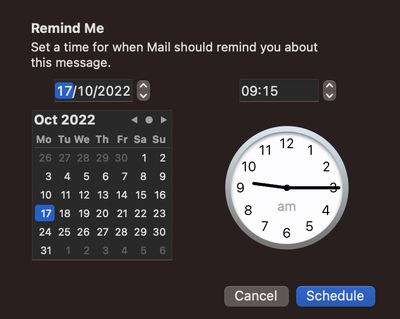
Simply right-click on the message in your inbox, then select Remind Me from the dropdown menu. You'll see options including Remind Me in 1 Hour, Remind Me Tonight, Remind Me Tomorrow, and Remind Me Later.... The last option will bring up a clock and calendar for you to set a specific time and date. Once you've done that, click Schedule.
5. Scheduled Send Email
Now you can compose messages in Mail whenever it suits you and schedule them to be sent at a future time and date.
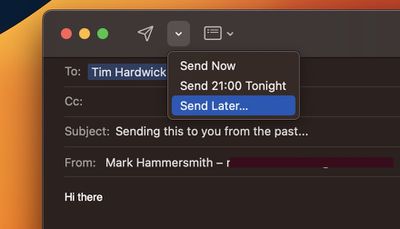
In the compose window, click the chevron next to the send icon. From the dropdown, select Send Now, Send Tonight/Tomorrow, or Send Later.... Clicking the last option will bring up a clock and calendar for you to set a specific time and date. Once you've done that, click Schedule.
6. Spotlight Quick Look
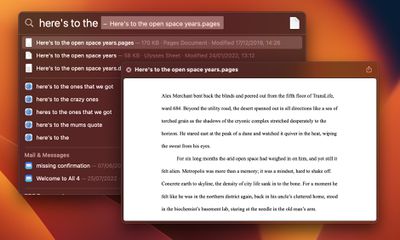
In Ventura, you can preview recognized files with Quick Look, just like you can in Finder.
Simply press the Space bar on a result to open a preview window. Text-based documents also include full Copy selection support.
7. Spotlight Quick Actions
In another turbo-charging enhancement to Spotlight, you can now perform quick actions from the search field without opening the corresponding app.
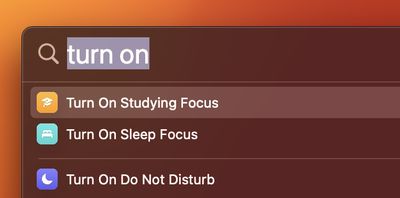
For example, you can create a timer by typing "start a timer," and the Clock app will show a dialog box asking "For how long?" Other quick actions include set an alarm, turn on a Focus, run a shortcut, find the name of a song with Shazam, and more.
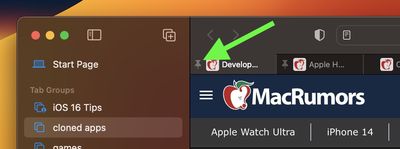
8. Pinned Tabs in Tab Groups
When Apple first introduced the Tab Groups feature for Safari, one disadvantage of using them was that you couldn't pin tabs to the left side of the tab bar. In Ventura, however, you can now drag the tab of a website in a Tab Group to the leftmost side of the tab bar, and it will stick.
Pinned tabs are particularly useful if you like to have certain websites open that you tend to visit frequently throughout the day.
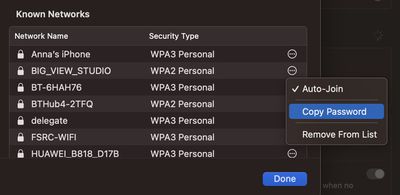
9. Wi-Fi Passwords in Network Settings
Oddly enough, in previous versions of macOS, if you were connected to a Wi-Fi network but couldn't remember the password you used to connect to it, there was no way to access it in network preferences, which meant you had to locate it in Keychain Access.
Thankfully, Apple has corrected this problem in Ventura by adding a convenient new Copy Password option in System Settings -> Wi-Fi.
10. Strong Password Editing
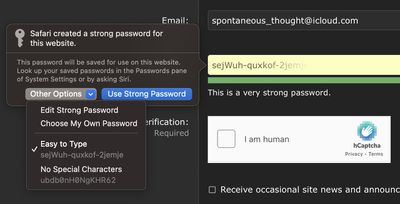
Safari browser's built-in password suggestion feature just got more convenient, as there's now an option to edit a strong password that is suggested by Apple, which allows it to be tailored to site-specific requirements.
Websites sometimes have password creation requirements that include special characters, don't allow for special characters, need a specific length, or ask for other customizations not met by the strong password requirements, which can now be fixed with the edit option.
Click a suggested password, then choose Other Options to access the Edit Strong Password dropdown. From here, you can change the characters that have been suggested. You can also opt for a quick-access Easy to Type or No Special Characters option.
11. Share Safari Tab Groups
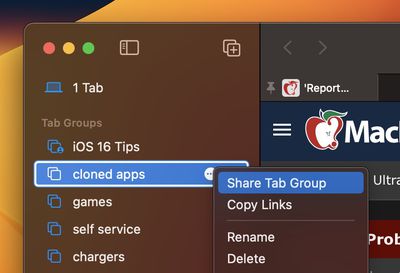
In a Tab Group, you can easily collect and save related tabs, whether the webpages are being used to help you plan a trip or to work on a project. And in macOS Ventura, you can share those tabs with colleagues, friends and family, allowing multiple people to contribute links and work together.
To share a Tab Group, open Safari's sidebar, then click the ellipsis button (three encircled dots) next to a Tab Group in the list and select Share Tab Group. A Share Sheet menu will be displayed for you to choose the desired sharing method.
12. Edit Sent Messages
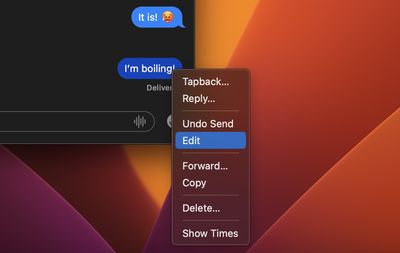
The Messages app has inherited the option seen in iOS 16 to edit sent messages. You can edit a message up to a maximum of 15 minutes after it was sent. Simply right-click on the message in question, then select Edit from the contextual menu.
The feature only works with iMessages, not SMS messages, so both people need to have an Apple device running the latest software for it to work effectively. People on earlier versions of macOS or iOS (and those on Android) will see text that says "Edited to [text]" when receiving an edited iMessage.
Note that when you edit a message, the edit history is sent to the recipient along with the edit, so the original content is still visible.
13. Mark Messages as Unread
Email programs have long given users the ability to mark messages as unread. The feature is useful because it means if you get a message and don't have time to read it or address its contents, you can mark it as unread so that it appears as a new message again.
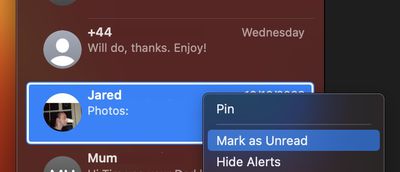
In Ventura and iOS 16, Apple has finally brought the same feature to its Messages app, so you can mark an SMS message or iMessage as new, thereby returning the blue dot to the message to remind you to return to it.
14. Missing Email Attachment?
Most people have experienced the embarrassment of sending an email that refers to an attachment, only to realize when it's too late that they've completely forgotten to include it.
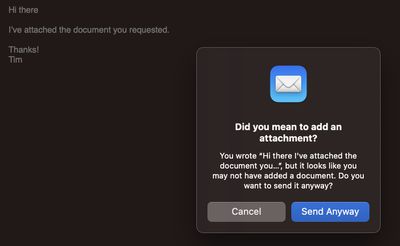
Thankfully that's unlikely to happen anymore, because Mail is now intelligent enough to notify you if you forget to include an attachment before the message is sent. Mail will also alert you if it thinks you've missed recipients from the To field.
15. Undo Send Message
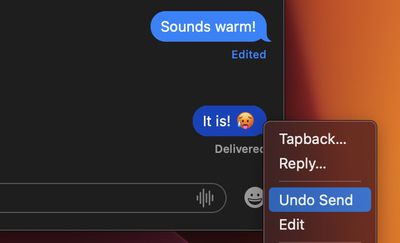
In Ventura, like in iOS 16, it's now possible to unsend an iMessage for up to two minutes after it's been delivered. If more than two minutes have elapsed since you sent the message, you can no longer unsend it (although you may still be able to edit the iMessage).
To use the feature in Messages, simply right-click on the message bubble and select Undo Send. Note that if you try to use the undo send feature on a message sent to someone running an earlier version of macOS or iOS 15 or earlier, it will not work and the message will not be unsent.
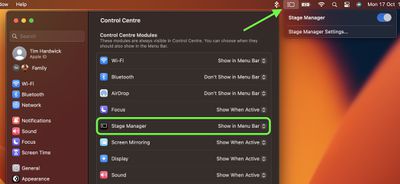
16. Add Stage Manager Icon to Menu Bar
If you like to be selective in your use of the new Stage Manager app window management feature in Ventura, you can enable a menu bar item that gives you quick access to an on/off toggle.
Go to System Settings -> Control Center, find the Stage Manager entry, then select Show in Menu Bar in the dropdown menu beside it.
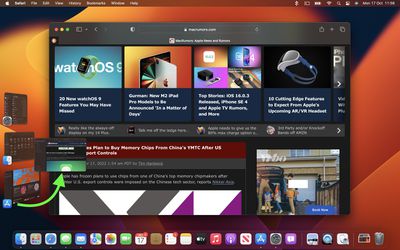
17. App Sets in Stage Manager
When using Stage Manager with multiple sets of apps, you can bring individual apps from inactive sets into the active set that's front and center.
Either drag app windows from parked sets, or better, shift-click them to bring them into the active set.
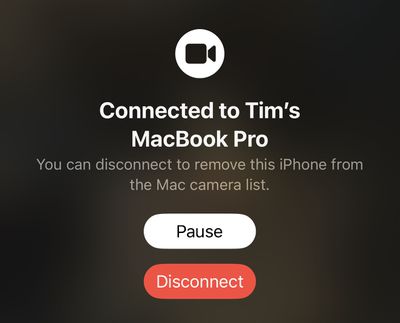
18. Continuity Camera
In Ventura, Continuity Camera lets you use your iPhone (XR and later models) as your webcam in FaceTime, Photo Booth, Zoom, and any other app that can use a camera, including web browsers.
It works wired or wirelessly, and your Mac will automatically switch to using iPhone as a camera input when you bring it close to your Mac. Just make sure both devices have Wi-Fi and Bluetooth enabled, and that they are both signed in using the same Apple ID.
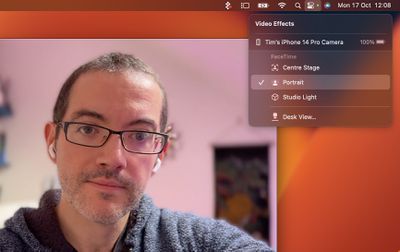
19. Continuity Camera Video Effects
As if Continuity Camera wasn't impressive enough, it also brings the gamut of video effects to Macs, including Portrait mode (iPhone XR and later), Studio Light (iPhone 12 and later), Desk View that mimics an overhead camera (iPhone 11 and later), and Center Stage (iPhone 11 and later), which adjusts the framing as you move to keep you centered in the frame.
With Continuity Camera active, open Control Center from the menu bar, then click Video Effects to switch between the different modes.
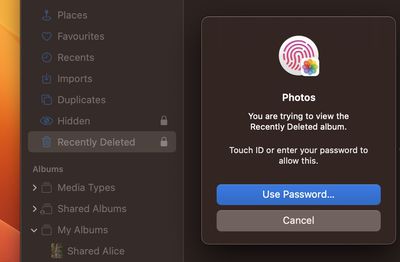
20. Lock Hidden and Recently Deleted Albums in Photos
In previous versions of macOS, the Hidden album in your photo library can easily be made visible via a menu bar option in the Photos app, while any recently deleted photos are available for anyone to peruse while your Mac is unlocked.
In Ventura, however, the Hidden and Recently Deleted albums in the Photos app are locked by default and can only be unlocked using your login password or Touch ID.
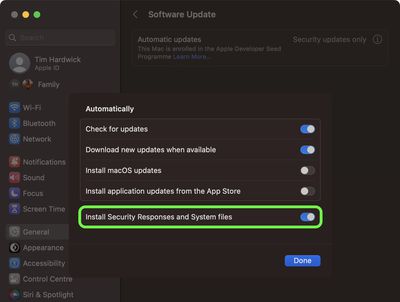
21. Rapid Security Response Updates
In the past, some of Apple's most important point releases of macOS have been linked to critical security updates that are designed to keep you and your private data safe and secure online.
In Ventura, however, the new Rapid Security Response feature allows you to get important security updates without having to update the entire operating system, and you can opt to get them automatically between standard software updates. You can control the associated toggle in System Settings -> General -> Software Update. Tap the circled "i" icon to toggle the requisite switch.
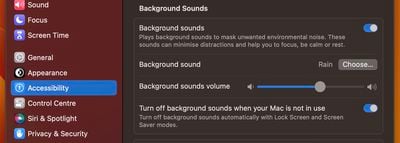
22. Background Sounds
In iOS 15 and iPadOS 15, one of several new accessibility features that Apple introduced was Background Sounds, which is designed to help you stay focused, stay calm, and minimize distractions. You can now access the same Background Sounds in Ventura's System Settings, under Accessibility -> Audio.
The sounds on offer include balanced, bright, and dark noise, as well as natural sounds like ocean, rain, and stream. All of the sounds can be set to play in the background to mask unwanted environmental or external noise, and the sounds mix into or duck under other audio and system sounds. Once you've downloaded a background sound, you can also add the Hearing item to Control Center or the menu bar for quicker access to them (System Settings -> Control Center).
23. Clock App on Mac
Finally, the Clock app on iPad and iPhone is now available on the Mac. It shows the current time when placed in the Dock.
As you'd expect, it includes not only time zone options but also alarm, stopwatch, and timer, all accessible via four tabs in the Clock app interface.
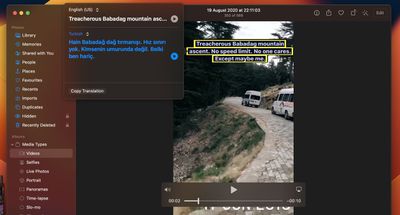
24. Live Text Selection in Video
In Ventura, Apple's Live Text feature can be used in paused video frames, so you can use functions like copy and paste, Look Up, and translate.
Live Text works in Photos, Quick Look, Safari, and other apps that support video. Apple has also added language recognition of Japanese, Korean, and Ukrainian text.
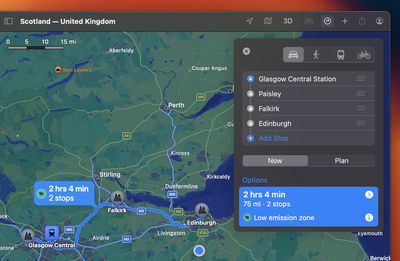
25. Multi-stop Routing in Maps
In Ventura, the Maps app allows you to plan a route that has multiple stops instead of just a single destination. While Google Maps has had this feature for some time, this is the first version of Apple's Maps app to include support for it.
When entering a destination, Apple Maps allows you to add up to 15 locations to stop at en route, and the app will show you the route to each stop in turn.
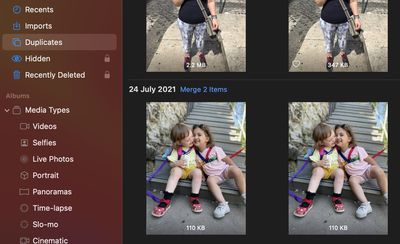
26. Photos Duplicate Detection
Apple has added a new Duplicates album as a sidebar item in the Photos app, which will automatically detect any duplicates in your library and collate them together for your inspection. (Bear in mind that the album only appears if you have duplicate images on your library.)
Inside the Duplicates album, you'll see duplicates listed in chronological order, with a Merge button beside each set. You can tap this button to merge duplicate sets into an individual photo. Even if you take two photos together that are very similar, Apple's merging feature will intelligently keep the highest detail and the most metadata, creating the best possible image.
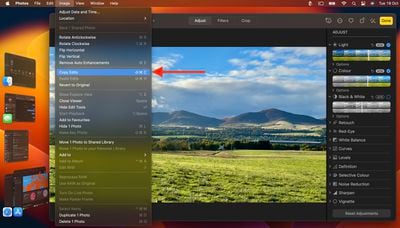
27. Copy and Paste Photo Edits
If you have multiple photos that you want to edit in the same way, or if you've made changes to one photo that you want to replicate in another photo, you can use the new copy and paste edits tools in the Photos app.
To use the new option, first open an image, click Edit, then make your changes. When you're done, choose Image -> Copy Edits from the menu bar, then select the image (or images) you want to paste them to. Finally, choose Image -> Paste Edits from the menu bar.
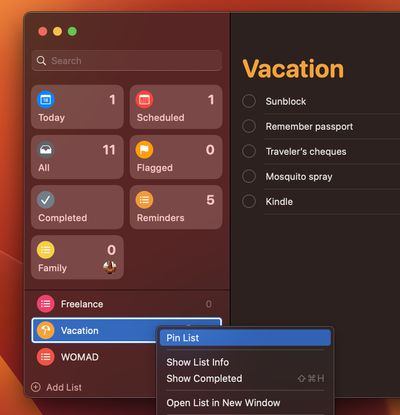
28. Pin Lists in Reminders
In Reminders, you can now pin your favorite list to get to them quickly. Pinned lists appear as panels below your Today, Scheduled, All, Flagged, and Completed lists.
To pin a list, right-click it in the sidebar and select Pin List from the contextual menu.
29. Multiple Watchlists in Stocks
In the Stocks app, you can now create multiple custom watchlists, allowing you to better organize the tickers you follow.
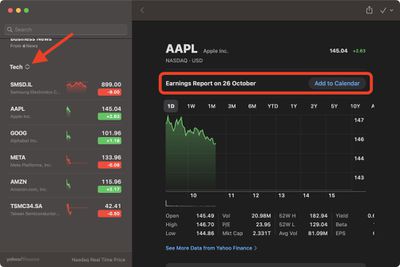
You can also group symbols using the criteria of your choice, such as sector, asset type, ownership status, and more. Stocks will even provide the date for a company's upcoming earnings report, which you can add to your calendar at the click of a button.
30. Lift Image Subject From Background
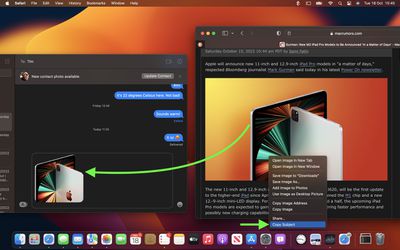
Like in iOS 16, you can lift the subject from an image or isolate the subject by removing the background.
The feature works in Photos, Screenshot, Quick Look, Safari, and more. Just right-click on the image and select Copy Subject from the contextual menu. You can now paste the isolated subject from the clipboard into any app with an input field, such as Messages.
31. Weather App
Previous versions of macOS included a Weather widget, but that's as far as it went, which is why the new dedicated Weather app in Ventura is worth checking out.
If you're coming from an iPhone or iPad, the Mac app will look familiar. It has all of the features of the iOS app, including animated weather backgrounds that change based on the weather at your location, severe weather notifications, air quality monitoring, weather maps, and forecasts.
32 Mail Rich Links
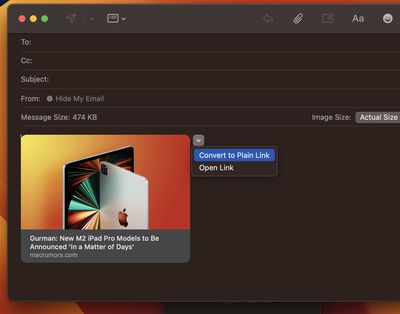
Previously in Mail, if you pasted a URL into a message, it would only display the web address. In Ventura, however, rich link previews display a preview of the website being linked to, offering recipients an idea of the content they can be expected to see if they visit the webpage.
If you don't want to use a rich link when you're composing a message, click the down arrow in the corner of the preview and select Convert to Plain Link.
33. Preview Form Filler
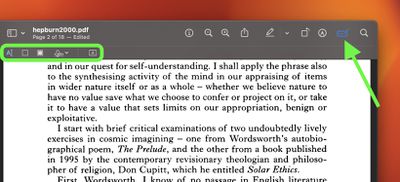
In Preview, there is a new Form Filler toolbox that makes inserting text into forms much easier.
You could previously do this using Markup's text insertion functionality, but that was clunky, and it involved several more clicks to get to and always positioned the text insertion in the middle of whatever page you were on, necessitating a drag of the text to the desired location.
34. Time Machine Backup Frequency
When enabling Time Machine backups, a perpetual little niggle in previous versions of macOS is that you can't change the frequency of backups from the hourly default.
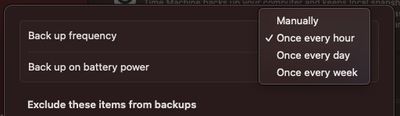
Thankfully, Ventura's Time Machine options now include Manually, Once every hour, Once every day, and Once every week, giving you more flexibility and control over your backups.
35. Favorite Music Artists
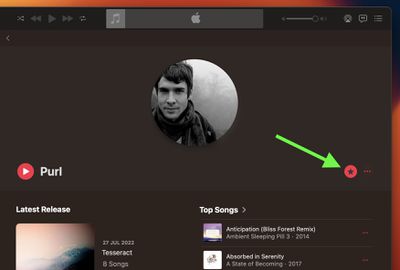
In the Music app, you can now add artists to a "Favorite Artists" list by navigating to their artist profile and clicking a new star button on their page.
Apple says that you'll get better recommendations and notifications about new releases from that artist. Apple Music originally had a similar feature where you could follow artists and receive updates about their music and updates about upcoming releases, but the new Favorite Artists feature is more streamlined and focused on improving push notifications and recommendations surrounding your favorite artists.
36. My Sports Section in Apple News
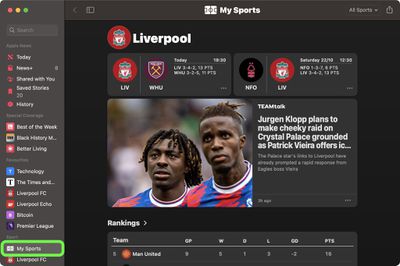
Apple News includes a new "My Sports" section that can be customized to aggregate news and developments related to your favorite teams, leagues, and athletes.
You can find it below For You in the Today section. Click Get Started to set it up.
37. Lock Notes With Login Password or Touch ID
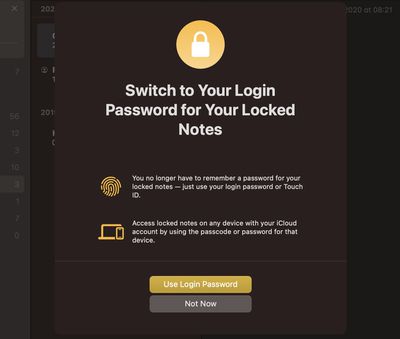
In the Notes app, locking a note required you to come up with a separate password for your notes and remember it if you wanted to access them again.
In Ventura, you no longer have to remember a password for your locked notes. They can now be encrypted with your Mac's login password or Touch ID. Simply right-click the note in question and click Lock Note, and you'll be give the option to Use Login Password.
You can also access locked notes on any device with your iCloud account by using the passcode or password for that device.
38. FaceTime Handoff
FaceTime in macOS Ventura works with Handoff, so a FaceTime call can be accepted on the iPhone and then transferred over to the Mac, or vice versa.
FaceTime Handoff works seamlessly between your devices, and when a call is handed off, if you have a Bluetooth headset connected, it will also transition to the new device.
39. AirPods Settings Menu
Previously in macOS, whenever you connected AirPods to your Mac, you could control Transparency, Noise Cancelation, and Spatial Stereo from the Sound menu bar item, but that was it.
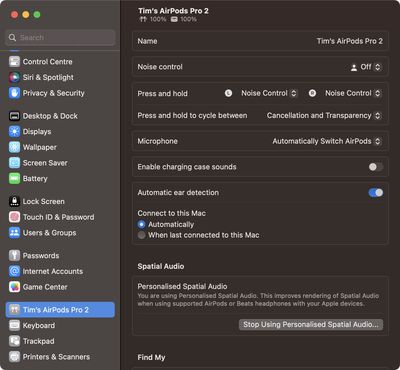
In Ventura, connecting AirPods gets you a complete menu of options in System Settings, where you can control everything from Ear Detection to charging case sounds.
40. USB-C Accessory Security
Ventura includes a new USB-C security feature designed for Apple silicon Macs. Now, new USB and Thunderbolt accessories require user approval before the accessory can communicate with macOS for connections wired directly to the USB-C port.
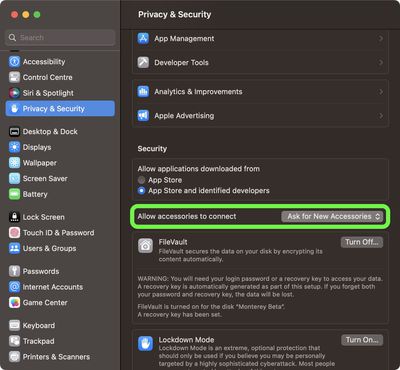
You can change the security configuration in System Settings -> Security and Privacy -> Security. The default configuration is "Ask for new accessories." Configuring an accessibility Switch Control sets the policy to always allow accessory use. Approved devices can connect to a locked Mac for up to three days.
41. Complete Smart List in Reminders
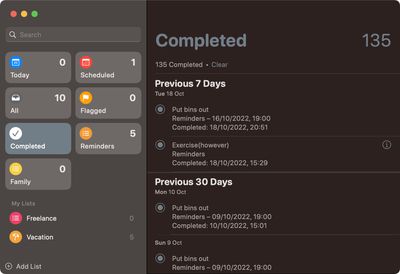
In the Reminders app, there's a new Completed Smart List pane where you can view all of your completed reminders over the previous seven days, previous month, and over the years.
The list includes the time of completion and any other details that were originally filled in for each completed reminder.
42. Game Controller Menu in Settings
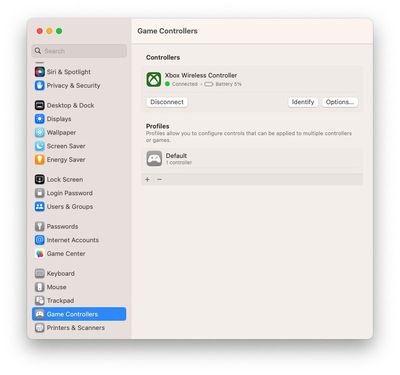
In System Settings, there is a new game controller menu in the app for managing game controllers connected to a Mac. The menu allows macOS Ventura users to map a controller's buttons and thumbsticks to a Mac's keyboard, adjust haptic feedback levels, create profiles with presets for multiple controllers, and more.
macOS Ventura features newly added support for some of the most popular racing wheels, pedals, and shifters for use in racing games on the Mac, including Logitech's G920 and G29 racing wheels, according to Apple's developer website. Apple also says that macOS Ventura supports many additional Bluetooth and USB game controllers, with users discovering that this includes the Nintendo Switch's Joy-Cons and Pro Controller.
43. Lockdown Mode
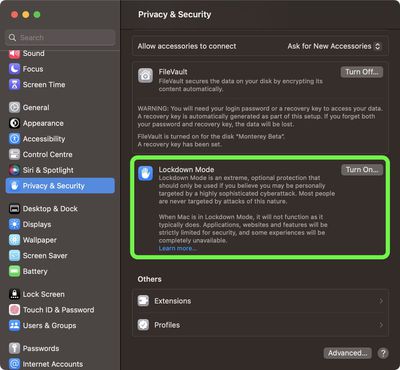
A new macOS security feature in System Settings -> Privacy & Security is Lockdown Mode, which is aimed at protecting a small number of high-profile users who are at risk of targeted cyberattacks from state-sponsored spyware, such as journalists, activists, and government employees.
It is not for the everyday user, and it restricts many iPhone features. In Messages, for example, attachments other than images are blocked, and in FaceTime, calls from people you have not previously contacted are blocked. Complex web technologies and browsing features are blocked in web browsers, shared albums are removed from the Photos app, wired connections are blocked, and configuration profiles cannot be installed. Use wisely.
44. Safari Tab Group Start Pages
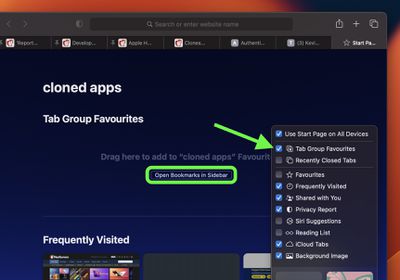
In Safari, individual Tab Groups can now include dedicated Start Pages containing select favorites from your bookmarks, as well as a specific background wallpaper.
With a Tab Group open, open a new Start Page tab, then scroll to down and click the Settings button in the bottom-right corner. Check the box next to Tab Group Favorites. This will create a space at the top of the Start Page for adding your favorites. Click the Open Bookmarks in Sidebar button to start adding them.
45. Turn Off Featured Content in Photos
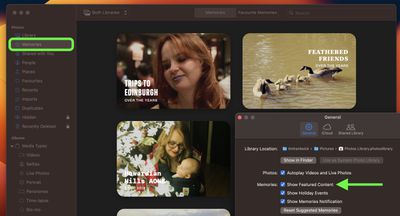
A notable change to the Photos app is that you can now disable featured content like Memories. It's a handy option to have if you don't appreciate what the feature digs up from your past.
Click Photos -> Settings in the menu bar, select the General tab, then in the "Memories" section, uncheck the box next to Show Featured Content. The Memories option in the sidebar will disappear.
46. Multi-Window Support in Stage Manager
In early beta versions of macOS Ventura, Stage Manager would only let you view a single app window, even if multiple windows from the same app were open.
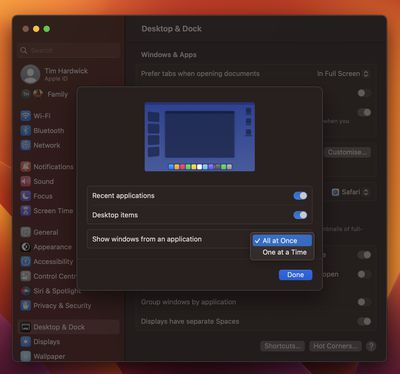
In the final version, however, you can opt to display two or more windows from the one app overlapping or side by side. Go to System Settings -> Desktop & Dock, switch on the toggle for Stage Manager if it's not already active, then click Customize.... Finally, click the dropdown menu next to Show windows from an application and select All at Once.
47. Focus Schedules
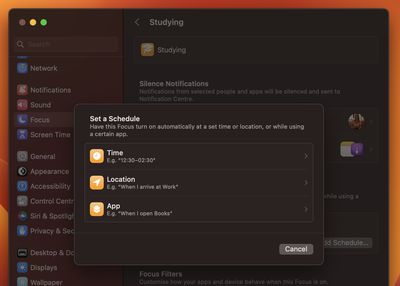
Apple has improved the Focus feature in macOS Ventura with an easier setup mechanism and the addition of Focus schedules, which allow a Focus to turn on automatically at a set time or location while using a certain app.
Apple has also added filter options, so apps like Calendar, Mail, Messages, and Safari can have boundaries that allow only parts of the app to show. In Calendar, for example, a Focus can be set to only show a work calendar, or in Safari, you can set a certain Tab Group to be visible.
48. Enhanced Smart Folders in Notes
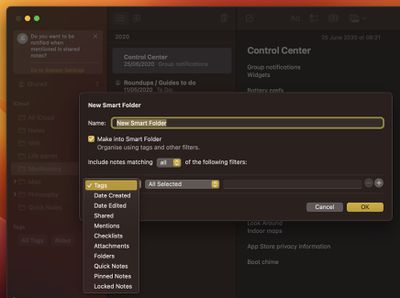
Notes in Smart Folders can be automatically organized based on new filters in macOS Ventura. Rules are available for Date Created, Date Modified, Shared, Mentions, Checklists, Attachments, Quick Notes, Folder, and more.
Apple has also made it so notes are grouped by chronological categories like Today and Yesterday for quick reference, plus there are filter options for Smart Folders and the Tag Browser.
49. Web Page Image Translation
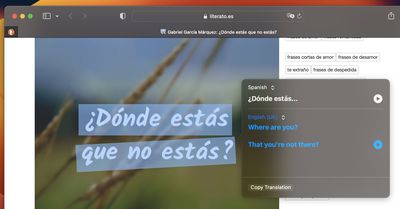
Next time you're browsing in Safari and you come across an image containing a language that you'd like to translate, try selecting the text with your mouse pointer.
Then right-click and select Translate from the contextual menu to get a translation in the supported language of your choice.
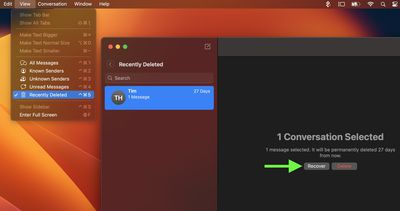
50. Recover Recently Deleted Messages
In the Messages app, you can now recover recently deleted messages for up to 30 days after deleting them.
Select View -> Recently Deleted from the Messages menu bar, select the message conversation you'd like to recover in the sidebar, then click Recover.
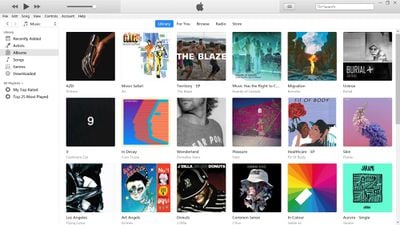
Apple today released an iTunes 12.12.6 update for windows, with the software adding support for the new iPad Pro and iPad and addressing security vulnerabilities.
The updated version of iTunes comes ahead of the Wednesday launch of the updated iPad and iPad Pro models. The iPad features an all-new design that does away with the Home button, bright chassis colors, an updated A-series chip, and a Touch ID power button, putting it nearly on par with the iPad Air.
The iPad Pro features an updated M2 chip, WiFi 6E, and a new Apple Pencil "hover" function that allows the display to detect the Apple Pencil when it is up to 12mm away.
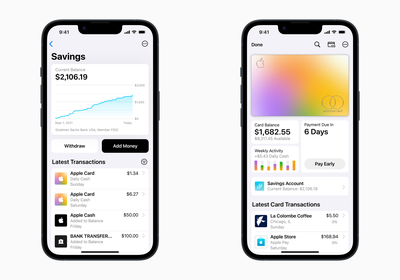
Apple has delayed a new feature that will provide Apple Card users with the option to have their Daily Cash earnings deposited into a high-yield savings account.
During the iOS 16.1 beta testing process, the feature was mentioned as a new Wallet app addition in the release notes for the Release Candidate version of the update, but in the notes for the final version of iOS 16.1, the mention is missing.
"Savings account enables Apple Card customers to grow their Daily Cash by depositing it in a high yield savings account," read the RC release notes.
Apple announced plans for the Apple Card savings account in mid-October, and while the company did not provide specific information on a launch date in the announcement other than suggesting it would be available "in the coming months," it was believed that the savings account would launch alongside iOS 16.1 given the mention in the RC notes for the update.
With no sign of the feature in iOS 16.1, it will now be coming at a later date. When Apple does implement the Apple Card savings account, it will have no minimum fees, no minimum deposits, and no minimum balance requirements. Apple will offer the account through Apple Card partner Goldman Sachs, but Apple has not yet said what the interest rate will be.
Apple Card users will be able to manage their savings accounts through the Wallet app, and once set up, all Daily Cash will be automatically deposited.
Apple today announced that a new version of its privacy-preserving SKAdNetwork framework is now available in iOS 16.1 and iPadOS 16.1.
SKAdNetwork enables advertisers to measure the success of ads by attributing app installations to specific ad campaigns — in other words, it allows advertisers to know how successful an ad is at getting users to download an app from the App Store.
With the launch of SKAdNetwork 4.0 today, Apple says the framework now provides more performance insights and is now available for web ads:
• Hierarchical source identifiers: Identify which campaign an installation was attributed to, as well as additional attribution information. • Coarse conversion values: Receive less specific attribution information when the privacy thresholds for conversion values are not met, or more detailed attribution information when additional privacy thresholds are met. • Multiple conversions: Receive up to three postbacks to better understand how often someone who installed an app from a campaign engages with the app over time. • SKAdNetwork for web ads: Attribute web advertising that directs to App Store product pages.


 Note: MacRumors is an affiliate partner with Amazon. When you click a link and make a purchase, we may receive a small payment, which helps us keep the site running.