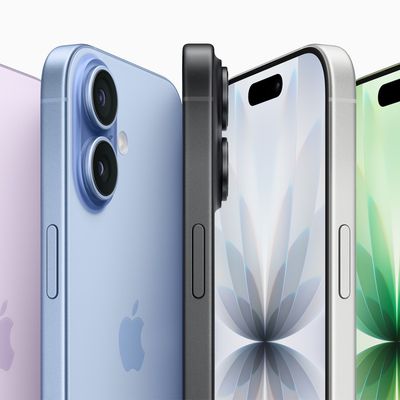
Siri is the voice assistant on Apple devices, equivalent to Amazon's Alexa, Microsoft's Cortana, and Google's Google Assistant. Siri is available across most of Apple's devices, including iPhone, iPad, Mac, Apple Watch, Apple TV, and HomePod.

You can ask Siri all kinds of questions, from simple queries about the weather to more complex questions about everything from sports scores to the number of calories in food. Siri can also enable or disable settings, find content, set alarms and reminders, place calls and texts, and so much more.
This guide covers the basics of Siri, including some of the commands you can use to activate Siri, devices that have Siri included, and devices that support more advanced hands-free "Hey Siri" commands.
Activating Siri
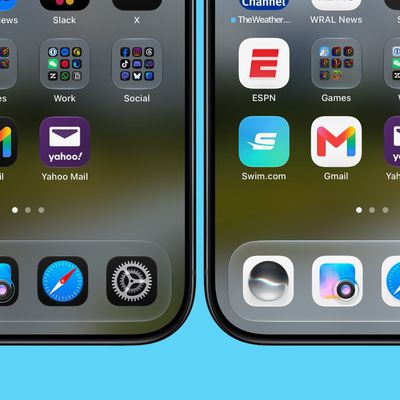
On an iPhone or iPad, Siri can be activated by holding the Home button on compatible models or holding the Side button on devices without a Home button. On iOS 14 and later, on the iPhone and the iPad, Siri pops up as a small icon at the bottom of the device's display, and on devices capable of Apple Intelligence, there is a Siri glow around the display that denotes that the personal assistant is activated.
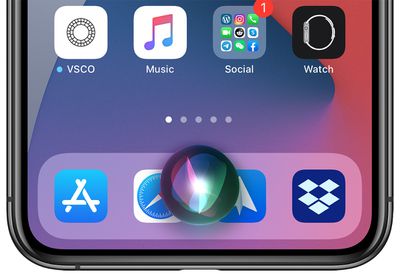
On the Mac, you can click on the Siri app icon on the dock or the menu bar, or press and hold the command key and the space bar. On iPhones, iPads, and Macs, you can activate Siri with a "Hey Siri" wake word.

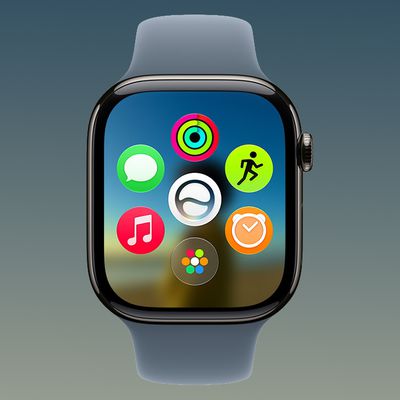
On the Apple Watch, you can say "Hey Siri" to activate Siri. On Apple Watch Series 3 or later with the latest version of watchOS, there's a Raise to Speak feature that lets Siri respond to commands even without the Hey Siri trigger word. Just hold the watch up near your mouth and speak a command. Siri can also be activated by holding down on the Digital Crown.
On first-generation AirPods, a double tap activates Siri, and on second-generation AirPods, Siri can be activated with the "Hey Siri" command.
On HomePod, say "Hey Siri" or press on the top of the HomePod to activate Siri.
On the fourth and fifth-generation Apple TV, hold down the Siri button on the remote (the button with the microphone) to activate Siri. On the sixth-generation Apple TV or models with the newer Siri Remote (the aluminum remote), press on the side button to activate Siri.
Devices Compatible With Siri
Siri is on almost every Apple device, and it's built into macOS, iOS, watchOS, and tvOS. You can activate Siri on Macs running macOS Sierra or later, all Apple Watch models, the Apple TV HD and Apple TV 4K, all modern iPhones, all AirPods models, the HomePod, and the HomePod mini.

Multiple Siri Devices
When multiple devices that can respond to "Hey Siri" commands are available, the devices will use Bluetooth to determine which one should respond to the request so not all of them answer at once. According to Apple, the device that heard you best or the device that was most recently raised or used will respond.
If you have a HomePod, the HomePod will often take precedent and respond to "Hey Siri" requests even when other devices that support the feature are nearby.
Countries Where Siri Support is Available
Siri is available in more than 35 countries around the world, including the U.S., UK, Canada, Australia, New Zealand, and many countries in Asia and Europe.
A full list of countries where Siri is available can be found on Apple's Feature Availability website.
Certain Siri features like translations, sports info, restaurant information and reservations, movie information and showtimes, dictionary, calculations, and conversions are limited to a smaller number of countries.
What Siri Can Do
Below is a list of some of the commands and questions Siri is able to respond to, and some of the actions Siri is able to take.
- Make calls/Initiate FaceTime
- Send/read texts
- Send messages on third-party messaging apps
- Set alarms/timers
- Set reminders/check calendar
- Split a check or calculate a tip
- Play music (specific songs, artists, genres, playlists)
- Identify songs, provide song info like artist and release date
- Control HomeKit products
- Play TV shows and movies, answer questions about them
- Do translations and conversions
- Solve math equations
- Offer up sports scores
- Check stocks
- Surface photos based on person, location, object, and time
- Apple Maps navigation and directions
- Make reservations
- Open and interact with apps
- Find files (on Mac)
- Send money via Apple Pay
- Check movie times and ratings
- Search for nearby restaurants and businesses
- Activate Siri Shortcuts
- Search and create Notes
- Search Twitter and other apps
- Open up the Camera and take a photo
- Increase/decrease brightness
- Control settings
- Tell jokes, roll dice, flip a coin
- Play voicemails
- Check the weather
Apple Intelligence
Starting with iOS 18, iPadOS 18, and macOS Sequoia, Apple made Siri more intelligent on devices that support Apple Intelligence. This includes devices with an A17 Pro chip or later or an M-series chip. These chips are included in the iPhone 15 Pro, iPhone 16 models, all Macs with Apple silicon, all iPads with Apple silicon, and the iPad mini 7.
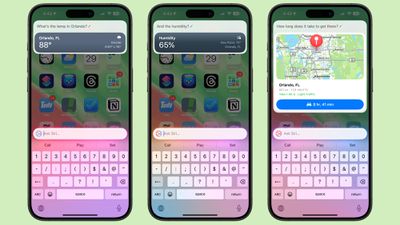
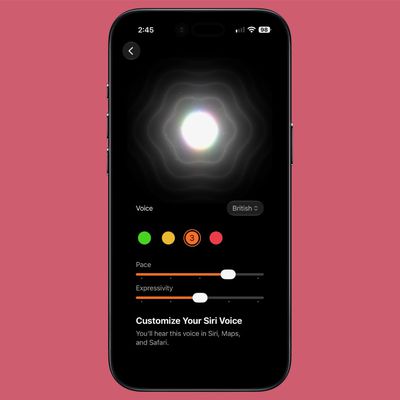
With Apple Intelligence, Siri has a new look. There's now a glow around the edges of the display when Siri is activated, applicable to iPhone, iPad, and CarPlay. On Mac, the Siri window can be placed anywhere. The glow animates responsively to the sound of your voice so you can tell when Siri is listening without interrupting other things you're doing.
Apple also added a Type to Siri feature, so you can type requests to Siri instead of speaking them. To activate Type to Siri, you can double tap on the bottom of the display. On Mac, you need to press the Command key twice to bring up Type to Siri. Type to Siri includes suggested requests so you can get your questions answered faster.
Siri is now able to maintain context between requests so you can ask a question and then reference it in a second reply. If you ask about the temperature in Raleigh, for example, and then follow up with "what's the humidity?" Siri should know you mean in Raleigh. If you stumble over your words when speaking to Siri, or change what you're saying mid-sentence, Siri will follow along.
Siri has Apple's product knowledge and support base for answering questions about your device's features and settings, and can even find settings when you don't know the exact name by using natural language search.
Siri ChatGPT Integration
One of the biggest features in Apple Intelligence is Siri's integration with ChatGPT. Siri ChatGPT integration lets Siri hand requests over to OpenAI's ChatGPT. ChatGPT is off by default, but you can turn it on in the Apple Intelligence and Siri section of the Settings app.
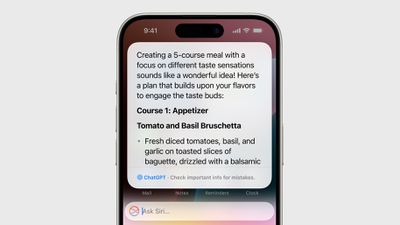
If ChatGPT integration is enabled, Siri will consult ChatGPT for complex requests. Complex requests might include creating an image, generating text from scratch, making recipe ideas based on what's in your refrigerator, describing what's in a photo, and more.
Siri will analyze each request to see if it's something that needs to be answered by ChatGPT, but you can also automatically invoke ChatGPT for a request by using a request like "Ask ChatGPT to give me a chocolate chip cookie recipe." Siri asks your permission before querying ChatGPT, but there is an option to turn off that extra permission step by toggling off "Confirm ChatGPT Requests" in the ChatGPT section of Settings.
You don't need an account to use ChatGPT, and it is free, but if you have a paid account, you can sign in. If you're not signed in, OpenAI does not store any of your ChatGPT requests, nor is your information used for training ChatGPT. If you sign in, ChatGPT can save a copy of your queries. Apple does not store ChatGPT queries.
ChatGPT can be used with Siri, but it is also integrated into Writing Tools and Visual Intelligence. With Writing Tools, ChatGPT can generate text, and with Visual Intelligence, ChatGPT can answer questions about what the Camera sees.
Siri
Apple released some of the Siri features in iOS 18.1, iPadOS 18.1, and macOS Sequoia 15.1, but additional Siri capabilities are coming in later updates to iOS 18, iPadOS 18, and macOS Sequoia. We'll likely see these sometime around the iOS 18.5 update in May. Apple is working on onscreen awareness, personal context, and the ability to take more actions in and across apps.
Onscreen awareness will let Siri take actions when you ask something about what's on your display. If you're looking at a photo and want to message it to your friend Eric, you'll be able to tell Siri to "Send this picture to Eric," and Siri will understand and do it.
Personal context will let Siri do more with your personal data like emails and messages. This is an on-device feature, and it will let Siri learn more about you, who you're communicating with, and how you use your device. Personal context will let you do things like ask Siri to find a specific message, or remind you when you took a photo that you're looking for.
The Siri option to take more actions in and across apps will drastically improve what Siri is capable of. You'll be able to move files from one app to another and control app functions with Siri that you never could before. It'll work in third-party apps as well as Apple's own apps.
Passive Siri
Siri is an active assistant that you can interact with, but Apple has also integrated Siri into other aspects of iOS and watchOS, allowing Siri to make proactive suggestions that you can act on.
On the iPhone, iPad, and Apple Watch, Siri can make various kinds of recommendations. When you're running late for a scheduled meeting, for example, Siri might suggest that you call your boss either on the Home screen or when you swipe down to search and access the Siri Suggestions options.

In Messages and Mail, Siri can suggest things like phone numbers or addresses based on what you've typed, and in Safari, Siri can offer up search suggestions. Siri can do other things like suggest HomeKit scenes to activate, suggest a time to leave when you have an event scheduled, suggest events to add to your calendar from your email, and more. Siri suggestions are all based on your personal device usage habits, so what you see will vary.
On-Device Speech Processing and Personalization
A lot of Siri's speech processing and personalization features are handled on-device, which allows for more security than typical personal assistants that use the cloud for everything. Most audio requests are kept entirely on-device and are not uploaded to Apple's servers, but if ChatGPT is engaged, data is sent to OpenAI, and some Apple Intelligence features also require cloud connectivity.
Apple has designed Private Cloud Compute, a secure way for devices to interface with Apple servers.
Offline Support
With on-device processing now available, there are a wide range of Siri requests that can be handled offline. Siri can create (and disable) timers and alarms, launch apps, control audio playback, and access Settings options. Apple says Siri can also process Messages, sharing, and Phone requests.
Siri Privacy
Siri does send data back to Apple, but searches and requests are not associated with your identity to keep your personal information safe.
Apple does not sell your data to advertisers or other organizations, and end-to-end encryption is used for all data syncing between your devices and the cloud. Apple does sometimes use Siri recordings for improving Siri's performance, but there's now a toggle to opt out of Siri data collection and usage, which can be found in our how to.
Guide Feedback
Have questions about Siri, know a feature we left out, or want to offer feedback on this guide? Send us an email here.