Apple overhauled the Control Center in iOS 18, and it's one of the biggest changes to the iPhone and the iPad outside of the new Apple Intelligence features. The interface is much more customizable, there are more Control Center options, and controls can be accessed from new places.
This guide highlights all of the new Control Center changes that Apple added in iOS 18 (and iPadOS 18).
Reorder Controls
With iOS 17, you could choose some of the controls that were available in Control Center, but in iOS 18, customization goes much further. For the first time, you can rearrange Control Center quick access buttons into a layout that best suits your needs.
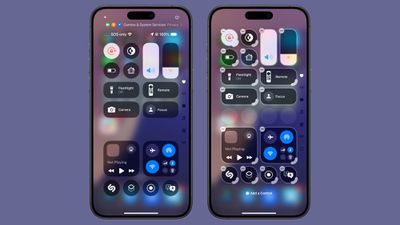
Apple has designed a Home Screen-style grid for the Control Center, with an 8x4 arrangement of open circular spots where different controls can be placed. You can fill up all the empty circle spots, or choose to leave blank spaces between columns and rows.
None of the Control Center buttons are permanent, and every one that you opt to use can be moved, duplicated, deleted, and rearranged as needed. To move controls, follow these steps.
- Swipe down from the right upper corner of your iPhone or iPad display to open up Control Center.
- Long press on any empty space and hold until the grid shows up, or tap on the "+" button at the upper left of the display.
- Use a finger to grab an icon and move it where you want it to be.
- Tap at the top or the bottom of the display to exit the grid mode.
Resize and Delete Controls
Control Center controls can be resized, so you can make your most used buttons bigger and easier to press. Single button controls like Dark Mode, Flashlight, Timer, Low Power Mode, Voice Memo, and Remote can be up to four grid circles in size.
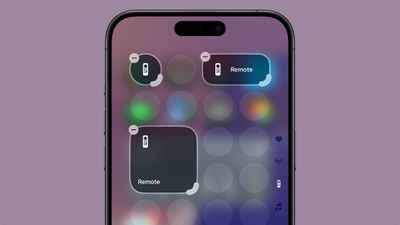
Options include a single grid circle, a two grid circle that's horizontal, which adds the control's name, and a four grid circle arranged in a square shape. The majority of controls are limited to these sizes.
Some modules like volume and brightness can only be two horizontal circles in size, with Apple not offering an option to modify the shape or size. The aggregated connectivity controls can take up four spots of the grid in a square shape, or the entire thing with no options in between.
Controls like those for multiple smart home accessories and scenes have more sizing options and can be four grid spaces long or four spaces in a grid, eight spaces, sixteen spaces, or 24 spaces at maximum. The Now Playing control has a similar set of options, but can take up the entire grid.
To resize controls, follow these steps:
- Long press in an open space in the Control Center or tap the "+" button.
- Grab the bottom right corner of an icon, which has a curved, highlighted marker to indicate that it can be manipulated.
- Drag and pull outward to make a control bigger, or push up and over to make it smaller. There will be minimum and maximum sizes that vary for different controls.
- Tap at the top or bottom of the display to exit the editing menu, or just wait and it will close automatically after a few seconds with no interaction.
To delete any Control Center control, follow the steps above to enter edit mode and tap on the "-" button.
Controls Gallery
Control Center controls are now organized into a gallery that can be accessed from the Control Center interface. To get to the Control Center gallery, long press on the display or use the "+" button to enter editing mode, and then tap on "Add a Control."
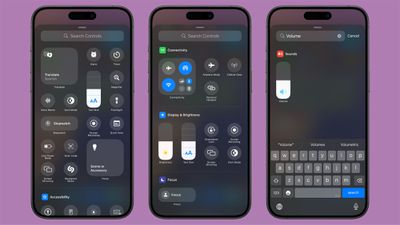
The main part of the gallery has a selection of suggested controls, and if you scroll down, you'll see options organized into the following categories: Accessibility, Capture, Clock, Connectivity, Display and Brightness, Focus, Hearing Accessibility, Home, Motor Accessibility, Notes, Now Playing, Remote, Shortcuts, Sounds, Translate, Utilities, Vision Accessibility, Voice Memos, Wallet, and Watch.
There is a search interface right at the top of the gallery so if you're looking for something specific, you can just search for it rather than having to swipe down to try to locate it manually.
Multiple Screens
Control Center has been just a single screen for the last few years, but that's changing in iOS 18. You can set up multiple screens for your controls, which means you can have dedicated pages for things like connectivity controls, HomeKit devices, and Accessibility options.
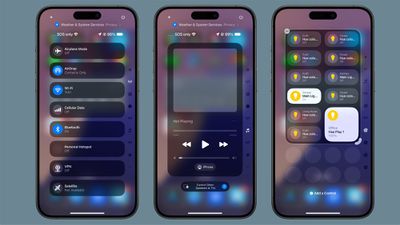
There are multiple pages by default when installing iOS 18, and you can customize them to your liking and add and delete pages. Control Center supports up to 15 separate screens.
Navigating through pages is done by swiping up and down through Control Center, tapping the small icons on the right side of the display, or holding a finger over the icons and scrubbing through them. As you add controls to different pages, Control Center automatically assigns an icon based on what's on the page. You can't customize the icons at this time.
Here's how to add pages:
- Swipe down from the right hand side of the display to get into Control Center.
- Tap on the circle icon at the bottom of the icon list, which denotes a blank page.
- Tap on Add a Control to select the controls that you want to include on the page.
- When finished, tap anywhere at the top or bottom of the display to exit editing mode.
If you add more controls than there are space for, or resize something to be larger than will fit, Control Center will automatically add another page and move the control to that page.
There are some limitations to what can be on a single page. Control Center won't allow you to add a single-sized icon to a page and then create another page - the create new page option won't show up while an existing page still has enough space to accommodate icons. It does offer the option when a page is about half full, which provides enough wiggle room to have spacing between icons.
To remove a page, you just need to delete all of the controls on it following the steps up above.
Power Button
At the top right of the Control Center, Apple added a Power Button to make it easier to turn your iPhone off. To prevent accidental activation, using the Power Button requires a press and hold.
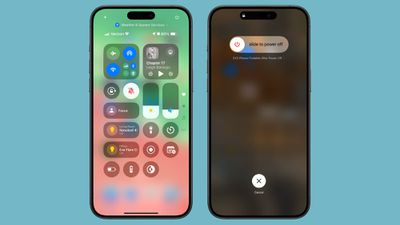
Pressing and holding brings up the shut down interface where you need to swipe to turn your device off, and it locks your iPhone so Face ID or Touch ID will be needed to unlock it again (similar to multiple presses on the side button).
Third-Party Apps
In iOS 18, Control Center is no longer limited to built-in apps and features. Third-party app developers can create controls for their apps, and those can be added to Control Center through the Control Center gallery.
Lock Screen
iOS 18 brings Control Center to the Lock Screen, allowing you to swap out the default Flashlight and Camera icons for new quick access buttons. There's also an option to remove Lock Screen controls entirely.
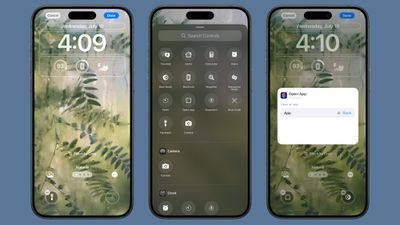
- At the Lock Screen, unlock and long press to get into the Lock Screen editing interface.
- Tap on Customize to customize an existing Lock Screen or tap on the "+" button to create a new Lock Screen.
- Tap on Lock Screen.
- Tap on the "-" buttons on the Flashlight and Camera icons to remove them. Stop here if you don't want to add new controls.
- To swap in something else, tap on the "+" button to open up the Control Center gallery.
- Choose a control from the list or use the search interface.
- When you're finished, tap on Done and then tap on the Lock Screen to exit out of editing mode.
Many of the Control Center options can be put on the Lock Screen, including those from third-party apps. You can activate everything from Dark Mode to Airplane Mode, or open up apps like Notes or Home. There is an option to set any Shortcut to the Lock Screen, or add a control to open any app you have on your device.
With this option in particular, you have a lot of customization options. You can, for example, set a third-party camera app to open instead of the main Camera app, giving you quick access to a non-default camera.
There are some Control Center controls that are not available, such as volume and brightness adjustment, Low Power mode, Bluetooth and Wi-Fi, Focus, and Screen Recording.
For some actions, such as opening an app or activating a Shortcut, Face ID or Touch ID authentication is required for privacy purposes.
Action Button
Control Center controls can also be assigned to the Action Button on devices that support it, which includes the iPhone 15 Pro and iPhone 15 Pro Max.
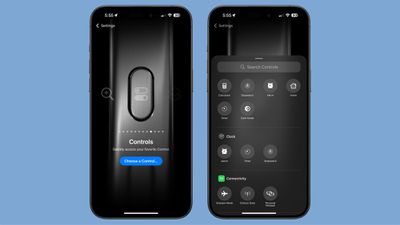
- Open up the Settings app.
- Tap on Action Button.
- Swipe until you get to the Controls option.
- Tap on Choose a Control.
- Scroll down to select a control or use the search interface to find what you're looking for.
- Swipe up to exit the Settings app.
After setup, when you press the Action Button, you'll activate the control that you've set.
There are a limited number of options for the Controls Action Button.
- Calculator
- Stopwatch
- Alarm
- Home
- Timer
- Dark Mode
- Airplane Mode
- Cellular Data
- Personal Hotspot
- Open Music
- Quick Note
- Remote
- Scan Code
- Wallet
- Tap to Cash
- Ping My Watch
Some other features that you would normally find in Control Center, such as the Camera, can be added through other Action Button options.
New Control Center Options
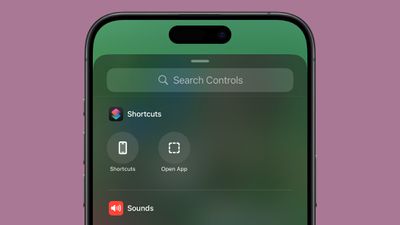
With these changes, there are Control Center options that were not previously available.
- Open Music
- Activate a Shortcut
- Open any app
- Third-party app controls
- Translate
- Print Center
- Tap to Cash
There are also a number of new hearing, motor, and vision accessibility options that can be added. Apple had broader categories for these before, but now there are specifics for things like Voice Control, Assistive Touch, Background Sounds, Live Listen, Headphone Levels, Live Speech, Reduce Motion, Invert, and more.
Settings
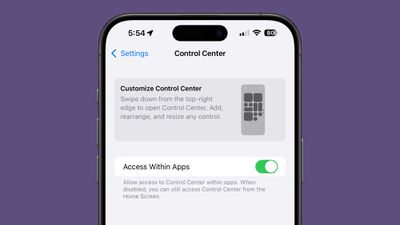
There were a number of Control Center settings in the Settings app in iOS 17, but Apple has eliminated almost all of them because these capabilities are now in the controls gallery. The only option you'll find in the Settings app is Access Within Apps, a toggle for determining whether swiping down on the display brings up Control Center when you're using an app.
Read More
For more on all of the new features that are coming in iOS 18, we have a dedicated iOS 18 roundup.