If your iPhone or iPad is full, there are several things you can do to claw back storage space. In this guide, we run through several options and methods available to free up storage on Apple's iOS and iPadOS devices. Keep reading to learn what they are.
Every new iPhone and iPad model comes with a set storage capacity ranging from 64GB to 1TB for iPhones, and 64GB to 2TB for iPads. While it's always a good idea to buy a model with the biggest storage you can afford, depending on your usage sometimes even the highest storage devices can fill up, and it can happen when you least expect it.
From the music you buy and the apps you download, to the video you shoot and the messages you receive, all of that content has to live somewhere, either on your device or in cloud storage. When your iPhone or iPad storage is full, it's not like you can increase it. What you can do, however, is free up your existing storage. Here's how.
Basic Storage-Saving Tips
Apple is aware that many people struggle to manage storage on their devices, which is why it has introduced more and more tools with successive versions of iOS to help users keep on top of the kinds of apps and media that often eat up precious megabytes.
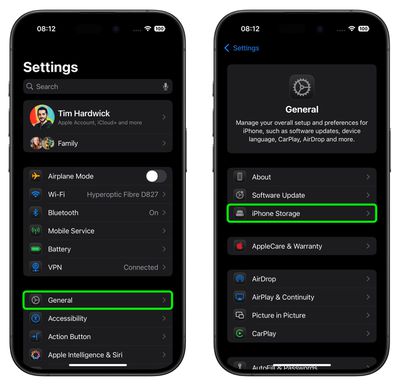
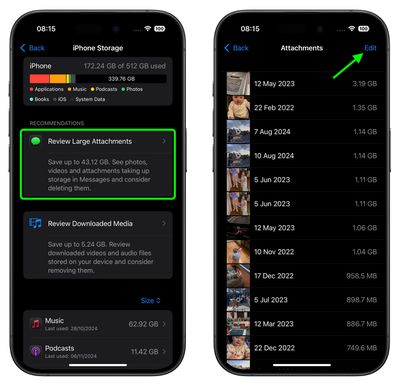
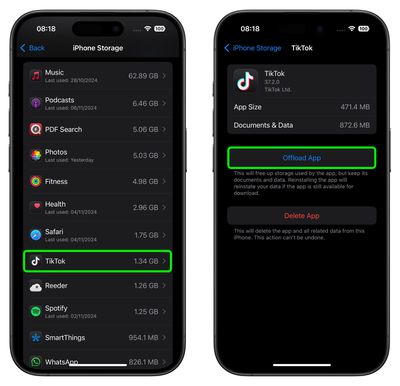
Launch the Settings app and select General ➝ iPhone/iPad Storage, and the amount of storage space you've used is shown in the color-coded bar at the top. Below it, you may see a list of recommendations for optimizing storage, by reviewing and deleting large attachments, for example.
These recommendations are followed by a list of installed apps and the amount of storage each one uses. The list also tells you when you last used each app, allowing you to easily find and delete the apps that you haven't used for a while or not at all.
When you delete an app, its icon, app data, and any user-generated data is removed. That's fine if you don't intend to use the app again, however Apple also lets you offload apps, which frees up storage space, but leaves the app's icon and user data in place. If an app you use a lot is taking up a lot of space, it's worth checking if you can clear any cache associated with it.
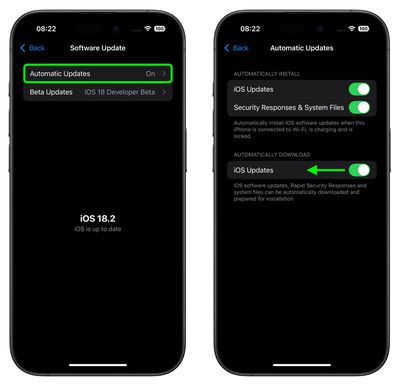
Another option that Apple added to iOS/iPadOS not so long ago is the ability to prevent your iPhone or iPad from from automatically installing software updates. It used to be the case that new software updates were downloaded automatically in the background and then installed through an Automatic Updates feature. However, these days the Settings app includes a toggle that lets you choose whether updates are automatically downloaded or not.
- How to Remove the Apps You Don't Use on Your iPhone and iPad
- How to Delete Apps on iPhone and iPad
- Prevent iPhone From Automatically Downloading Software Updates
- How to Delete Large Attachments on iPhone and iPad
- How to Clear Cache on iPhone and iPad
Reclaim Space Taken Up By Photos
The photos that you keep on your iPhone or iPad naturally take up storage space on your device, which can fill up quickly depending on the available storage capacity and how much content you have.
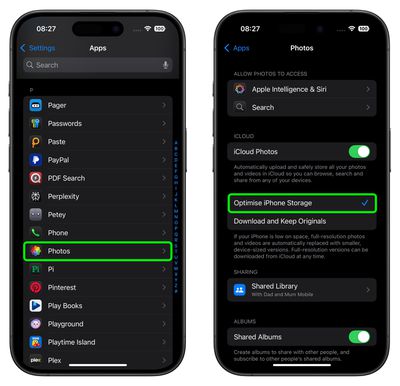
If you see a message that your device's storage is full, it's worth checking out a system option called Optimize Storage, which is designed to work with iCloud Photos. This feature replaces full-resolution photos on your Apple device with smaller, device-sized versions that take up a lot less storage space, while the full-resolution images remain off-device in iCloud.
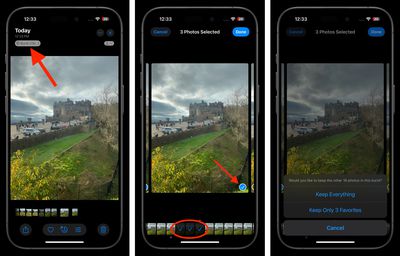
Another way of pruning your photo library is checking for redundant shots taken in Burst Mode. Burst Mode refers to when the camera on your device captures a series of photos in rapid succession, at a rate of ten frames per second.
It's a great way to shoot an action scene or an unexpected event, since you're always more likely to end up with the picture you were aiming for. But it also generates a lot of unwanted images, so it's good practice to pick out the best image for safe keeping, and delete the rest to save on storage space.
If you have an older iPhone, you can also save space when shooting in HDR. On iPhone X and earlier models, when the camera takes an automatic HDR photo, it can also optionally keep the standard shot in your Photo library, which is useful for comparison or for when the HDR picture doesn't come out as expected. However, if you want, you can disable this function and thereby save yourself some storage space.
In some cases, you can find your photo library getting bigger even when you haven't been taking pictures on your device. For example, the media that people share with you over WhatsApp may be automatically saved to your iPhone's Photos app. Fortunately, you can easily prevent this default behavior by disabling Save to Photos in WhatsApp's in-app settings.
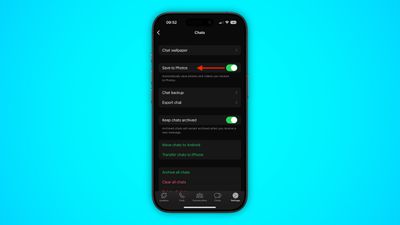
Of course, if your photo library feels like it's ballooned out of control, one solution is to start afresh and delete all the photos on your iPhone. Just make sure you've already backed any up that you want to keep, and be aware that deleting your photos with iCloud Photo Library enabled will delete your photos from ALL of your devices.
- How to Optimize Photos to Take Up Less Storage Space on iPhone and iPad
- How to Delete All Photos From Your iPhone or iPad
- How to Discard Normal Photos When Shooting in HDR
- How to Delete Redundant Burst Mode Photos on iPhone and iPad
- Stop WhatsApp Auto-Saving Media to iPhone Photos App
Reclaim Space Taken Up By Videos
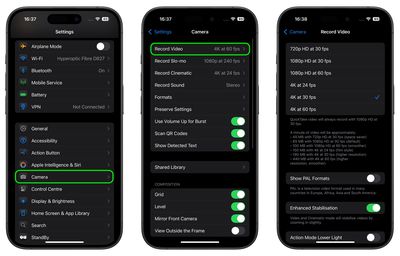
Some of the above photo tips apply to videos stored in your device's photo library. However, there are other ways to prevent video content from eating up storage space. For example, you can customize the resolution and frame rate of recorded video to reduce the file size in Settings ➝ Camera ➝ Record Video.
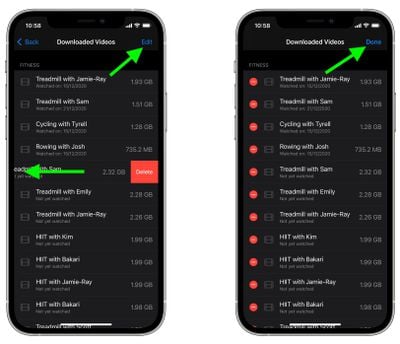
Elsewhere, if you regularly download Apple Fitness+ videos to your iPhone or iPad, check the recommendations in Settings ➝ General ➝ iPhone Storage and you should see them listed under Review Downloaded Videos, where you'll be able to delete them individually or in bulk.
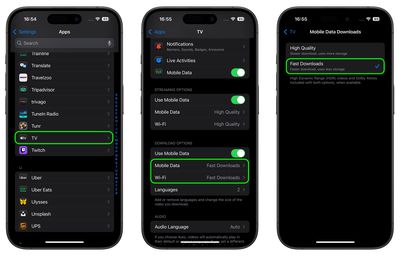
If you have an Apple TV+ subscription, or you've rented or purchased movies, you can download videos using Apple's TV app to watch them offline. However, if you're looking to save space, go to Settings ➝ Apps ➝ TV, then under "Download Options," make sure that you've selected Fast Downloads – this results in lower quality videos, but they use less storage.
- How to Delete Downloaded Videos on iPhone and iPad
- How to Adjust TV App Video Download Settings on iPhone and iPad
- How to Save Storage Space When Recording Video on iPhone and iPad
Reclaim Space Taken By Other Apps/Media
WhatsApp features a built-in media management tool that can help you identify, select, and bulk delete GIFs, photos, and videos that may be filling up your phone.
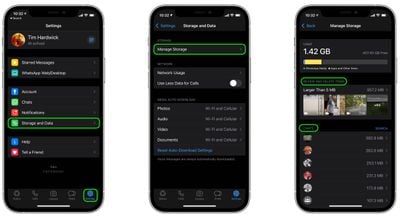
The tool groups together large files and media that has been forwarded many times, sorting files by size in descending order, and provides a way to preview files before deleting them. You can also see a preview of media before selecting one or multiple files to delete. To access the storage management tool, launch the app and go to Settings ➝ Storage and Data ➝ Manage Storage.
If you're an Apple Music subscriber, you can download songs, playlists, and albums from the Apple Music catalog to your iPhone or iPad for offline listening, but this can gradually eat up your device's storage space over time.
Fortunately the Music app includes a handy feature that can spring into action whenever your device's storage space runs low, and automatically offload songs you haven't played for a while in order to make space for newer ones.
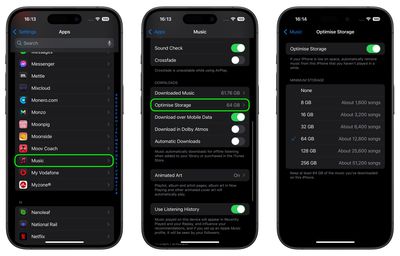
Check Settings ➝ Apps ➝ Music ➝ Optimize Storage, and make sure the Optimize Storage switch is enabled. From here, you can also choose a minimum storage amount that you want to keep for music before downloaded songs start being removed from your device. You can also monitor storage space by turning off automatic downloads in Settings ➝ Apps ➝ Music and downloading new songs manually when needed.
Of course, Apple Music users can also remove songs and whole albums in the Music app. Simply press and hold an item, select Delete From Library from the pop-up menu, and then tap Delete Album/Song when prompted.
There are several ways to trim fat from the Messages app. For example, iOS can be automated to discard old messages that have been on your device for longer than a specific period of time.
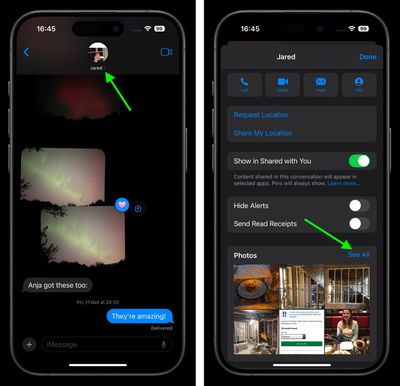
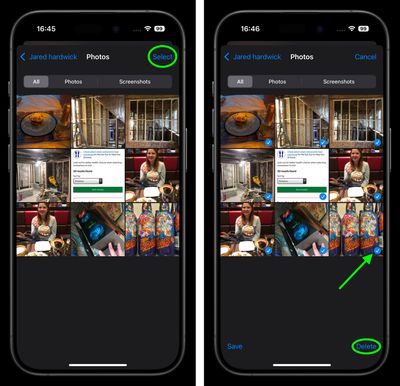
In addition, if you tap the contact bubble(s) and at the top of a Messages conversation, you can also see every file that has been sent to you in the chat thread in one easily accessible location, where you can remove them all in one fell swoop.
Other Apple apps that are worth checking include the Books app and the Voice Memos app. If you listen to a lot of audiobooks, try nixing your back catalog, and review any old Voice Memo recordings to see if you need them any more.
- How to Review and Delete WhatsApp Media
- How to Limit the Space Apple Music Takes Up on Your iPhone
- How to Remove Downloaded Apple Music Songs to Free Up Storage Space
- How to Auto-Delete Old Message Conversations on iPhone and iPad
- How to Delete Messages Attachments on iPhone and iPad
- How to Delete Downloaded Books and Audiobooks From iPhone and iPad
- How to Delete Voice Memo Recordings on iPhone and iPad
Wrapping Up
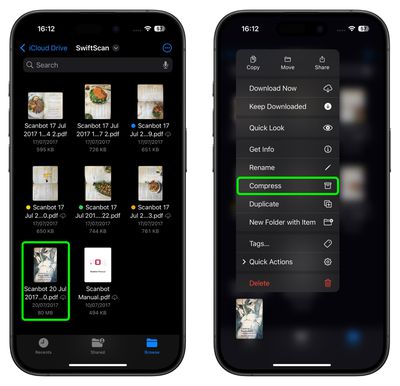
We've run through the main storage-saving tips for iPhone and iPad, but depending on your use case, there may be other ways that you can free up space on your device. For instance, if you do a lot of on-device file management in the Files app, consider compressing large files and folders by selecting Compress from the contextual pop-up menu.
If you're still short on space and you've exhausted all the above options, it may be worthwhile resorting to the "nuke" option – a clean install – by erasing your device and starting again. If that doesn't help, it could be time to upgrade your device.
Got any more tips we haven't mentioned here? Let us know in the comments, or Send us an email.