With iOS 17 and tvOS 17, you can make FaceTime calls on Apple TV and use your iPhone or iPad as the front-facing camera. Here's how it works and how to use it.

In tvOS 17, there's a new FaceTime app for Apple TV, but to use it you need an iPhone running iOS 17 or an iPad running iPadOS 17. That's because the Apple TV doesn't have a camera or microphone, so the iPhone or iPad connects wirelessly and serves as the video camera and mic during the FaceTime call.
What You Need
FaceTime on Apple TV requires an iPhone XS, iPhone XR, and later, iPad Pro 12.9-inch (3rd generation and later), iPad Pro 11-inch (1st generation and later), iPad (8th generation and later), iPad Air (3rd generation and later), and iPad mini (5th generation and later) with Apple TV 4K (2nd generation and later) running tvOS 17 or later.
Start a FaceTime Video Call on Apple TV
- On Apple TV, select the FaceTime app, then select the user whose iPhone you want to use as the Continuity Camera.
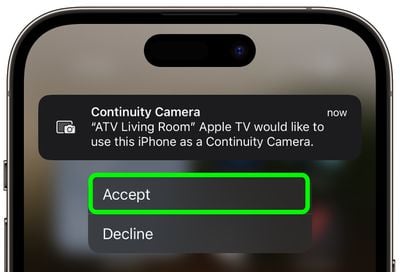
- Tap the Continuity Camera alert on your iPhone, then tap Accept.

- Next, position your iPhone near the TV in landscape orientation with the rear camera facing you.
- With the iPhone camera in position and streaming to the Apple TV, use your Siri Remote to select the options on the screen: choose Center Stage to keep you in the frame as you move around, Portrait to focus in on you and blur the background, and Reactions to let you trigger screen effects using physical gestures.
- When you're happy with the camera setup, select someone to call from the contacts list along the side of the TV screen.
When the person answers your call, they will appear fullscreen and your iPhone camera's stream will be minimized to the corner of the screen.

During the call, there are also screen options to Add another person to the call, start a SharePlay session, Mute the call, turn the Camera on/off, and End the call. Note that you can also handoff a call from the Apple TV to an iOS device if you need to move to another room, and vice versa.