Apple Adds 'Test Alerts' Toggle to iPhone Just in Case You Really Want to Receive Test Emergency Alerts
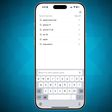
Apple has added a new "Test Alerts" toggle to the Settings app in iOS 15.6 and the third beta of iOS 16. The toggle is visible only on iPhones connected to a U.S. carrier and allows users to enable test emergency alerts from the U.S. government.
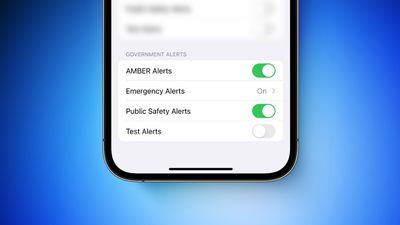
Turning on "Test Alerts" enables test emergency alerts to be received on both the iPhone and Apple Watch. The toggle is located in the Settings app under Notifications → Government Alerts and is turned off by default. Apple says the government is responsible for the content and the frequency of the test alerts.
It was already possible to enable test alerts on previous versions of iOS by installing a special profile from Apple or dialing a code in the Phone app. The toggle simply provides users with an easier way to opt in to receive test alerts.
Apple has updated support documents for the iPhone and Apple Watch with more details.
(Test Alerts graphic based on screenshot shared by via @MikeBeas)
Popular Stories
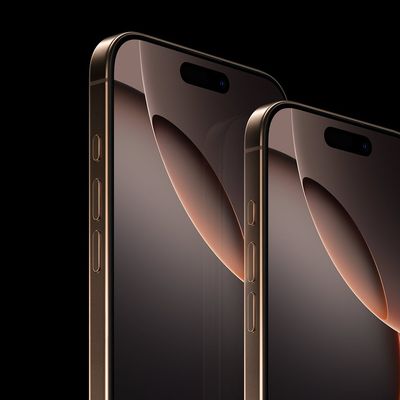
Since the iPhone X in 2017, all of Apple's highest-end iPhone models have featured either stainless steel or titanium frames, but it has now been rumored that this design decision will be coming to an end with the iPhone 17 Pro models later this year.
In a post on Chinese social media platform Weibo today, the account Instant Digital said that the iPhone 17 Pro models will have an aluminum...
Apple is continuing to refine and update iOS 26, and beta three features smaller changes than we saw in beta 2, plus further tweaks to the Liquid Glass design. Apple is gearing up for the next phase of beta testing, and the company has promised that a public beta is set to come out in July.
Transparency
In some apps like Apple Music, Podcasts, and the App Store, Apple has toned down the...
The calendar has turned to July, meaning that 2025 is now more than half over. And while the summer months are often quiet for Apple, the company still has more than a dozen products coming later this year, according to rumors.
Below, we have outlined at least 15 new Apple products that are expected to launch later this year, along with key rumored features for each.
iPhone 17 Series
iPho...
Apple should unveil the iPhone 17 series in September, and there might be one bigger difference between the Pro and Pro Max models this year.
As always, the Pro Max model will be larger than the Pro model:iPhone 17 Pro: 6.3-inch display
iPhone 17 Pro Max: 6.9-inch displayGiven the Pro Max is physically larger than the Pro, it has more internal space, allowing for a larger battery and...
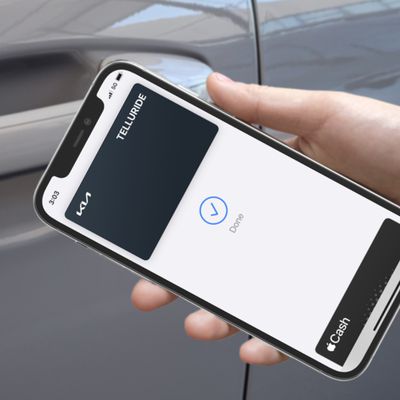
In 2020, Apple added a digital car key feature to its Wallet app, allowing users to lock, unlock, and start a compatible vehicle with an iPhone or Apple Watch. The feature is currently offered by select automakers, including Audi, BMW, Hyundai, Kia, Genesis, Mercedes-Benz, Volvo, and a handful of others, and it is set to expand further.
Apple has a web page with a list of vehicle models that ...
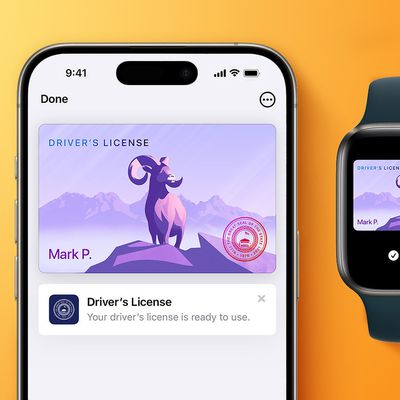
In select U.S. states, residents can add their driver's license or state ID to the Wallet app on the iPhone and Apple Watch, providing a convenient and contactless way to display proof of identity or age at select airports and businesses, and in select apps.
Unfortunately, this feature continues to roll out very slowly since it was announced in 2021, with only nine U.S. states, Puerto Rico,...
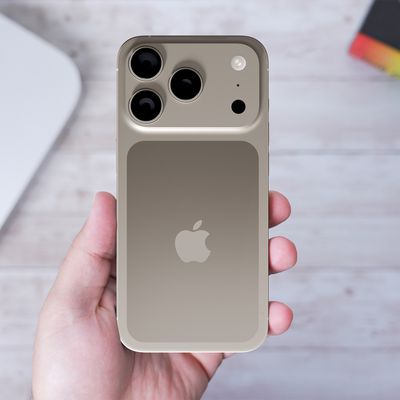
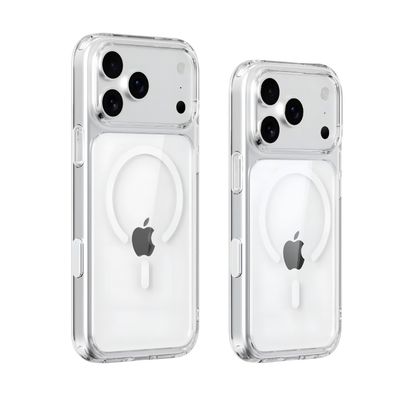
New renders today provide the best look yet relocated Apple logo and redesigned MagSafe magnet array of the iPhone 17 Pro and iPhone 17 Pro Max.
Image via Majin Bu.
Several of the design changes coming to the iPhone 17 Pro model have been rumored for some time, such as the elongated camera bump that spans the full width of the device, with the LiDAR Scanner and flash moving to the right side.
...
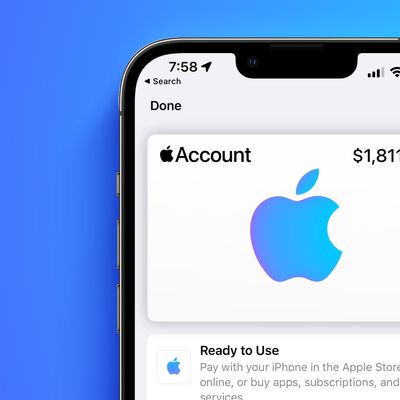
Apple is expanding the ability to add an Apple Account Card to the Wallet app to more countries, according to backend Apple Pay changes.
With iOS 15.5, Apple updated the Wallet app to allow users to add an Apple Account Card, which displays the Apple credit balance associated with an Apple ID.
If you receive an Apple gift card, for example, it is added to an Apple Account that is also...
Apple's next-generation iPhone 17 Pro and iPhone 17 Pro Max are just over two months away, and there are plenty of rumors about the devices.
Below, we recap key changes rumored for the iPhone 17 Pro models.
Latest Rumors
These rumors surfaced in June and July:Apple logo repositioned: Apple's logo may have a lower position on the back of the iPhone 17 Pro models, compared to previous...