

Apple has separated its three time-based categories into separate apps on Apple Watch. This allows you to quickly access the specific feature of the timer, alarm, and stopwatch you want with just a few taps.
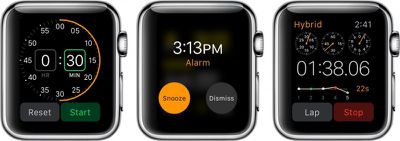
While most of it is self-explanatory, we've got some tips for how to get the most out of each of these apps so they work the way you want, when you want.
Timer
The Timer app on Apple watch makes it possible for you to set a timer right from your wrist so you don't have to search out your iPhone to activate or even turn off the alert when time is up.
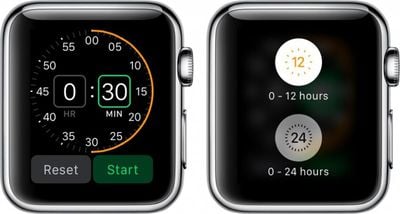
Tap the Timer app icon on Apple Watch to open it. Then rotate the Digital Crown to adjust the time. When ready, tap the Start button.
You can switch between a timer that goes from zero to 12 hours and a timer that goes from zero to 24 hours by firmly pressing the display screen.
Alarm
The Alarm app on Apple Watch is completely separate from the iPhone, but the two are not mutually exclusive. Alarms will not sync between devices. However, if you are wearing Apple Watch when an alarm goes off on your iPhone, you will receive an alert and be able to dismiss or snooze it.
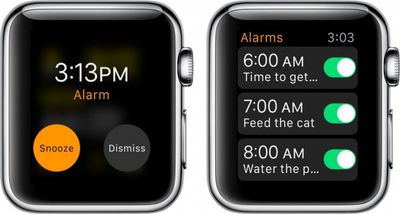
To set an alarm on Apple Watch:
- Open the Alarm app on Apple Watch.
- Firmly press the screen to call up the add (+) symbol.
- Change the time and repetition. Name the alarm using Dictation. Turn on or off the snooze feature.
- Toggle the alarm on or off when you want to activate it.
To delete an alarm, tap it. Then, scroll to the bottom and tap Delete.
Stopwatch
The Stopwatch app on Apple Watch is robust with multiple options for tracking your fitness routine and other activities you might want to use a stopwatch with.
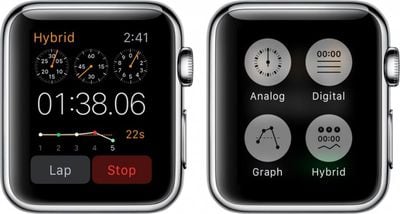
There are four different types of stopwatches. To access the different types, firmly press on the screen to call up the four stopwatch icons.
Analog:
The Analog display shows the seconds on a minute clock face. Tap the green button to start the stopwatch. Tap the white button to set a new lap or reset the data. Tap the red button to stop the stopwatch.
Digital:
The Digital display shows the minutes, seconds, and milliseconds as digital data. Tap the Start button to start the stopwatch. Tap the Lap button to set a new lap. Tap the Stop button to stop the stopwatch. Tap Reset to clear the data.
Graph:
The Graph display shows the information on a graph based on how much more or less time each lap uses. Follow the instructions for the Digital display to control the Graph display.
Hybrid:
The Hybrid display shows the most important features of all three. The analog clock face shows the minutes, seconds, and milliseconds, as does the digital data. The graph shows your progress as it pertains to the previous lap. Follow the instructions for the digital display to control the Hybrid display.
With the Timer, Alarm, and Stopwatch apps on Apple Watch, you can quickly and easily access the same features available within the iPhone's Clock app, but without having to navigate through so many sections. Each app is specially designed to optimize its most important features.








Top Rated Comments
Good article.