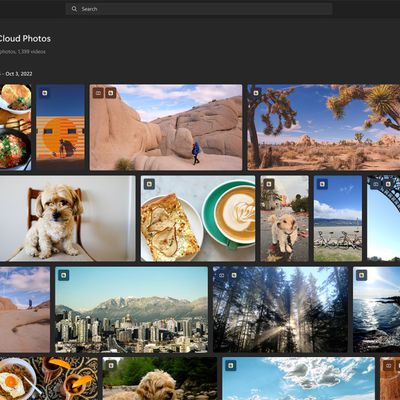
iCloud Photos is Apple's service that allows users to store their photo and video libraries in the cloud, making them accessible on all Apple devices and on the web through the iCloud.com website. iCloud Photos simplifies the photo taking and storing process by allowing users to get to their images no matter which of their devices are in use.
Turning on iCloud Photo Library
-
iOS: Open the Settings app, tap on your profile picture, tap on iCloud, and then tap on "Photos." Make sure that "Sync this Phone" is turned on. You can also access the option in the Photos section of the Settings app.
-
macOS: Open System Settings and click on your Apple ID profile. Click on iCloud, choose "Photos" and toggle on "Sync This Mac."
-
Apple TV: On an Apple TV HD or Apple TV 4K, head to the "Users and Accounts" section of Settings and select your name. Scroll down to "Photos" under iCloud, tap into the option, and then toggle on "iCloud Photos."
-
iCloud.com: Photos stored in iCloud Photos are also accessible through Apple's web-based iCloud.com service. Through the web interface, users can upload or download photos, browse via Moments and Albums view, print or email photos, and mark individual photos as favorites.
Note that to access your photos on a device, you need to be signed in to your Apple ID and iCloud Photos needs to be enabled on the device.
iCloud Photos Settings
The Photos apps for Mac, iPhone, and iPad are built to work with iCloud Photos, although users can opt to use local photo libraries on their devices if they prefer. Users choosing to turn on iCloud Photos have the choice of storing the original photos on their Mac or iOS device, which is ideal for offline access, or a more flexible optimized arrangement that stores originals locally if you have enough storage space but uses lower-resolution versions if local storage is tight and only downloads the full-resolution versions from iCloud as needed.
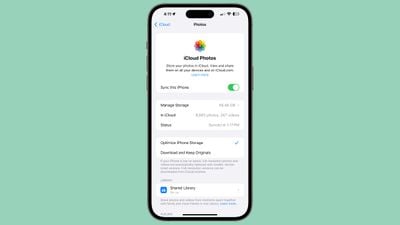
Optimization settings can be selected on iOS devices by opening up the iCloud interface as outlined above on an iPhone or iPad. Toggling on "Optimize Phone Storage" will replace full-resolution photos and videos with smaller, device-sized versions, while full versions are stored in iCloud and can be downloaded anytime.
On a Mac, opening up the Photos app, going to Settings, and selecting iCloud will allow you to select the "Optimize Mac Storage" option or download full-size originals on the device.
On the iPhone or iPad, tapping into the iCloud Photos settings will show you how much storage your images and videos are taking up, how many images are in iCloud, and the syncing status so you can see if everything has been uploaded from your device to the cloud.
Using iCloud Photos
Once you understand that iCloud Photos stores and syncs photos across devices, usage is very straightforward and it behaves very much like a local photo library stored on the user's machine. Users can freely manage, edit, and save their photos as they have always done, with the added bonus of that work automatically appearing wherever they have iCloud Photos enabled. The original photos always remain stored in iCloud, making it easy to revert any edits made on a device.
As with a local photo library, users can include photos from any source and are not limited to images and videos from Apple devices. A range of content types from any source can be added to the user's library on one device using the import functionality, and the images and videos will sync to all other devices.
One important consideration when deciding whether or not to use iCloud Photos is that it is an all-or-none proposition on a given device unless the user chooses to use multiple photo libraries on macOS. With a single photo library, there is no option to sync only some photos while the remainder is stored only locally. For example, users can not opt to have only their iOS device photos synced to their Mac via iCloud Photos but not have their full library of photos in the Photos app for Mac synced to iCloud and the user's other devices unless they want to manage multiple libraries.
Photos are stored in iCloud Photos at their full resolutions and in their original formats. Common formats like HEIF, JPEG, RAW, PNG, GIF, TIFF, HEVC, and MP4 are all supported, as are special formats captured on iOS devices like slo-mo, time-lapse, and Live Photos.
Pricing
iCloud Photos taps into a user's iCloud account storage, which is also used for iCloud Drive document storage, device backups, and more. iCloud users receive 5 GB of storage for free, but users who wish to back up their devices to iCloud frequently find they need more than that, and iCloud Photo Library will only increase the need for additional storage.
Apple offers several paid storage tiers for iCloud, priced on a monthly basis and ranging from 50 GB to 12 TB. The lowest paid plan at 50 GB costs $0.99/month in the U.S., with Apple also offering a 200 GB plan for $2.99/month, a 2 TB plan for $9.99/month, a 6 TB plan for $29.99 per month, and a 12TB plan for $59.99 per month.
If you fill up your iCloud storage allotment, new photos and videos will no longer be uploaded to iCloud, and libraries will no longer be synced across devices. In order to restore iCloud Photos functionality, users will need to either upgrade to a larger storage plan or reduce storage usage by manually deleting certain photos or other files from iCloud.
Turning Off iCloud Photos
So what if you've turned on iCloud Photos and later decide you don't want to use it anymore, either for a specific device or across all devices? On a specific device, iCloud Photos can be disabled the same way it was turned on, through the iCloud portion of the Settings app on iOS device or System Settings or Photos preferences on a Mac. If you are currently storing optimized versions of your photos, your system will give you the opportunity to download the full-resolution photos from iCloud, at which point you will have a complete local photo library on your device.
If you prefer to turn off iCloud Photos entirely, you can head to the Manage Storage section of iCloud settings either in the Settings app on an iOS device or System Preferences on a Mac. In that section, you can choose to Disable and Delete iCloud Photo Library, after which point you will have 30 days to download your library to at least one device before it is removed entirely.
iCloud Shared Photo Library
As of iOS 16, there is an iCloud Shared Photo Library option that allows multiple users to share a single library. Each participant can view photos, contribute photos, and edit photos. iCloud Shared Photo Library can be set up in the Photos app or the iCloud Photos section of the Settings app on an iPhone, iPad, or Mac.
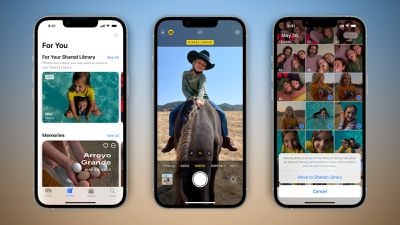
Full details on iCloud Shared Photo Library can be found in our separate guide.
Wrap-up
iCloud Photos represents one of Apple's key efforts to streamline the experience of using multiple devices, many of which have been bundled under the "Continuity" umbrella. Many of these Continuity features tap into iCloud as a method for linking various devices, and iCloud Photos takes that one step further to ensure the users' photos are available regardless of which device they are currently on.