Google includes a Live Captions transcription feature in version 89 of its Chrome browser for desktop. Live Captions uses machine learning to create a real-time transcription for videos or audio played through the browser, which can make online media more accessible for members of the Deaf community and other people with hearing loss.
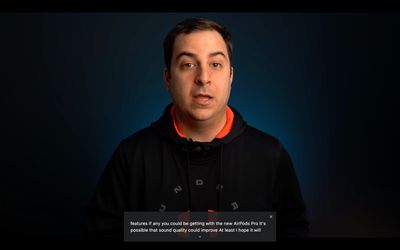
Once enabled, Live Captions appear in a box in the bottom of the browser whenever you play audio or video that includes people talking. It works on everything from YouTube videos to podcasts played in Spotify's web player, although the words do appear after a slight delay and aren't always 100% accurate.
It's also worth mentioning that the feature only seems to work for spoken English at the time of writing, but it's generally pretty good at transcribing speech where captions may not have been available otherwise. Here's how to get it working.
How to Enable Google Chrome's New Live Caption Feature
- Launch Google Chrome on your desktop.
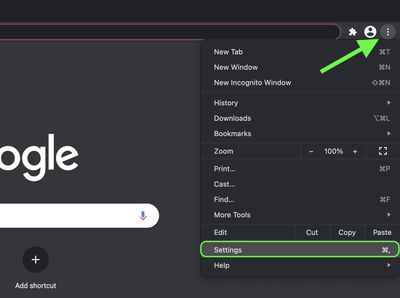
- Click the customize button in the top-right corner of the browser window (the vertical column of three dots).
- Click Settings in the dropdown menu.

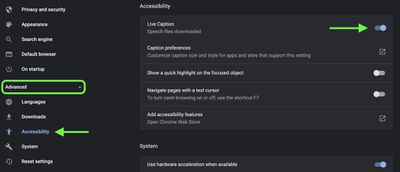
- Click the Advanced heading to expand the section, then select Accessibility.
- Click the switch next to Live Captions to enable it. If you don't see the option, make sure you're updated to Chrome 89 (Settings -> About Chrome). If the browser's already up-to-date, quit the app and then relaunch it, and you should see the new Live Captions setting appear.
As soon as you enable Live Captions, Chrome will begin downloading speech recognition files, a process that should take only a few seconds. Once it's finished, you should see an automatic transcription whenever someone is talking in video or audio that's being played back through the browser.
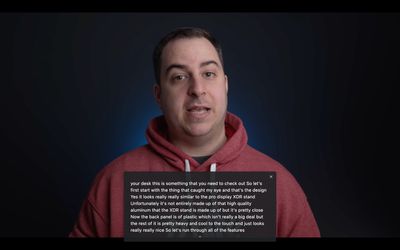
You can expand the live transcription box to make it larger by clicking the small chevron at the bottom of the overlay, and drag it around the screen for better positioning. Captions will also appear if you mute the audio or have the volume turned down, allowing you to follow videos or podcasts without distracting anyone in the vicinity.