Skip to Content

How to Transfer Files Between an Apple Silicon Mac and Another Mac

by

If you have a newer Apple Silicon Mac and an older Intel Mac lying around, you can connect the two using Sharing Mode, so that the older Mac appears as an external hard disk to your new machine.
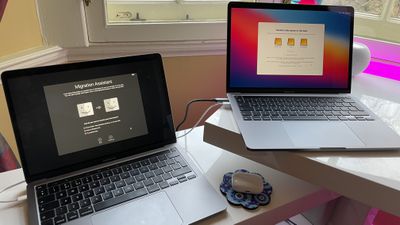
transfer files between macs
Sharing Mode on ‌Apple Silicon‌ Macs replaces the older Target Disk Mode found on Intel Macs, and can be used similarly to transfer data between two Macs. Mac Sharing Mode turns the system into an SMB file sharing server, providing another Mac with file-level access to user data.

Using the method described below will allow you to easily transfer your files across from an older Mac to a new ‌Apple Silicon‌ Mac. Keep reading to learn how it's done.

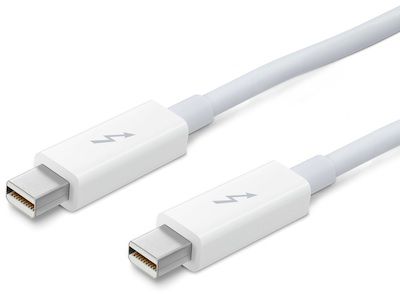
  1. Connect the two computers using a USB-C or Thunderbolt cable.
    apple thunderbolt cable

  2. If the ‌Apple Silicon‌ Mac is powered on, shut it down ( menu -> Shut Down).
    shutdown menu bar

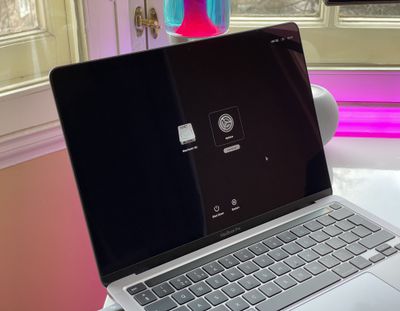
  3. On the same Mac, press and hold the power button until you see a screen offering "Loading startup options."
    m1 mac startup options

  4. Click Options, then click Continue. Enter the password for an administrator account if prompted.
  5. When your Mac has entered Recovery mode, choose Utilities -> Share Disk from the menu bar.
    m1 share disk startup

  6. Select the disk you want to share with the other Mac, then click Start Sharing.
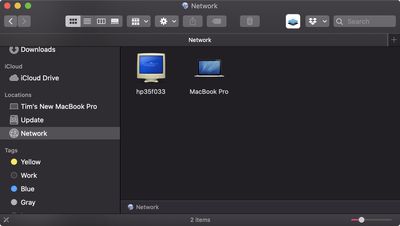
  7. On the other Mac, open a Finder window and click Network in the sidebar under "Locations."
    3transfer files m1 mac to mac

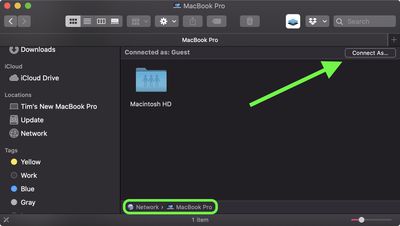
  8. In the Network window, double-click the Mac that has the shared disk, then click Connect As.
    1transfer files m1 mac to mac

  9. Select Guest in the Connect As window, then click Connect.
    2transfer files m1 mac to mac

  10. Transfer your files.
  11. When your files are transferred, eject the disk on the other Mac.
macOS Recovery on Macs with ‌Apple Silicon‌ includes a number of other apps that can help you repair an internal disk, reinstall macOS, restore your files from a Time Machine backup, and more.
Popular Stories

Apple Event Logo

Apple Released Seven New Products Today

Wednesday March 11, 2026 7:05 am PDT by
Starting today, the seven new Apple products that were announced last week are available at Apple Stores and beginning to arrive to customers. The colorful MacBook Neo and all of the other new products are on display at most Apple Store locations around the world starting today. Apple Stores have inventory of the new products for both walk-in customers and Apple Store pickup, but...
Apple 50 Years of Thinking Different

Apple Announces 50th Anniversary Plans

Thursday March 12, 2026 6:10 am PDT by
Apple today announced that it will celebrate the company's 50th anniversary over the coming weeks, but it has yet to reveal any specific plans. Apple was founded on April 1, 1976, so the company will turn 50 on April 1, 2026. "While Apple is known for looking forward, this milestone offers a special moment to reflect on the journey that has brought the company here, to celebrate the...
iOS 27 Mock Quick

10+ New Features Coming in iOS 27

Friday March 13, 2026 2:13 pm PDT by
We're only three months away from Apple's WWDC 2026 event, which will see the company unveil iOS 27. With the fully revamped version of Siri possibly delayed until September, iOS 27 is shaping up to be the update we wanted iOS 26 to be. There will be new Apple Intelligence features, updates for the iPhone Fold, and more, with the latest rumors summarized below. Foldable iPhone Features...