If your iPhone regularly runs out of battery later in the day, Low Power Mode is one way to make it last longer. You can also make Low Power Mode automatically turn on when your battery reaches a certain custom level. Keep reading to learn how.
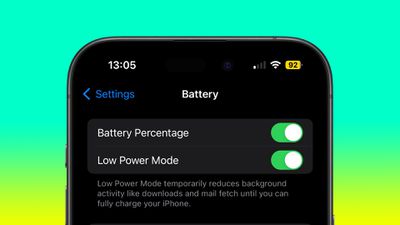
Most iPhone users are familiar with the way iOS throws up a prompt to turn on Low Power Mode when the battery reaches 20%. Low Power Mode can also be turned on manually at any time by going to Settings -> Battery and toggling on the switch next to Low Power Mode.
If you find yourself constantly having to turn on Low Power Mode late in the day, you can save some time by setting it up to run automatically when your battery is depleted to a specific custom level. This can be done in the Shortcuts app, as the following steps show.
Bear in mind that Low Power Mode reduces your iPhone's performance and cuts out some background activities. For example, mail must be fetched manually, background app refresh is disabled, and motion and brightness are reduced.
If you're okay with those limitations, follow the steps below to automate the setting on your iPhone.
- Open the Shortcuts app and select the Automation tab at the bottom of the screen, then tap the + button in the top-right corner.
- Scroll down and select Battery Level from the options.
- Check Falls Below 50% and then drag the slider to adjust the percentage level for when Low Power Mode should be activated.
- To ensure the automation runs in the background, tap Run Immediately, then tap Next.
- Search for "Set Low Power Mode" and select the card from the results, then tap Next.
- Lastly, tap Done in the top-right of the screen.
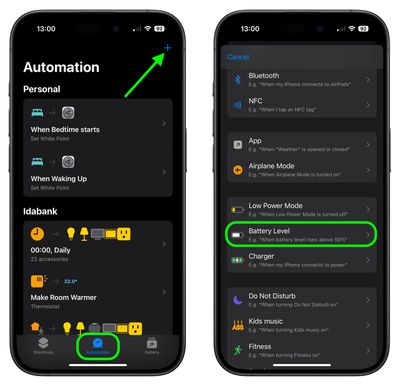
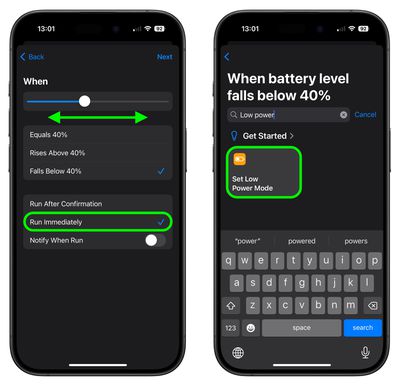
Your "Set Low Power Mode" personal automation should now be listed in the automation list, and will automatically trigger whenever your iPhone reaches the threshold you selected.
Use a Focus Instead
If you don't want to use the Shortcuts app, you can set up a Focus to come on at a set time of day with a Low Power Mode system filter enabled. Follow the link to learn how it's done.


























![Apple Watch Ultra 3 Hits New Low Price With Amazon's $299 Discount [Updated]](https://images.macrumors.com/t/BXKI27vT0hWfumJQpYzf41rH3Mw=/112x112/article-new/2026/10/apple-watch-ultra-3-milanese.jpeg)