

One of the main features the Apple Watch has to offer is the ability to track your daily activities and workout routines. The Apple Watch has a comprehensive set of health and fitness tools to help you keep track of your movement, reach workout goals, and get more activity into your life. One of Apple's main goals with the Apple Watch was to provide users with tools to keep them healthy, and the Activity and Workout apps on the Apple Watch are part of that effort.
If you've been a couch potato for too long, Apple Watch might be just what you need to motivate you to get moving and get healthy. The following video and tutorial will show you how to track your daily activities and how to monitor your workouts using the Activity and Workout apps.
Tracking Daily Activities
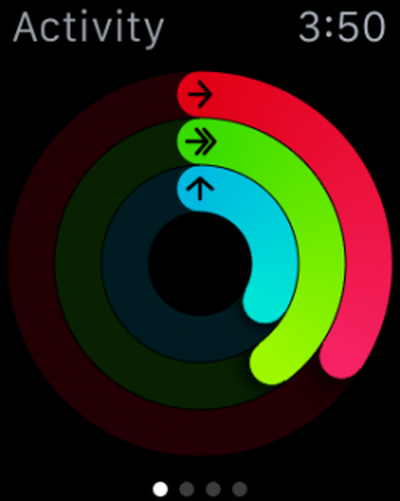 Thanks to the motion sensors built into Apple Watch, it's always keeping track of your movement when it's on your wrist. Whether you are sitting around doing nothing, or participating in a decathlon, Apple Watch knows your movements and will keep you informed.
- Open the Activity app on Apple Watch.
- Swipe left to the "Move, Exercise, and Stand" screen and tap Get Started.
- Enter your personal information (gender, age, weight, and height).
- Turn the Digital Crown to set the information and tap to Continue.
- Tap Start Moving.
- Or, use the Apple Watch app on your iPhone to enter the information, under the "Health" section of the app.
Once the information is entered, Apple Watch will do the monitoring for you. When you take a brisk walk, run, or take a spin class, your movement heart rate data will be tracked on your Activity Rings.
The Move Ring
The Move ring tracks calories you've burned by moving. Depending on how regularly you get around, Apple Watch will adjust your goals. So, if you are fairly sedentary, a short walk up and down a few flights of stairs will help you on your way to filling in your ring. However, if you regularly walk 12,000 steps in a day, your Move ring will be harder to fill. During the setup process, you choose your typical level of activity to get a ballpark movement goal, adjust it manually if you wish, and then let the Apple Watch tweak things over time.
The Exercise Ring
The Exercise ring tracks how many minutes of brisk activity you have completed in a day. Brisk exercise means movement that gets your heart rate up. So, a leisurely stroll to your boss' office across the building does not count. However, if you were to skip to his or her office, you might make some progress on your Exercise ring.
The Stand Ring
The Stand ring is there to remind you that you need to move your body. Once per hour, Apple Watch will remind you to take a walk for a minute. Even if you are at a standing desk, you will be reminded. The idea is to get away from your desk for a minute, whether you are standing or sitting, and the Apple Watch wants to see you up and around in at least 12 hours of your day.
How to View Your Progress
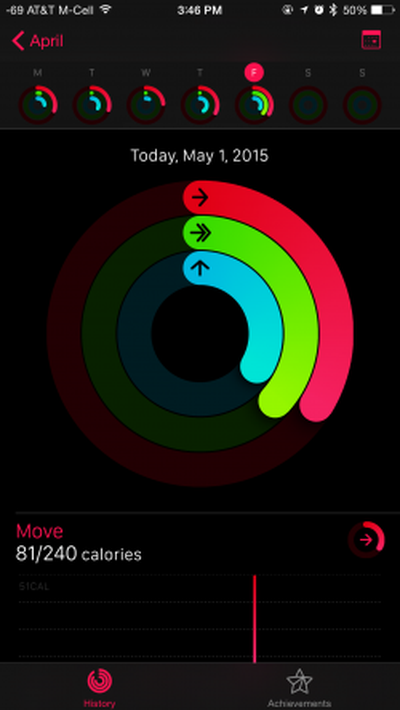
- Swipe up on the Watch face, then swipe to the Activity Glances.
- Tap the Glance to open the Activity App.
- Swipe to see individual activities.
- Swipe up on an activity or turn the Digital Crown to see the activity as a graph.
- Or, you can view the information on the Activity app on your iPhone. Some watch faces include Activity as a complication option, letting you see your miniature activity rings at any time and access the Activity app with a tap right from there.
How to View Activity Achievements
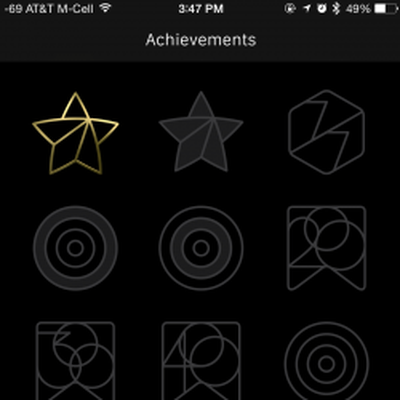
You will earn achievements for completing fitness goals, like working out every day of the week, doubling your daily move goal, and completing all of your activity goals for the entire week. You can keep track of which achievements you've earned in the Apple Watch app.
- Open the Apple Watch app on your iPhone.
- Tap the Achievement tab.
- Tap an achievement to see your progress.
How to Manually Adjust Your Goals
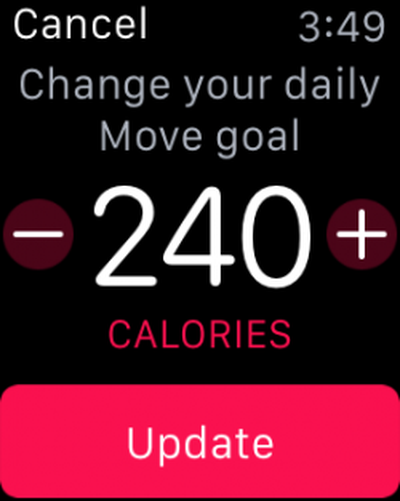
Apple Watch will update your goals every Monday based on your previous week's activities. However, you can manually change them whenever you like.
- Open the Activity app on Apple Watch
- Firmly press on the display screen until you see a prompt to change your move goal.
- Adjust your goal according to your realistic ability.
Controlling Notifications
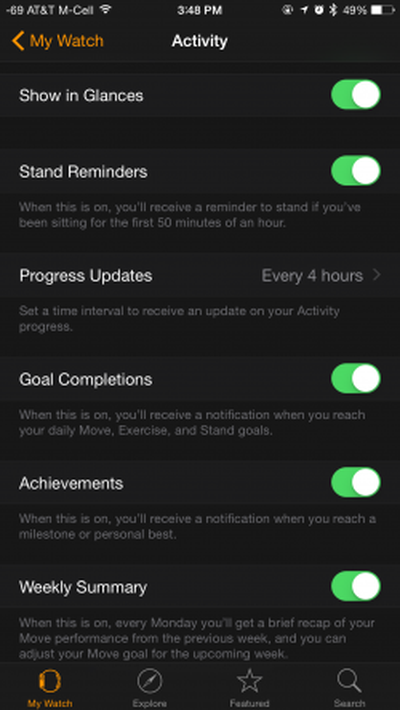
Apple Watch will send you friendly reminders about your daily activities. If you'd rather not get notifications, you can turn some or all of them off.
- Open the Apple Watch app on your iPhone.
- Tap My Watch.
- Tap Activity.
- Toggle the switches for each reminder on or off according to your desire.
Tracking Workouts
In addition to keeping track of your daily activities, Apple Watch will help you monitor your workouts. You can set specific goals based on length of time, calories burned, or distance. Once activated, Apple Watch will track your heart rate and movement and help you get through your workout.
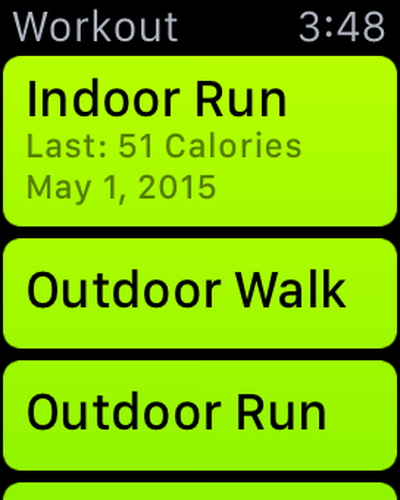 Starting a Workout
- Open the Workout app, then tap the type of workout you will be doing, including running, cycling, rowing, and more. As you select workouts, Apple Watch will track your preferences and put the most used ones on top.
- Swipe left or right to choose a calorie, time, or distance goal.
- Turn the Digital Crown to set the number.
- When you are ready to start your workout, tap Start.
Pausing your Workout
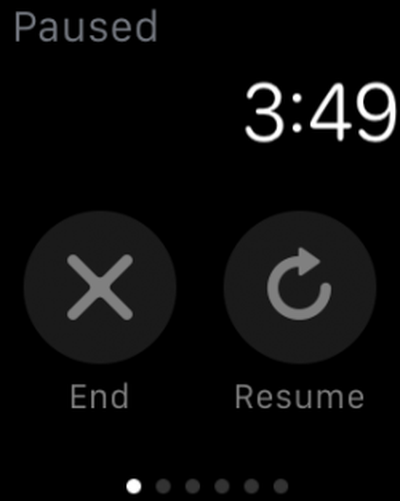
You can pause a workout at any time by firmly pressing the display screen. Do this if you stop for any reason during your workout when you don't want things like your heart rate tracked. Tap Resume to continue.
 Ending your Workout
To stop a workout early, or if you've gone past your goal and still wanted to do more, but now it is time to stop, firmly press on the display screen. Then, tap End. Turn the Digital Crown to view your result summary. Tap Save to keep the information or Discard to delete it.
Apple Watch's Activity and Workout apps are great for getting you motivated and keeping you on track. The Activity app on Apple Watch will show you your progress and allow you to fine-tune your daily activities in order to ensure that you keep moving and stay healthy.















Top Rated Comments
Have you used the activity app? It's actually ridiculously simple. I can't imagine even the least tech savvy person not being able to figure it out in a matter of minutes.
Why is MacRumors publishing these kinds of articles, and why is every single one of them being published under the name "Lory Gil"? What is going on here? Is MacRumors under new management or something?
They are not needed.
This is MR generating clicks by writing random empty articles about basic functionality, playing off the people who haven't received their watch yet but wiang to read anything on the topic.
----------
Exactly.
I'm waiting for the 2 page MR instructions on how to tell the time on the analogue style clock faces.
Well Whilst I'm still waiting for mine to turn up I spent an hour yesterday in the Apple store playing around with the watch. After an hour I found the UI completely intuitive and easy to use. This post highlights what can be achieved using one of the many apps but from my one hour experience, this post is not needed. The user will figure all this out themselves.
----------
While this makes it seem hard to set up, it is not at all.