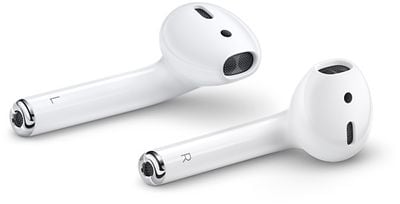
Splitting a pair of first- or second-generation AirPods between two people is perfectly possible and a neat way of exploiting the wireless features of Apple's headphones to share your listening experience.
Listen to Music Together on One Pair of AirPods
There's nothing stopping you and a friend from each wearing an AirPod to enjoy music or watch a movie together on your iPhone or iPad. Thanks to Automatic Ear Detection, both AirPods sense when they're placed in an ear, regardless of whether they're attached to the same head.
The only caveat to sharing AirPods between two people is that you're effectively splitting stereo channels, so you'll want to convert to mono audio. You can do that by following these steps:
- Open up the Settings app.
- Tap General and then tap Accessibility.
- Scroll down to where it says "Mono Audio" and toggle it on.
When you're done sharing your AirPods with a friend, make sure to turn the Mono Audio setting back off so you get regular stereo sound when you're using both of your AirPods.
Share a Call With a Friend With One Pair of AirPods
Splitting a pair of AirPods between two people to take a phone call is a different situation that has one important drawback.
Although both AirPods have built-in microphones, only one mic can be active at any one time, so if you're sharing a pair with a friend, both of you can listen in on the call but only one of you will be able to talk back to the caller.
If you want to get to decide who take part in the conversation during a shared call, you can select which AirPod has the active mic.
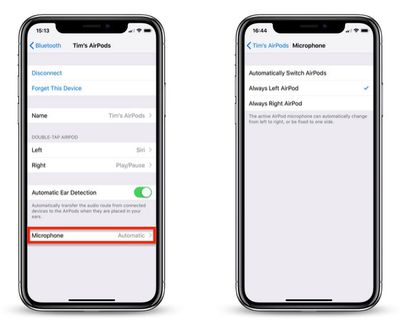
To do so, open the Settings app on your connected iOS device and tap Bluetooth, then tap the circled 'i' icon alongside your AirPods in the Devices List. Then tap Microphone and choose Always Left AirPod or Always Right AirPod.
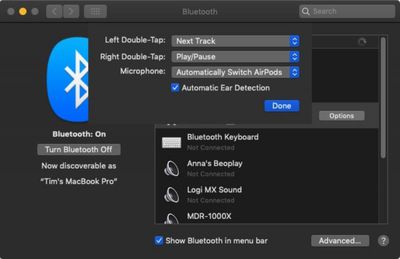
If you're connected to a Mac, click the Bluetooth icon in the menu bar and select Open Bluetooth Preferences.... In the Bluetooth pane, click the Options button in the list next to your AirPods and click the Microphone dropdown to choose either Left AirPod or Right AirPod.