

Unlike some Android phones, iPhones don't have a dedicated notification LED that lights up when you get a call, text, or other alert. What iPhones do include is an optional Accessibility feature for the deaf and hard of hearing that blinks the rear camera flash and provides a visual cue for incoming notifications. And in iOS 26.2, Apple has added the ability to flash the front display, too.
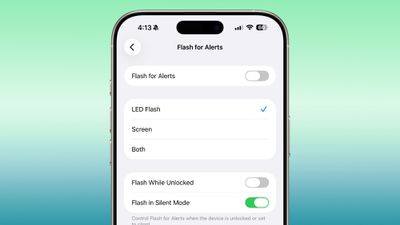
Even if your hearing is fine, having a visual cue for incoming alerts can be handy to have if, say, you're in a quiet environment like a library and don't want to create a disturbance. What's more, in iOS 26.2, you can choose for both the display and the camera LED to flash. That way, you'll see the alert flash whichever way your iPhone is lying on a table.
How to Enable Flash for Alerts
Follow the steps below to turn on screen flash for alerts on your iPhone running iOS 26.2.
- Open the Settings app on your iPhone, then tap Accessibility.
- Under "Hearing," tap Audio & Visual.
- Scroll to the bottom and tap Flash for Alerts.
- Toggle on Flash for Alerts, then tap LED Flash, Screen, or Both.
You'll see that the last menu includes toggle switches so that you can control whether the flash happens when your device is unlocked, as well as if it should flash when in silent mode.













Top Rated Comments
"pssst..."
"you there?"
"here's what I found for you on the web"
people who have their camera flash every time they get a message are so annoying.
if you're disabled i get it but c'mon. can't wait to see how it takes before their entire phone, front and back, starts lighting up to let everyone in the room know they got a message.
This is one aspect of certain Android phones that I like: a small subtle notification LED in the front.
A lot of Deaf people will probably appreciate this as an enhancement to quality of life. They'll probably be able to notice notifications more easily, especially if their device is at a distance. ... If I'm understanding it correctly, anyway.