How to Group Mac App Icons More Prominently in Your Dock
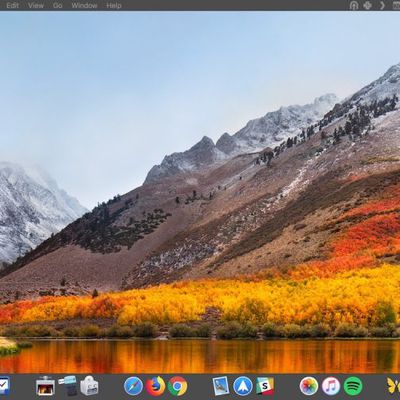
In macOS, the Dock provides convenient one-click access to your most frequently used Mac applications. The simplest way to organize docked apps is to click and drag them into your preferred place, but here we're going to show you a lesser-known trick for arranging docked items more clearly.
To relate certain types of apps and add an extra visual clue to their location in the Dock, try...
Read Full Article • 40 comments

How to Make Web Pages in Safari for Mac Easier to Read
In Apple's Safari web browser, there are several ways to make viewing web pages easier on the eyes. All of them involve adjusting the font size or the zoom level that Safari applies when it loads web page content, which can be helpful if you're using a small screen or a large display set at a high resolution.
To increase or decrease the zoom level of both text and images when viewing web pages ...

How to Enable Automatic Reader View in Safari for iOS
Safari for iOS has a nifty built-in "Reader" feature that's designed to allow Safari users to read online articles with a distraction-free design that tucks away ads and other visual clutter on supported sites.
Subscribe to the MacRumors YouTube channel for more videos.
You can tap the Reader icon whenever you're reading through an article to activate this mode, but there's also a way to turn ...

How to Reset Your Mac's Bluetooth Module to Fix Connection Issues
Bluetooth is what your Mac uses to connect to wireless devices like keyboards, mice, trackpads, speakers, and other peripherals. Generally, it's a reliable technology. At some point however, the chances are you'll run into difficulty establishing a Bluetooth connection with one or more of your devices.
Most problems can be fixed by unpairing and repairing the Bluetooth device, changing its...

How to Set Up Medical ID on Your iPhone
Medical ID is a built-in feature of your iPhone's Health app that gives ambulance crews and other emergency first responders fast access to potentially life-saving information about any allergies or medical conditions you have, even if your iPhone is locked.
Even if you don't suffer from any health conditions, it's still worth enabling Medical ID, because it can also provide other vital...

How to Quickly Delete Numbers in the Calculator App
There are a lot of hidden little tricks and tips for all of the native apps on the iPhone, including the Calculator app. If you're typing in numbers and make an accidental mistake, you don't need to start all the way over -- there's a simple gesture to delete a single number.
Subscribe to the MacRumors YouTube channel for more videos.
To make the correction, simply swipe left or right on the...
How to Set a Custom Lock Screen Message on Your Mac in Case It's Lost
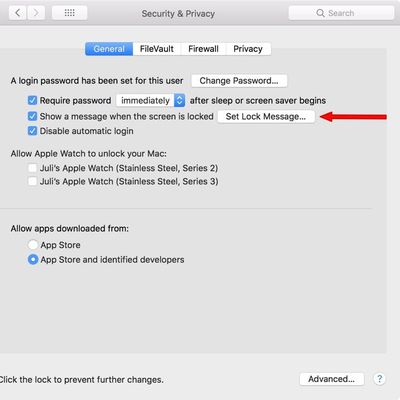
You can set a custom message to appear on the lock screen of your Mac, which is super useful if you ever misplace or lose your Mac. It lets people see who the Mac belongs to as soon as it's opened up, and there's no question about ownership.
You will need an administrator account to create a lock screen message on your Mac, but it's super easy to do.
Click on the "" icon in the menu bar.
...
How to Grab Screenshots and Video From Apple TV Using Your Mac
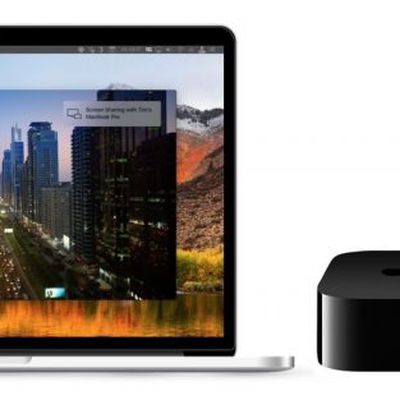
Apple doesn't go out of its way to advertise the fact, but it's perfectly possible to connect a Mac to a fourth-generation Apple TV or later and grab screenshots and video output from the set-top box. In this article, we'll show you how it's done.
Note that this method can't be used to record DRM-protected content off the likes of Netflix or iTunes, but it will let you capture your driving...

How to Customize Your Apple Watch Workout Metrics
The ability to view live metric data is one of the most important feedback functions of any Apple Watch fitness app. In this article, we're going to show how you can easily customize the metrics that the stock Workout app shows you when you raise your wrist during exercise.
Checking in on your progress during a workout is best achieved with a quick glance at your watch screen, so choosing...

How to Create a Custom Ringtone Vibration on Your iPhone
You can create custom sounds and ringtones for alerts, texts, phone calls, and more on your iPhone, but did you know the same functionality exists for vibrations?
Subscribe to the MacRumors YouTube channel for more videos.
Instead of using the set vibration patterns Apple has available, you can create your own vibrations using simple touch gestures. Here's how:
Open the Settings app.
C...
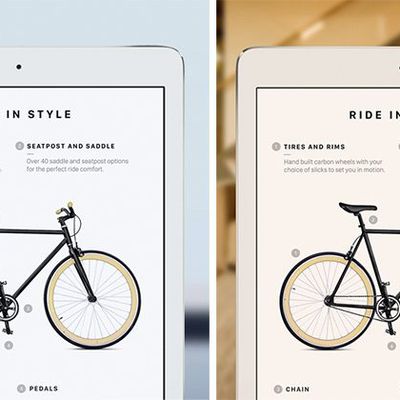
How to Control and Tweak a True Tone Display on iPhone and iPad
Last year, Apple brought a display feature called True Tone to its flagship iPhone line-up for the first time, following the technology's debut in 2016 with the 9.7-inch iPad Pro.
True Tone works by adjusting the color temperature of a device's screen to match the surrounding ambient light, so that images on the display appear more natural and are less apt to contribute to eyestrain.
If ...

How to Set Up Out-of-Office Replies in Apple Mail and iCloud Mail
Apple's native Mail application in macOS lacks a specific option for enabling out-of-office replies, but there is another way you can set them up on a Mac, and that's with Rules. It's worth bearing in mind at the outset that your Mac needs to be powered on for this out-of-office method to work. That's because Apple Mail rules are only applied locally to incoming emails, and aren't active on the...

How to Control the Behavior of Screenshot Shortcuts in macOS
There are several ways you can take screenshots on a Mac. Preview offers the option from its File menu. There's also a little screen capture app in the macOS Utilities folder called Grab. But the simplest and most common method is to use your Mac's built-in shortcut key combinations. Taking a screenshot is as easy as hitting Shift-Command-3 to capture the whole screen, or Shift-Command-4 to...

How to Take Control of Apple News Alerts in iOS 11
Apple News is the built-in news app for iOS 11 that aggregates and curates stories and topics from a variety of third-party news sources. The service is only available in the U.S., Australia, and the U.K. at the time of writing, so not all new iPhones and iPads will come with the stock app installed.
Apple News aims to offer a cleanly presented and personalized news service that caters to your ...

How to Set Up and Use Accessibility Shortcut on iPhone and iPad
Apple includes a raft of accessibility options in iOS to meet the various needs of its users, allowing them to customize their iPhone and iPad interface in several helpful ways. To make these features quicker to access, Apple also includes an Accessibility Shortcut feature in iOS that, once set up, can be invoked using a triple click of the Home button (or Side button if you have a device with...

How to Update macOS Using a Simple Terminal Command
If you're sick of waiting for the progress bar to complete every time you reboot after a macOS software update, then you'll be pleased to learn there's another way to update your Mac that could potentially reduce your downtime.
The process involves a simple Terminal command, and allows you to continue using your Mac as the update downloads and the initial software installation takes place in...

How to Use Control Center's Apple TV Remote in iOS
In iOS 11 and later, it's possible to add an Apple TV Remote interface to the Control Center that will allow you to quickly navigate and control playback on your 4K Apple TV or fourth-generation Apple TV using your iPhone or iPad. It's a great solution if you just can't get on with Apple's Siri Remote, and doesn't require you to install an app. In this article, we'll show you how to set up the...
How to Merge and Remove Duplicate Contacts in macOS and iCloud
If you've been maintaining and migrating the same Contacts list across Macs over the years then you've probably come across your fair share of duplicate contact cards. They can also appear seemingly out of nowhere after setting up iCloud Contacts on your Mac for the first time.
Unless you intentionally keep certain information for the same contact separated out for whatever reason, duplicate...
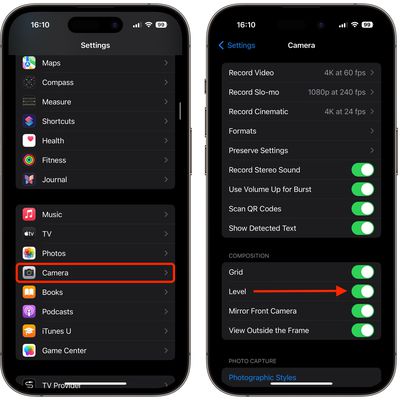
How to Use Your iPhone's Hidden Camera Level Tool
Apple's native Camera app has plenty of tools for helping you get the right shot, but some are more hidden than others. The camera level is the perfect example of a really handy tool that many users don't even know exists, mainly because it's part of a feature that's turned off by default.
If you tend to take pictures of things when standing directly over your subject, like a meal on a table...

How to Drag and Drop Text Between Apps on the iPad
iOS 11 introduced handy new drag and drop features on the iPad, that let you drag photos, files, links, and more between apps. What you might not know, though, is that drag and drop also works for blocks of text.
Instead of copying and pasting text on the iPad, you can select a block of text and then drag it right into another app using the drag and drop features.
Here's how:
Select a...