With every new operating system release and new iPhone, there are complaints about issues with battery life, and this year is no exception. There are often periods of rapid battery drain following an update or release due to behind-the-scenes syncing, but sometimes problems can persist longer.
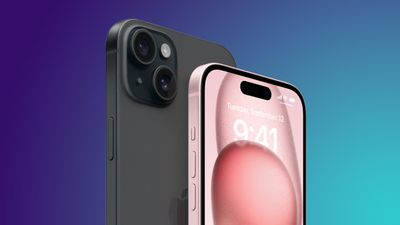
Battery life problems can be caused by new features Apple has implemented, bugs that need to be fixed, or simply an uptick in usage after an update. Whatever the cause, we've rounded up some suggestions on how you can maximize your iPhone's battery life in situations where every last minute is important.
Note that there aren't many suggestions that don't disable key features on the iPhone, so you need to balance battery drain with the feature set that you want enabled, turning things off and on as needed when better battery life is required. Not all of these tips are specific to iOS 17 and the iPhone 15 models, but these steps will absolutely help preserve battery on your new device.
1. Turn Off Live Activities
Live Activities let apps keep an ongoing notification on the Lock Screen or Dynamic Island, and in iOS 17, Live Activities are used more than ever before. Combined with the Always-On display of the iPhone 14 Pro and iPhone 15 Pro models, Live Activities can noticeably drain the battery.
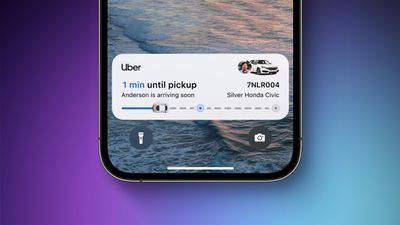
Live Activities can be disabled by following these steps:
- Open up the Settings app.
- Go to Face ID & Passcode.
- Enter your passcode to unlock the iPhone.
- Scroll down and toggle off Live Activities.
This will prevent Live Activities from showing up on the Lock Screen, but you'll want to take this one step further. In the individual app sections in the Settings app, you can disable Live Activities on an app-by-app basis, or avoid using Live Activities features within apps.
You can't fully disable the Dynamic Island, but you can swipe left on any running animation to dismiss it.
2. Delete Lock Screen and Home Screen Widgets
In iOS 17, Apple further improved widgets, introducing interactivity. Widgets can now be used right on the Lock Screen, so you can do things like control smart home products or check off Reminders without opening an app.
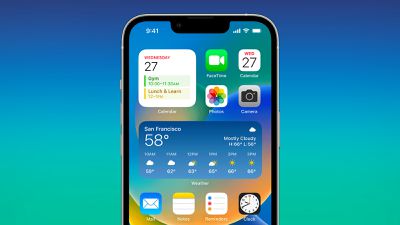
If you're not using a particular widget often, it might be best to remove it to preserve battery life, though it is worth exploring whether using a widget is less battery intensive than opening up an app.
On the Lock Screen specifically, you can use an option that doesn't have widgets, which makes it easy to switch over. Specific Lock Screens can be linked to a Focus mode, so you can even set up something that removes widgets and nixes unimportant notifications.
For details on adding widgets, removing widgets, and creating Lock Screens, we have a dedicated Lock Screen guide and a guide on interactive widgets.
Turn Off Live Voicemail
Live Voicemail is a feature that lets you get a real-time readout of a voicemail that someone is leaving so you can answer the phone if it's something important. Since Live Voicemail shows up right on the Lock Screen, it's not doing your battery any favors.
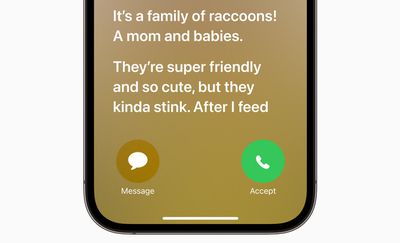
If you want to disable it, you can do so by going to Settings > Phone > Live Voicemail and toggling it off.
4. Turn Off Proximity AirDrop Sharing
When you hold two iPhones running iOS 17 together, or an iPhone running iOS 17 and an Apple Watch running watchOS 10.1, the iPhone initiates a proximity-based AirDrop or contact transfer protocol. If you're continually triggering this, it can drain battery, so if you've got your iPhone near another iPhone and the AirDrop interface keeps popping up, you might want to turn it off.
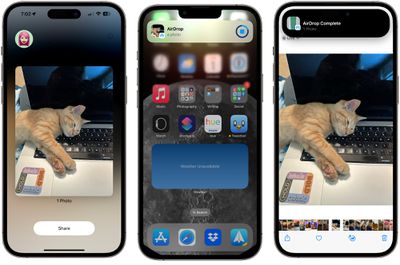
To do so, go to Settings > General > AirDrop and toggle off "Bringing Devices Together."
5. Take Advantage of Offline Maps
In iOS 17, you can download Apple Maps for offline usage. It's useful for when you don't have a cellular connection, but it's also good to use even if you do. If you're traveling in an area where you have a somewhat spotty connection, downloading a map for that spot and then turning off cellular will preserve your battery life without impacting your ability to get around.
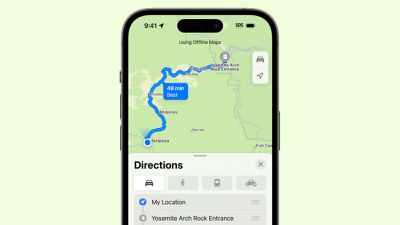
We have a dedicated how-to that walks you through downloading a map for offline usage, but it's as simple as searching for a location in Maps, tapping the download button, and then selecting the area of the map to download.
6. Disable Haptic Keyboard Feedback
Apple has a keyboard option that gives you haptic feedback when you tap the on-screen keys. It vibrates with each key tap for a more satisfying typing experience, but what you might not know is that it drains battery.
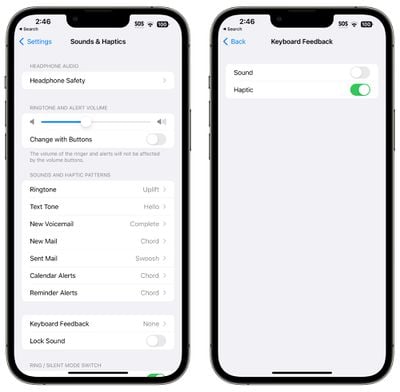
Apple said in a support document last year that keyboard haptics might affect battery life, so it's not something you want to use when you don't have battery to spare. It's not on by default, but if you've enabled it, you can turn it off by following these steps:
- Open up the Settings app.
- Tap on Sounds & Haptics.
- Tap on Keyboard Feedback.
- Toggle off Haptic.
7. Turn Off Always-On Display (iPhone 15 Pro)
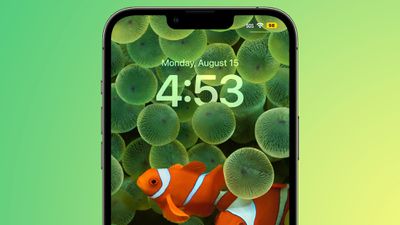
As the name suggests, the Always-On display on the iPhone 15 Pro models leaves the time, your wallpaper, widgets, and Live Activities visible on the Lock Screen even when your iPhone is locked.
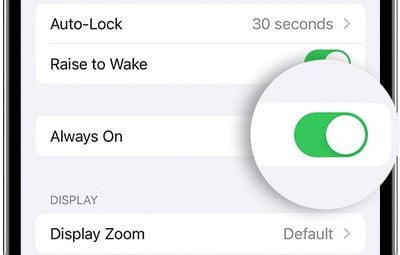
The display is using a 1Hz refresh rate to preserve battery, and Apple has neat tricks like turning off the display when a connected Apple Watch is no longer nearby (signaling that the iPhone owner is out of the room) or the iPhone is in a pocket, but Always-On display still drains battery faster than no Always-On display.
You can turn off the Always-On display by following these steps:
- Open up the Settings app.
- Tap on Display & Brightness.
- Tap on Always On Display.
- Toggle off Always On Display.
It's not really clear just how much battery life the Always-On display drains because it's going to vary from use case to use case, but even if it's only a few percent, it's worth turning off, especially if it's not a feature that you find useful.
8. Choose Non-Animated Wallpapers
Some of the fancy wallpapers that are available for the Lock Screen are animated, and an animated wallpaper will drain just a bit more battery than a static wallpaper. If you're optimizing and don't care much for the animations, choose something that's not going to update throughout the day.
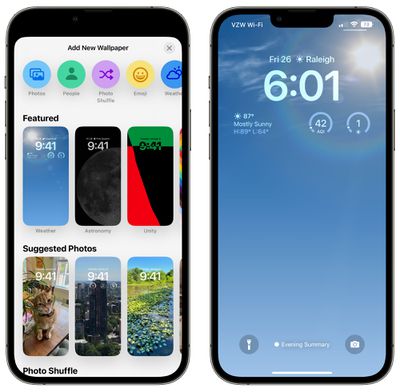
The Weather wallpaper, for example, changes based on the conditions, and the Photo Shuffle option swaps through your selected photos during the day. The Astronomy wallpaper also changes based on current conditions.
9. Use Focus Modes
Using Apple's built-in Focus option can cut down on the number of notifications that you're receiving during the day, and fewer notifications means less opportunity for apps to wake up your display and cause battery drain.
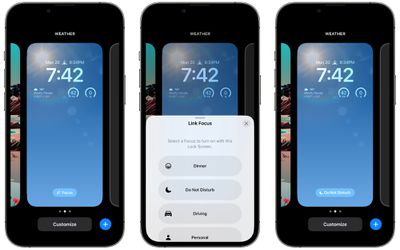
Focus modes let you choose which apps and people can send you notifications and when, so during work hours you can make sure you're only getting work notifications, and during personal time, you can limit your work notifications. You can limit notifications when driving, when you're asleep, when you're working out, and in any other scenario you can think of. Focus filters even let you filter out select emails, messages, calendars, and more.
You'll still get all of your notifications when the Focus mode ends, but all in one alert rather than multiple. Turning off unwanted notifications from apps is still the best method for saving battery life, but Focus lets you keep your notifications while still cutting down on the number that you receive at any given time.
Apple made Focus modes are relatively easy to set up, but it still takes some work to get everything running, so we have a dedicated Focus guide. You can find all of the Focus features in the Focus section of the Settings app.
10. Use Scheduled Summary
It's also worth making sure that any app that sends non-important notifications is relegated to the Scheduled Summary, which saves up notifications and sends them to you once or twice a day.
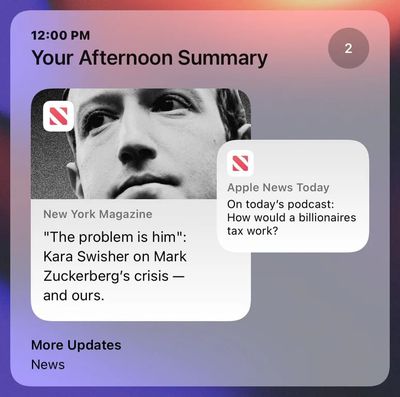
You can toggle on Scheduled Summary for apps in the Notifications section of the Settings app, where you can specify which apps should have their notifications include in Scheduled Summary and when you want them delivered.
11. Limit When and How Often Apps Can Access Location
It's always good to check in on privacy and access settings to make sure apps and services aren't doing things you don't want them to be doing.
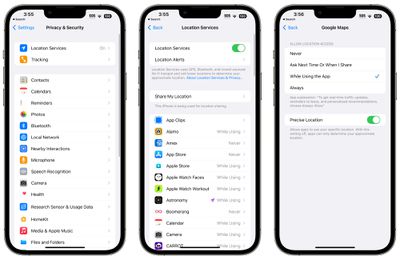
Limiting the apps that have access to your location and how often apps can access that data can save battery life.
- Open up the Settings app.
- Choose Privacy & Security.
- Tap Location Services.
- Review the list and edit settings by tapping on the name of each app in the list.
You have four possible choices for location settings for each app, though not all four choices will always be available for every app depending on what it does. You can select the following: Never, Ask Next Time Or When I Share, While Using the App, and Always.
Never will prevent an app from ever accessing your location, and unless there's a specific need for an app to know where you are, such as a mapping app, setting location access to Never is the best choice.
Ask Next Time Or When I Share will prompt an app to ask you with a pop-up the next time that it wants your location, so you can temporarily approve it. With this setting, location access is off until expressly allowed via the pop-up.
While Using the App allows the app to detect your location only when the app is open and being actively used. If you close the app or switch over to another app, location access ends.
Always allows an app to have access to your location at all times, regardless of whether it's open or closed. This will result in the most battery drain and should be limited to only the apps that you need the most.
A lot of apps will ask for location information that don't really need it to function (for example, a banking app might want location access to show nearby ATMs, which is also available through entering a zip code), so clearing the cruft will ensure no apps are accessing your location without express permission.
You can also turn off Location Services all together, but it's not ideal because it can impact crucial apps like Maps.
12. Limit Apps Using Bluetooth
Your iPhone lets you know when apps have requested Bluetooth access, and there are quite a few apps that want Bluetooth access for location tracking, scanning for Chromecast devices, or other not-so-useful reasons.
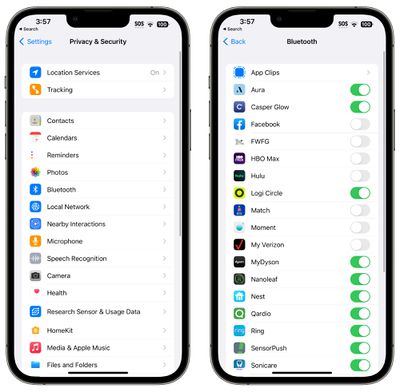
Checking on the apps using Bluetooth is worthwhile to make sure that you don't have a sneaky app connecting to Bluetooth sources without your permission and draining battery. To get to Bluetooth settings:
- Open the Settings app.
- Tap on Privacy & Security.
- Tap Bluetooth.
Apps like Facebook, MAX, Hulu, and others don't need Bluetooth access for the most part, so toggle off any app that doesn't need a Bluetooth connection to function. If a feature in an app stops working, you can just turn it right back on.
Disabling Bluetooth entirely is also an option, but it's used for AirPods, Apple Watches, and other accessories, so turning it off isn't feasible for most people.
13. Use Low Power Mode
Using Low Power Mode liberally is an obvious choice for maintaining battery without having to hassle with a lot of settings, and you can toggle it on from Control Center, the Battery section of the Settings app, or using Siri. Low Power Mode cuts down on background activity, turns off your display after inactivity more quickly, limits display refresh rate, limits email fetch, cuts down on visual effects, and more.
Low Power Mode can be set to turn on at a certain battery percentage using Shortcuts, which is a handy way to have it automatically turn on when you need it.
14. Use Wi-Fi and Airplane Mode
When you can, it's best to connect to Wi-Fi to maximize battery life, and it's one of the battery preserving tips that Apple offers. At home or at work, make sure you connect to Wi-Fi rather than using cellular signal. Nothing drains a battery quite like a 5G connection, especially one that's unstable.
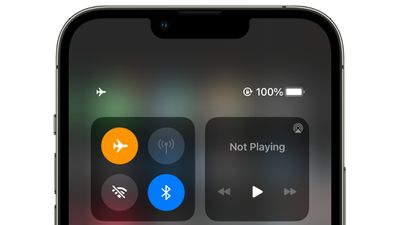
If you're in an area with no Wi-Fi and you know you have low cellular signal, turn on Airplane Mode or turn off your cellular connection so it's not draining your battery trying to connect. This of course only works when you don't need a cellular connection in the moment, but it can have a big impact and you probably can't do much with low signal anyway.
15. Manage Apps Draining Battery
Your iPhone tells you which apps are eating up the most battery so you can make sure nothing is secretly draining your battery without your knowledge. You can check your battery usage statistics by opening up the Settings app and tapping on the Battery section.
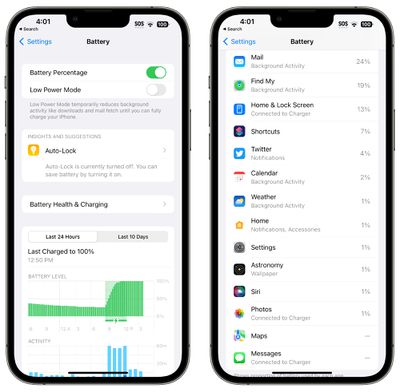
Battery usage charts let you see your battery level over the last 24 hours or for the last 10 days, plus you can see which apps have used the most battery life. If there's an app that you don't need that's draining an excessive amount of battery, delete it. If you do need the app, moderate how often you're using it and what permissions it has like location.
Note that with the iPhone 15 models, you can preserve your battery health with a new feature that prevents the iPhone from charging up past 80 percent. This isn't something you're going to want to enable if you're worried about battery life on a long day out, but if you keep it on while you're home, you can have a healthy battery for a longer period of time. Get to this setting by going to Settings > Battery > Battery Health & Charging > Charging Optimization > 80% Limit.
16. Limit Background Activity
Almost all apps use background refresh to update even when they're not open, and limited background activity and background refresh is a longtime favorite option for cutting down on battery usage.
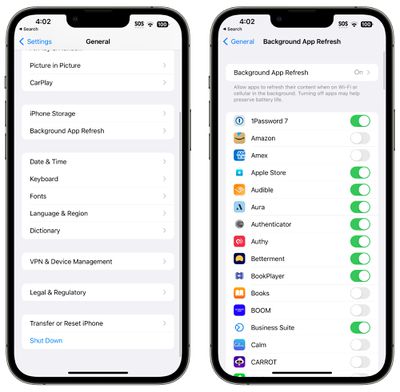
You can turn off Background App Refresh all together or choose which apps can refresh in the background.
- Open the Settings app.
- Select General.
- Tap on Background App Refresh.
From there, you can tap on the Background App Refresh option to turn Background App Refresh off altogether or choose to have it activate only when connected to Wi-Fi, which doesn't drain battery as much as downloading over cellular.
You can also choose to turn Background App Refresh on just for your most used apps by tapping on the toggle next to each app in the list.
17. Turn Down Screen Brightness
This is a rather obvious suggestion, but the dimmer your display, the less battery you're using. If you're indoors, drop that brightness down as low as you can tolerate, and hold off on using your iPhone in the sun until you can find a shady spot if you really want to maximize battery.
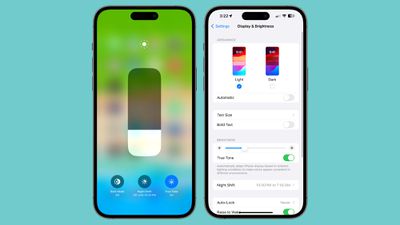
The easiest way to drop brightness is to swipe down on the right side of the display to access Control Center and lower the brightness slider. It's also a good idea to make sure you have your display set to Auto-Lock after the shortest interval (30 seconds), which you can do by going to Display & Brightness > Auto-Lock.
18. Change Your Mail Settings
Along with turning off Background App Refresh, changing when and how often the Mail app checks for new emails can save you some battery.
- Open up the Settings app.
- Tap Mail.
- Tap Accounts.
- Tap "Fetch New Data" at the bottom.

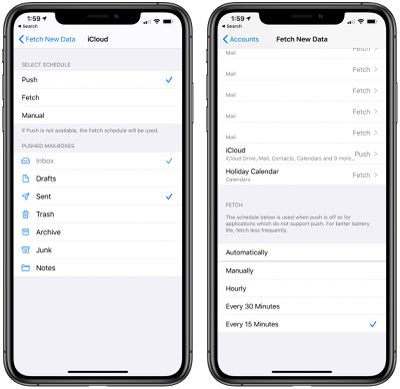
You can turn off Push (which lets you know right away when a new email message is available) and adjust Fetch settings on a per account basis for accounts that don't support Push (like Gmail accounts).
Adjusting the Fetch settings to have longer intervals before checking for new messages can help save battery life, as can turning off Fetch all together in favor of manual checks that will download new messages only when the Mail app is opened.
You can choose the following settings: Automatically, Manually, Hourly, Every 30 Minutes, and Every 15 Minutes.
iPhone 15 Overheating
There has been a lot of talk of overheating issues with the iPhone 15 models, particularly the iPhone 15 Pro models. Apple released iOS 17.0.3 on October 4 to address a bug that could cause the iPhone 15 models to run hotter than expected, plus the company said that some apps like Instagram and Uber were causing processor strain that resulted in overheating. Apple has fixed the issue both with the update and by working with app developers to solve any efficiency problems.
If you're having issues with heat and battery life, make sure your iPhone is updated to iOS 17.0.3 by going to Settings > General > Software Update.
Conclusion
There are endless things to do to preserve battery life, and unfortunately, everything you use your phone for is going to drain battery, so it's all about finding what works for you, what you don't need, and where you can compromise to extend battery life.
Have a favorite battery saving tip we haven't listed here? Let us know in the comments below.