iPadOS 26 Multitasking Tips and Tricks

iPadOS 26 introduces a whole new multitasking system that provides a Mac-like experience on the iPad. You can open multiple app windows at once, arrange them how you like, and even use Mac-style buttons and features to get work done.
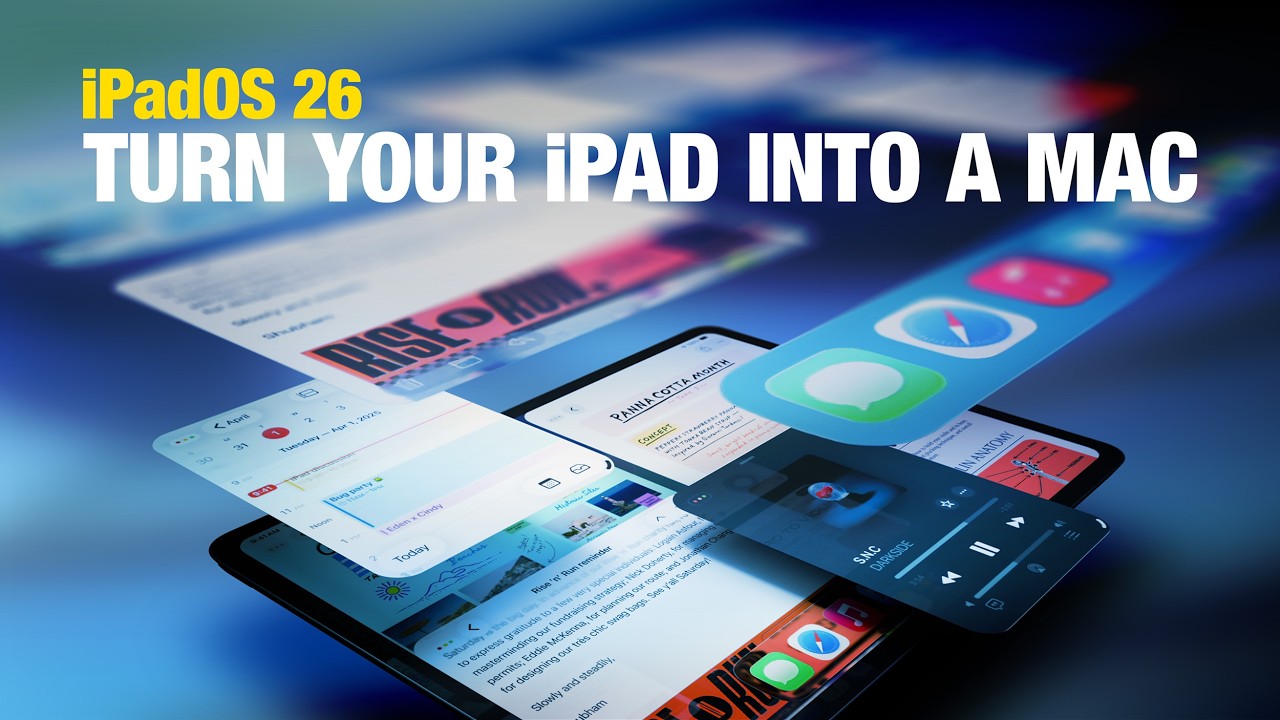

There are several useful tips that might be helpful if you're new to ‌iPadOS 26‌ and aren't sure where to start.

Opt-In or Opt-Out

When you first install ‌iPadOS 26‌, you can choose how you want your ‌iPad‌ to work. You can continue to use full screen apps as the default if you don't need to have more than one app open at a time, or you can choose the new Windowed Apps option.

If you prefer Stage Manager, you can also select that option to arrange your windows across multiple groups.

Quick Swapping

You can swap between Windowed Apps and ‌Stage Manager‌ mode by opening up the Control Center and long pressing on the multitasking Control Center button.

Resizing and Repositioning Windows

In Windowed Apps mode, an app will open at full size when you first tap it. You can grab the little handle in the right hand corner of the window and use drag gestures to adjust its size.

Drag at the top of the app to reposition a window. Windows will remember where they were placed even when you close an app.

Flick Arranging

When you have an app window open, if you give it a quick flick to the right or the left, it will neatly arrange itself to one side of the display. You can stack multiple app windows on top of one another this way.

Button Controls

‌iPad‌ windows use Mac-like "traffic" buttons that work just like Mac apps. Red closes a window, green expands a window to full screen, and yellow collapses it down to the dock.

Split Your Screen

If you long press on the traffic light buttons, you'll bring up options for arranging your windows. You can choose an arrangement that tiles two, three, or four app windows on the display, or use Move and Resize to move your window to the bottom, top, right, or left of the screen.

Exposé

If you swipe up and hold from the bottom of the ‌iPad‌'s display, you can get into an Exposé view that shows all of your open apps or app groups if you're also using Center Stage.

Swipe up without holding to get to your desktop. At your desktop, swipe down from the top to get to the search interface if you need it.

Menu Bar

‌iPad‌ apps have a menu bar in ‌iPadOS 26‌. It's hidden, but you can get to it if you swipe down from the top when an app is in full screen mode. Alternatively, you can hover the mouse over it if you're using a mouse or trackpad with your ‌iPad‌.

Menu bar options vary by app, but include controls for window management, closing a window, accessing tools, and getting to app settings.

No More Split View and Slide Over

The ‌iPadOS 26‌ multitasking changes replace Split View and Slide Over, so that functionality is no longer available.

Dock Visibility

The option to have the Dock automatically be hidden when you're using apps is on automatically, but if you want to turn it off, you can do so in the Multitasking section of the Settings app.

Close All Windows

If you want to be able to close all of your open windows when you swipe to the Home screen, you can toggle that on in the Settings app under Multitasking. The option is not turned on by default.


Related Roundups: iOS 26, iPadOS 26
Related Forum: iOS 26

Popular Stories

iOS 26

Apple Releases iOS 26.3 and iPadOS 26.3

Wednesday February 11, 2026 10:07 am PST by
Apple today released iOS 26.3 and iPadOS 26.3, the latest updates to the iOS 26 and iPadOS 26 operating systems that came out in September. The new software comes almost two months after Apple released iOS 26.2 and iPadOS 26.2. The new software can be downloaded on eligible iPhones and iPads over-the-air by going to Settings > General > Software Update. According to Apple's release notes, ...
m5 macbook pro deal

Why You Shouldn't Buy the Next MacBook Pro

Tuesday February 10, 2026 4:27 pm PST by
Apple is planning to launch new MacBook Pro models as soon as early March, but if you can, this is one generation you should skip because there's something much better in the works. We're waiting on 14-inch and 16-inch MacBook Pro models with M5 Pro and M5 Max chips, with few changes other than the processor upgrade. There won't be any tweaks to the design or the display, but later this...
M3 iPad Air

Apple's Next Two Products Are Coming Soon

Thursday February 12, 2026 11:17 am PST by
Apple plans to release an iPhone 17e and an iPad Air with an M4 chip "in the coming weeks," according to the latest word from Bloomberg's Mark Gurman. "Apple retail employees say that inventory of the iPhone 16e has basically dried out and the iPad Air is seeing shortages as well," said Gurman. "I've been expecting new versions of both (iPhone 17e and M4 iPad Air) in the coming weeks."...
Apple Logo Black

Apple Acquires New Database App

Wednesday February 11, 2026 6:44 am PST by
Apple acquired Canadian graph database company Kuzu last year, it has emerged. The acquisition, spotted by AppleInsider, was completed in October 2025 for an undisclosed sum. The company's website was subsequently taken down and its Github repository was archived, as is commonplace for Apple acquisitions. Kuzu was "an embedded graph database built for query speed, scalability, and easy of ...
iPhone 16e Bottom Crop

Apple Reportedly Unveiling a New iPhone Next Week

Tuesday February 10, 2026 1:51 pm PST by
Apple plans to announce the iPhone 17e on Thursday, February 19, according to Macwelt, the German equivalent of Macworld. The report said the iPhone 17e will be announced in a press release on the Apple Newsroom website, so do not expect an event for this device specifically. The iPhone 17e will be a spec-bumped successor to the iPhone 16e. Rumors claim the device will have four key...

Top Rated Comments

everlast3434 Avatar
21 weeks ago
My god this Liquid Ass is ugly and buggy lol.
Score: 9 Votes (Like | Disagree)
Apple Mac Daz Avatar
21 weeks ago
I miss slide over
Score: 9 Votes (Like | Disagree)
zach-coleman Avatar
21 weeks ago
I’m happy for those who wanted windowing on iPad to have gotten what they wanted, but I’m very disappointed that they fully removed the old multitasking system. I want Split View but I have zero interest in dealing with windows on an iPad. Might as well bust out the Mac if the task is that complex, for me at least. The new system also has no equivalent for Slide Over which was very useful…

Score: 8 Votes (Like | Disagree)
Eric_WVGG Avatar
21 weeks ago
I’m really interested in learning if any iPad Mini users wind up getting into this. Personally find it utterly useless for that form factor.

Score: 6 Votes (Like | Disagree)
21 weeks ago
A shortcut:
You can double tap the top of an app in full screen to make it a window and double tap the top of a window to make it full screen.
Score: 6 Votes (Like | Disagree)
21 weeks ago

I miss slide over
You and me both. I have an iPad Pro, but have zero interest in juggling windows on here, I have multiple real Macs for that. However, I use the slide over all the time. My normal work flow was to have one full app up, and have my Messages or another chat app up as the slide over panel I could quickly slide in to respond to a text and go back to what I was doing. There is no way to do this at all now. I don’t want to make two smaller apps always on the screen, this whole update is just such a waste. I’m contemplating rolling back to the old iOS simply due to this.
Score: 4 Votes (Like | Disagree)