

Once you've migrated your image library from iPhotos or Aperture (or both), you'll probably want to add all the images from your iPhone or iPad and get everything organized so you can quickly find pictures from specific dates and events in the future.
To help you accomplish both of these tasks, we've written up a tutorial that provides an overview of how to import pictures into the Photos app on OS X Yosemite and gives a few suggestions for how to organize your collection.
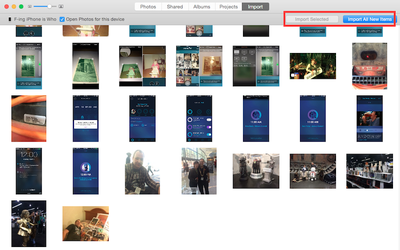
Importing Pictures
- Connect your device (iPhone, iPad, or digital camera) to your computer using the USB connector and open the Photos for OS X app.
- Select "Import" from the list of tabs at the top of the screen in the app.
- Select the images you wish to add to the Photos app, or select "Import All New Items" to add everything from your device.
Imported images will automatically be added to the "Last Import" album in Photos. You can see your photos using a number of different views, including the main Photos tab, which displays all pictures that you have added to the app and any pictures that you have taken using an iOS device that is connected using My Photo Stream.
Just like the Photos app on iOS, pictures in Photos for OS X are organized by Moments, Collections, and Years. To navigate between these timelines, click on the arrow buttons in the upper right corner of the app while in the main Photos view, or select a different view from the tabs at the top of the app.
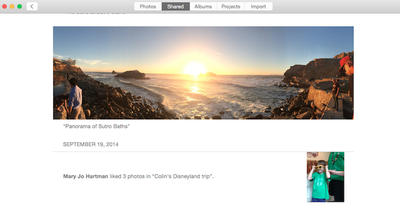
The "Shared" album houses photos and albums that you have shared with other people and those that have been shared with you. Select a shared album to see all pictures and add new photos to the album. Comments, Likes, and new pictures added will appear in the Activity section.
Under the Albums tab, you will see a list of albums that are created automatically within Photos for OS X, which may include All Photos, Faces, My Photo Stream, Last Import, Favorites, Panoramas, and Bursts. You can also create your own albums here, using the "+" button on the menu bar.
The Projects tab is where you will find books, cards, calendars, prints, or slideshows that you have created using Photos on that specific Mac.
You can also search for photos within the Photos app by typing the keyword you wish to filter into the search bar in the upper right corner. You can find groups of photos based on names, dates, locations, and more.
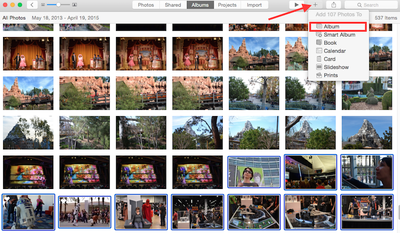
Adding Photos to Albums and Creating Albums
- With the Photos app on OS X Yosemite open, select "Albums" from the list of tabs at the top of the screen.
- Click on the "All Photos" option.
- Click on the pictures you would like to add to an album. You can select multiple pictures by using the command + left-click or grab a large group by using shift + left-click.
- Click the plus (+) button at the top right corner of the Photos app.
- Select "Album" from the dropdown menu.
- Select the album you wish to add the pictures to, or create a new album and name it.
- Click "OK."
Creating Smart Albums
You can create a variety of Smart Albums based on specific conditions. When created, any image that fits the criteria will automatically be added to the Smart Album. You can create Smart Albums based on such categories as the date, a specific description, Face tags, file names, keywords, camera models, shutter speed, and more. Each category includes a condition, such as "Photos is RAW" or "Camera Model is iPhone 6."
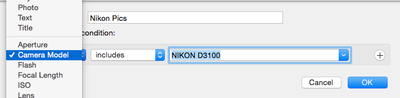
- With the Photos app on OS X Yosemite open, select the "Albums" from the list of tabs at the top of the screen.
- Click on the plus (+) icon in the upper right corner of the Photos app.
- Select "Smart Album" from the drop down menu.
- Name the new Smart Album. It is a good idea to name the album after the action it will be based on. For example, "Edited Pictures" or "iPhone Photos."
- Select the condition you wish the Smart Album to produce. You can include multiple conditions. For example, "Camera Model is iPhone 6" combined with "Photo is Favorite" will aggregate all photos taken with an iPhone 6 that have been favorited.
- When you are happy with the conditions you have set, click "OK."
If the Smart Album did not produce the results you were looking for, you can adjust the conditions by selecting the gear icon under it in the Albums view.
If you have a large amount of pictures in Photos for OS X Yosemite, it is a good idea to begin organizing them. A great starting point is to create albums that make it easier for you to access events that you have customized yourself. Smart Albums are great for automatically sending certain pictures to a designated folder.
When your photos are better organized, you will be much more likely to look at them again in the future. It is like the difference between opening a shoebox full of loose pictures or a nicely bound photo album with pictures displayed by date.




















Top Rated Comments
Am I the only one who saw that in the screenshot in the article?
Edit: Not even allowed to post the name of your iPhone in the comments. I had to change the - to an _ for it to post.
The old way worked like POP email where you have to figure out where a photo is and you could delete it on one device and it stupidly still showed up somewhere else. Edit a photo and it used to mean you have two different photos in different locations. Photo stream didn't do 2 way sync and your library would get all out of whack with reality on various different devices.
The iCloud Photos way is WAY better and much easier to understand. One single unified library just like how your Gmail, iCloud, Exchange email works.
When I delete an email in gmail, it's gone. I don't have to worry about it showing up on another device or another computer. iCloud photos works the same way.
----------
Except if you make an edit to a photo, update folders, make new albums, delete something, or do anything at all with your photos, now your library is all out of whack in different places because Photostream does not do a true SYNC. It's just a one way street. iCloud Photos is so much easier to understand and works better.
how to exclude certain videos and albums
step 2.) you cant either
step 1.) can't