Never Miss Your Doorbell While Wearing Headphones on iPhone - MacRumors
Skip to Content

Never Miss Your Doorbell While Wearing Headphones on iPhone

by

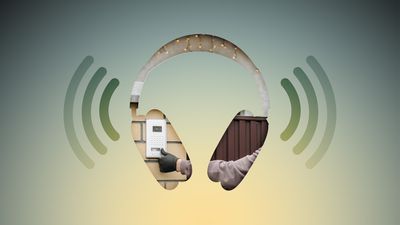
Noise-canceling headphones are great for blocking out distractions, but they can also block out sounds you actually need to hear, like a courier at the front door with your all-important package. Well, thanks to an Apple accessibility feature, your iPhone can do the listening for you and alert you when your doorbell rings.
Never Miss Your Doorbell While Wearing Headphones on iPhone Feature
Meet Sound Recognition, the feature in question that uses your iPhone's microphone to continuously monitor for specific sounds. When it detects one, you'll receive a notification that plays through your connected headphones, along with a vibration on your iPhone (or Apple Watch if you're wearing one).

The feature is primarily designed for people who are deaf or hard of hearing, but it's equally useful for anyone who works from home and regularly wears AirPods or noise-canceling headphones.

How to Enable Doorbell Alerts

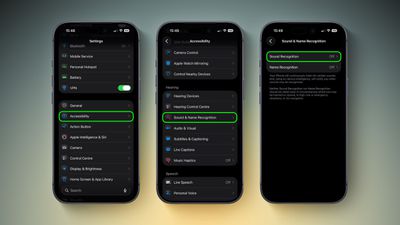
  1. Open Settings on your iPhone.
  2. Tap Accessibility.
  3. Under "Hearing," tap Sound & Name Recognition, then tap through to Sound Recognition.
    doorbell sound recognition2 1

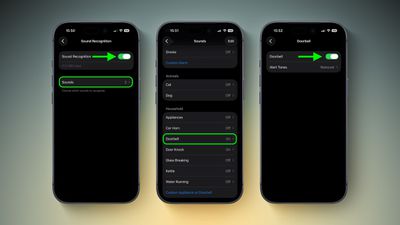
  4. Toggle on Sound Recognition, then tap Sounds.
  5. Under "Household," tap Door Bell and toggle it on in the next screen. You'll also see the option to choose a specific alert tone.
    settings

Note that your iPhone may need to download a small file (around 30MB) before the feature becomes active, so a Wi-Fi or data connection could be needed.

Training Your iPhone to Recognize Your Doorbell

If your iPhone doesn't reliably detect your specific doorbell, you can train it to recognize the sound by following these steps:

  1. Go to SettingsAccessibilitySound & Name RecognitionSound RecognitionSounds.
  2. Tap Custom Appliance or Doorbell, then enter a name.
  3. Place your iPhone near the doorbell and tap Start Listening.
  4. Ring your doorbell. Repeat this five times to complete the training.

Quick Access via Control Center

Once Sound Recognition is enabled, iOS automatically adds a toggle to Control Center. From here, you can press and hold the Sound Recognition icon to quickly enable or disable specific sounds without diving into Settings, which is handy if you only want doorbell detection when you're at home wearing headphones.

control center
Sound Recognition can also detect smoke alarms, dog barking, babies crying, water running, and more. Just keep in mind that Apple advises against relying on this feature in high-risk or emergency situations.

Top Rated Comments

Rychiar Avatar
7 weeks ago
can you make a HomePod listen for specific sounds like this? I'd like my kitchen HomePod to know when my fridge is beeping since the door always gets stuck
Score: 6 Votes (Like | Disagree)
7 weeks ago

Noise-canceling headphones are great for blocking out distractions, but they can also block out sounds you actually need to hear, like a courier at the front door with your all-important package. Well, thanks to an Apple accessibility feature, your iPhone can do the listening for you and alert you when your doorbell rings.


Meet Sound Recognition, the feature in question that uses your iPhone's microphone to continuously monitor for specific sounds. When it detects one, you'll receive a notification that plays through your connected headphones, along with a vibration on your iPhone (or Apple Watch if you're wearing one).

The feature is primarily designed for people who are deaf or hard of hearing, but it's equally useful for anyone who works from home and regularly wears AirPods or noise-canceling headphones.

How to Enable Doorbell Alerts

[LIST=1]
* Open Settings on your iPhone.

* Tap Accessibility.

* Under "Hearing," tap Sound & Name Recognition, then tap through to Sound Recognition.


Toggle on Sound Recognition, then tap Sounds.

* Under "Household," tap Door Bell and toggle it on in the next screen. You'll also see the option to choose a specific alert tone.

Note that your iPhone may need to download a small file (around 30MB) before the feature becomes active, so a Wi-Fi or data connection could be needed.

Training Your iPhone to Recognize Your Doorbell

If your iPhone doesn't reliably detect your specific doorbell, you can train it to recognize the sound by following these steps:
[LIST=1]
*
Go to SettingsAccessibilitySound & Name RecognitionSound RecognitionSounds.

* Tap Custom Appliance or Doorbell, then enter a name.

* Place your iPhone near the doorbell and tap Start Listening.

* Ring your doorbell. Repeat this five times to complete the training.

Quick Access via Control Center

Once Sound Recognition is enabled, iOS automatically adds a toggle to Control Center. From here, you can press and hold the Sound Recognition icon to quickly enable or disable specific sounds without diving into Settings, which is handy if you only want doorbell detection when you're at home wearing headphones.
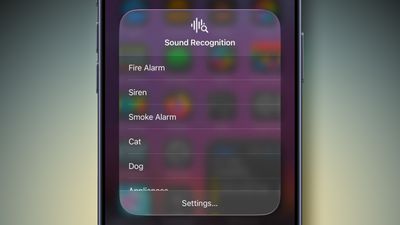


Sound Recognition can also detect smoke alarms, dog barking, babies crying, water running, and more. Just keep in mind that Apple advises against relying on this feature in high-risk or emergency situations.


Article Link: Never Miss Your Doorbell While Wearing Headphones on iPhone ('https://www.macrumors.com/how-to/never-miss-doorbell-wearing-iphone/')
I already have this feature in my home. It's called "having a Terrier".
Score: 4 Votes (Like | Disagree)
Windoes Avatar
7 weeks ago
Doesn’t work much with a door knocker
Score: 3 Votes (Like | Disagree)
WarmWinterHat Avatar
7 weeks ago

I think this is creepy as ****. They already started repurposing Ring as a surveillance network.

I've got an analogue video entry phone that makes enough noise that you can hear it listening to black metal with the airpods in and noise cancellation on.
Wife said the same thing when we saw the Ring Super Bowl commercial with the lost dogs.

No thank you.
Score: 3 Votes (Like | Disagree)
7 weeks ago
Imagine when the apple doorbell can tell you exactly who is at the door and you get notified via your airpods
Score: 3 Votes (Like | Disagree)
KeepCalmPeople Avatar
7 weeks ago
Amazing - Apple creates problems while trying to solve problems, and then solves the problems they create.

I'm sure the list of things that you would actually want to be able to hear is quite long, such as the sound of breaking glass, gunfire etc. Trying to 'whitelist' all of those is quite the challenge. AI to the rescue? It never ends...
Score: 2 Votes (Like | Disagree)

Popular Stories

Apple Event Logo

Apple to Launch These 15+ New Products Later This Year

Friday March 27, 2026 2:03 pm PDT by
March has been an incredibly busy month for Apple, with the company unveiling more than 10 new products and accessories. We said hello to the MacBook Neo at the start of the month, and we bid farewell to the Mac Pro at the end of it. Nevertheless, there is still a lot more to come this year. Beyond the usual annual updates to iPhones and Apple Watches, Apple's all-new smart home hub is...
iOS 26

iOS 26.4 Adds Two New Features to CarPlay

Tuesday March 24, 2026 1:55 pm PDT by
iOS 26.4 was released today, and it includes a couple of new features for CarPlay: an Ambient Music widget and support for voice-based chatbot apps. To update your iPhone 11 or newer to iOS 26.4, open the Settings app and tap on General → Software Update. CarPlay will automatically offer the new features so long as the iPhone connected to your vehicle is running iOS 26.4 or later....
Mac Pro Feature Teal

Apple Confirms Mac Pro Is Dead, No Future Models Planned

Thursday March 26, 2026 2:04 pm PDT by
Apple has discontinued the Mac Pro and has removed the machine from its website, reports 9to5Mac. Apple said it does not plan to design a new version of the Mac Pro, and no new model will be coming in the future. The Mac Pro was last updated in 2023, which was when Apple added an M2 Ultra Apple silicon chip, but the chassis has not been refreshed since 2019. Apple redesigned the Mac Pro to...