How to Use Emergency SOS on iPhone and Apple Watch - MacRumors
Skip to Content

How to Use Emergency SOS on iPhone and Apple Watch

by

Starting with iOS 11, Apple added a new emergency feature to the iPhone, which is designed to allow you to quickly and discreetly place a call to emergency services. In the United States, SOS dials 911, and in other countries, it works with local emergency response teams.

Emergency SOS is activated through a series of button presses on an iPhone running iOS 11 or later, and the buttons you need to press will vary based on your device. On the iPhone 7, iPhone 7 Plus, and older iPhones, rapidly press the Side button on the right of the device five times to activate Emergency SOS.

On the iPhone 8, iPhone 8 Plus, iPhone X, iPhone XS, iPhone XS Max, and iPhone XR, you will need to press and hold on the Side button while also holding one of the two Volume buttons at the same time.

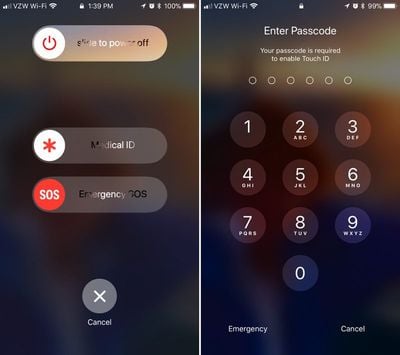
When you use these gestures, it brings up a slider bar that allows you to slide a finger across the screen to quickly place an emergency call. While this slider screen is the default option and is in place to make sure you don't accidentally place a 911 call, there's also an option to enable "Auto Call" for initiating a 911 call as soon as you activate Emergency SOS.
touchiddisabled
When you use Emergency SOS on an iPhone, the feature also disables Touch ID, preventing a would-be thief or other person with malicious intent from accessing your device without entering your passcode. It also automatically alerts any emergency contacts you've set in the Health app, sending them an iMessage with your location.

Enabling Auto Call

SOS is automatically included on every iPhone running iOS 11 and there is no disabling it. Activate it by pressing on the sleep/wake button five times in rapid succession to bring up the swipe interface. If you want the feature to call emergency services automatically without the need for an extra gesture, here's how to toggle it on:

  1. Open the Settings app.
  2. Scroll down to "Emergency SOS."emergencysosiphone
  3. Toggle on "Auto Call."
  4. To turn it off, simply toggle off Auto Call.
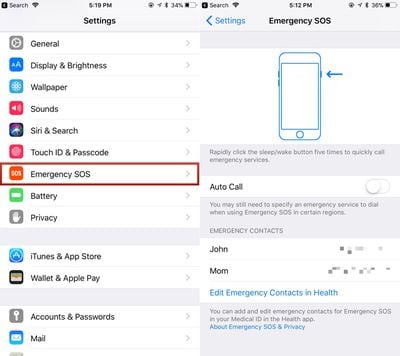
With Auto Call enabled, your phone will dial "911" (or your country's emergency line) after a three second countdown that gives you enough time to cancel the call if it's placed accidentally.

SOS on the Apple Watch

On the Apple Watch, an emergency call can be placed when you press and hold down on the side button for several seconds in a row. When you set up your Apple Watch, Apple prompts you to turn it on, but if you didn't, you can still choose to do so later.

On the Apple Watch, it's a lot easier to accidentally make an emergency call if something presses against the side button, so many people may not want this feature on. Here's how to turn it on:

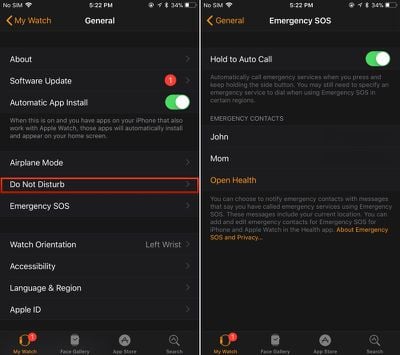
  1. Open the Apple Watch app on the iPhone.
  2. Scroll down to General and tap it.
  3. Look for Emergency SOS. It's the sixth option.
  4. Tap to the Emergency SOS interface. emergencysosapplewatch
  5. Toggle on "Hold to Auto Call."
  6. To turn it off again, toggle off Hold to Auto Call.
Setting Emergency Contacts

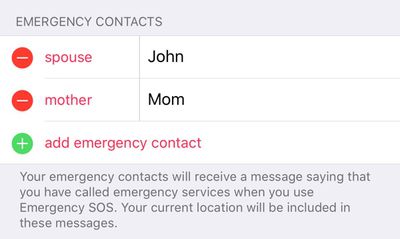
As mentioned above, whenever you use the SOS feature, Apple will automatically notify your emergency contacts if you have them set. Emergency contacts can be set up in the Health app:

  1. Open the Health app.
  2. Choose Medical ID.
  3. Select "Edit" in the top right corner.
  4. Scroll down to the Emergency Contacts section.
  5. Tap the "+" button to add an emergency contact.emergencycontacts

You can add multiple emergency contacts, each of which will receive a text message with your location if you ever use the Emergency SOS feature.

Related Forum: iOS 11

Top Rated Comments

sulpfiction Avatar
115 months ago
Countdown to people being stopped by the police sticking their hands in their pockets to secure their iPhones, and getting shot for it.
Way to take a good feature and twist it all up. That will never happen. Why the heck would u need to “secure” ur iPhone when a cop pulls u over?? Your comment makes absolutely zero sense.
Score: 7 Votes (Like | Disagree)
Rajani Isa Avatar
115 months ago
Way to take a good feature and twist it all up. That will never happen. Why the heck would u need to “secure” ur iPhone when a cop pulls u over?? Your comment makes absolutely zero sense.
By secure, they mean disable Touch/FaceID. In part due to the fact that some mid-level courts have held that while passwords are protected by 5th Amendment protections, fingerprints (and most likely, faces) are not.

So you'd do this to prevent the cops from forcing you to unlock your phone for whatever reason with your fingerprint or Face.
[doublepost=1505982982][/doublepost]
I don't think that will happen much either, but look up 'civil forfeiture' and read up on it. It's a real, actual problem in a lot of US states.
I think it's more the forced unlock rather than civil forfeiture.
Score: 3 Votes (Like | Disagree)
mattyj2001 Avatar
115 months ago
Way to take a good feature and twist it all up. That will never happen. Why the heck would u need to “secure” ur iPhone when a cop pulls u over?? Your comment makes absolutely zero sense.
I don't think that will happen much either, but look up 'civil forfeiture' and read up on it. It's a real, actual problem in a lot of US states.
Score: 3 Votes (Like | Disagree)
115 months ago
Countdown to people being stopped by the police sticking their hands in their pockets to secure their iPhones, and getting shot for it.
Don't be silly. Most of those people will already have their phone firmly in their hand. Pockets... ha! You can watch most people on the road and know their phones are far from being in their pockets.
Score: 3 Votes (Like | Disagree)
KazKam Avatar
115 months ago
If you are feeling awkward during a serious emergency for pressing a damn button 5 times, you shouldn’t.
It's not about "feeling" awkward, it's about "being" awkward. Maybe awkward is the wrong word... overly-fidley? In many emergency situations, time and timing is of the essence, three vs five button clicks might be the difference between activating the feature and not.
Score: 2 Votes (Like | Disagree)
phillytim Avatar
115 months ago
Regardless, I love that Apple finally gives us this great feature.
Score: 2 Votes (Like | Disagree)

Popular Stories

iPhone 18 Pro Deep Red Feature

iPhone 18 Pro Launching in Two Months With These 12 New Features

Friday July 17, 2026 10:39 am PDT by
It is now mid-July, and that means the iPhone 18 Pro and iPhone 18 Pro Max are now just two months away. The devices are expected to look similar to the iPhone 17 Pro and iPhone 17 Pro Max, but there will still be many year-over-year changes, with rumored features including a smaller Dynamic Island, 5G via satellite, and more. Apple is expected to unveil the iPhone 18 Pro, iPhone 18 Pro Max, ...
Apple AppleCare One Feature

'AppleCare One' is Now Even More Valuable

Saturday July 18, 2026 6:25 am PDT by
While the monthly and annual prices of AppleCare+ plans for Macs and iPads received a slight increase this week, AppleCare One continues to start at $19.99 per month in the U.S., making the multi-device plan even more valuable. Launched in July 2025, AppleCare One allows you to cover up to three devices as part of a single subscription for $19.99 per month, and additional devices can be...
Apple Up Arrow Fearture

Apple's Latest Price Increases Go Beyond Macs and iPads

Sunday July 19, 2026 8:50 am PDT by
After raising prices on all Macs and iPads worldwide last month, Apple increased prices on more products and services on Friday. Apple has raised prices on Apple Music and Apple One plans around the world, iCloud+ plans in eight countries, and on iPhone models in Japan.Apple Music Now Costs $11.99 as Apple Increases Subscription Prices Apple Raises iCloud+ Prices in 8 Countries Apple...