Whenever you add a HomeKit accessory to Apple's Home app, a default icon is assigned to it. Smart lights, for example, are given the default bulb icon, but if you have various types of light fittings, that's not very helpful for identifying them in the app at a glance.

change homekit icons
What you may not know is that you can change the icons of many third-party ‌HomeKit‌ accessories to something that lets you distinguish them more easily. This is a particularly good way to represent what device you have plugged into a smart switch, for instance. Here's how it works.

How to Change HomeKit Accessory Icons

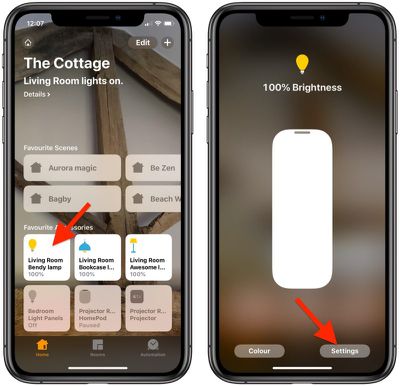
  1. Launch the Home app on your iPhone or iPad.
  2. Press and hold the accessory whose icon you would like to change.
    change homekit icons 0

  3. Tap Settings at the bottom right of the screen.
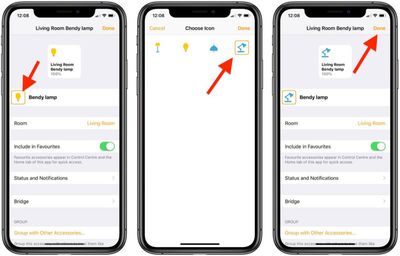
  4. Locate the icon next to the accessory name. If there's an orange square around the icon, you can change it. Tap it to do so.
  5. Choose a new icon by tapping it. In our example, you can change the default light bulb icon to a floor lamp, desk lamp, or ceiling lamp.
    change homekit icons 1

  6. Tap Done.
  7. Tap Done again.
  8. Tap once more to return to the main Home screen.
Note that you can't change the icons in the Home app for Apple devices like HomePods and Apple TVs. The same goes for some third-party accessories like thermostats for example, although it's worth checking if you're not sure.
Popular Stories

imac video apple feature

Apple Unveils First New Products of 2026

Monday January 26, 2026 1:55 pm PST by
Apple today introduced its first two physical products of 2026: a second-generation AirTag and the Black Unity Connection Braided Solo Loop for the Apple Watch. Read our coverage of each announcement to learn more:Apple Unveils New AirTag With Longer Range, Louder Speaker, and More Apple Introduces New Black Unity Apple Watch BandBoth the new AirTag and the Black Unity Connection Braided...
Second Generation AirTag Feature

Apple Unveils New AirTag With Longer Range, Louder Speaker, and More

Monday January 26, 2026 6:07 am PST by
Apple today introduced the second-generation AirTag, with key features including longer range for tracking items and a louder speaker. For those who are not familiar, the AirTag is a small accessory that you can attach to your backpack, keys, or other items. Then, you can track the location of those items in the Find My app on the iPhone, iPad, Mac, Apple Watch, and iCloud.com. The new...
iPhone 5s

iPhone 5s Gets New Software Update 13 Years After Launch

Monday January 26, 2026 3:56 pm PST by
Alongside iOS 26.2.1, Apple today released an updated version of iOS 12 for devices that are still running that operating system update, eight years after the software was first released. iOS 12.5.8 is available for the iPhone 5s and the iPhone 6, meaning Apple is continuing to support these devices for 13 and 12 years after launch, respectively. The iPhone 5s came out in September 2013,...
Apple Logo Spotlight

Apple to Launch These 20+ Products This Year

Sunday January 25, 2026 6:02 pm PST by
2026 promises to be yet another busy year for Apple, with the company rumored to be planning more than 20 product announcements over the coming months. Beyond the usual updates to iPhones, iPads, Macs, and Apple Watches, Apple is expected to release its all-new smart home hub, which was reportedly delayed until the more personalized version of Siri is ready. Other unique products rumored for ...
M5 MacBook Pro

Apple Reportedly Aiming to Upgrade the MacBook Pro Twice This Year

Sunday January 25, 2026 11:46 am PST by
Apple plans to release new MacBook Pro, MacBook Air, Mac Studio, and Studio Display models in the first half of this year, according to Bloomberg's Mark Gurman. In his Power On newsletter today, Gurman added that redesigned MacBook Pro models with an OLED touch screen "should be hitting toward the end of 2026," meaning that the MacBook Pro line would be upgraded twice this year. First up...