Regularly creating iCloud or iTunes backups should be routine for every iOS user, but if you want to upgrade to a beta version of iOS or if you think you might want to downgrade shortly after installing a new iOS update, you'll want to make sure create an archived iTunes backup beforehand.

An archived iTunes backup is essential because it saves the current state of your iOS device and prevents it from being accidentally overwritten by subsequent backups. Apple recommends all public beta testers create an archived backup before installing a beta in case something goes wrong and a restore is needed. Here's how to do it.

Create an Encrypted Backup
encryptedbackup

  1. Connect your iPhone or iPad to a Mac with the latest version of iTunes installed and click on the device icon in iTunes.
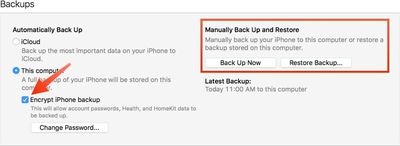
  2. Under backups, choose "This computer." Select "Encrypt iPhone backup" and set a password. An encrypted backup includes account passwords, Health, and HomeKit data. A non-encrypted backup will wipe all of this data if it's used for a restore.
  3. Click "Back Up Now" and wait for the backup process to finish. It will take approximately five minutes to complete depending on what's installed on your iPhone.

Archive the Backup
archivedbackup

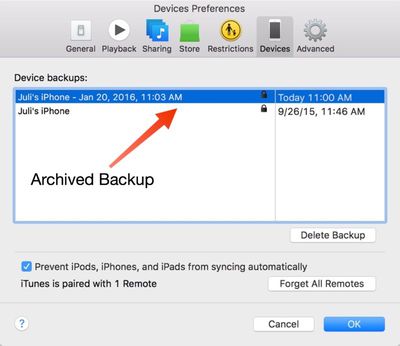
  1. To archive the backup, choose "Preferences" from the iTunes menu and select the "Devices" tab. Choose the fresh backup and right click to bring up the "Archive" option.
  2. Once archived, a backup will be marked with the date and the exact time that it was archived.

Your archived backups are always visible in the Preferences section of iTunes, even when a device is not plugged in. Deleting one of your archived backups can be done from the same menu, by selecting a backup and choosing the "Delete Backup" option.

This guide is applicable to iTunes users on the Mac. Windows iTunes users are not able to create archived iTunes backups using the same method and will instead need to rename their iTunes backup folder or move it to another location to prevent it from being overwritten.

Creating an archived backup is one of the key steps in our how to that walks users through installing a beta version of iOS, which is available here.

Top Rated Comments

jclo Avatar
131 months ago
I realize this how to may be something that a lot of people already know and creating an archived backup is nothing new, but we're publishing it now to fill in some gaps in our existing how to coverage.

It'll be useful to people who aren't familiar with creating archived backups and it's specifically being added for future use in other how tos where an archived backup is a requirement, like this one: https://www.macrumors.com/how-to/how-to-download-ios-beta/

You'll see a few other how tos like this here and there with the same disclaimer.
Score: 5 Votes (Like | Disagree)
jack daniels Avatar
131 months ago
Thanks for clarifying that the instructions don't work on a PC. However, at the beginning of the article it mentions that the instructions are for Mac adn PC, so could you please clear this up.

Could you please also give us more complete instructions on how to archive a backup on a PC? For example, the location of the backup folder and/or how to rename it (e.g. do you just rename the folder or change a setting in iTunes)?

I'm not entirely sure that archived backups aren't possible on a PC. I have an archived backup on my PC together with a date and time, and some non archived backups. Perhaps this happens automatically if you restore your device to an earlier state then back up (e.g. if you back up a new iPhone, then restore it from an older iPhone, does the new iPhone backup gets archived).
iTunes for Windows doesn't contain anything in the UI for archiving iTunes backups, which is why it's not included in this guide. You can manually archive backups on Windows by moving the backup itself to somewhere other than the default directory. Depending on your version of Windows, this varies.

Find and Manage your iTunes backups
https://support.apple.com/en-us/HT204215

The backups in the default directory will be named the UDID of the device that created them. Simply drag the folder to an external drive or wherever you back up your files, and when it's time to restore, move them back into the default directory and it will be available in iTunes to restore from.
Score: 2 Votes (Like | Disagree)
naeS1Sean Avatar
131 months ago
I realize this how to may be something that a lot of people already know and creating an archived backup is nothing new, but we're publishing it now to fill in some gaps in our existing how to coverage.

It'll be useful to people who aren't familiar with creating archived backups and it's specifically being added for future use in other how tos where an archived backup is a requirement, like this one: https://www.macrumors.com/how-to/how-to-download-ios-beta/

You'll see a few other how tos like this here and there with the same disclaimer.
I love this article and all the articles you do like it. Even though it's often basic stuff, it's nice to affirm and also see if I missed some obvious things. Thank you!
Score: 2 Votes (Like | Disagree)
jclo Avatar
131 months ago
Is this something that can be used to revert back to the iOS version you archived at if you're subsequently unhappy with an upgrade?

e.g. My iPad 2 is on iOS 6. Can I archive backup now, upgrade to iOS 9, and then if I find the performance hit unacceptable revert back to iOS 6 via the archived backup?
Only so long as Apple is signing the update. Apple doesn't sign software for very long following a new version of iOS so the window for downgrading is pretty small.
Score: 1 Votes (Like | Disagree)
131 months ago
Thanks for clarifying that the instructions don't work on a PC. However, at the beginning of the article it mentions that the instructions are for Mac adn PC, so could you please clear this up.

Could you please also give us more complete instructions on how to archive a backup on a PC? For example, the location of the backup folder and/or how to rename it (e.g. do you just rename the folder or change a setting in iTunes)?

I'm not entirely sure that archived backups aren't possible on a PC. I have an archived backup on my PC together with a date and time, and some non archived backups. Perhaps this happens automatically if you restore your device to an earlier state then back up (e.g. if you back up a new iPhone, then restore it from an older iPhone, does the new iPhone backup gets archived).
Score: 1 Votes (Like | Disagree)
Carvensno Avatar
131 months ago
Is this something that can be used to revert back to the iOS version you archived at if you're subsequently unhappy with an upgrade?

e.g. My iPad 2 is on iOS 6. Can I archive backup now, upgrade to iOS 9, and then if I find the performance hit unacceptable revert back to iOS 6 via the archived backup?
Nope because Apple isn't signing iOS 6 anymore. Backup is only for your stuff on the phone, ie... Texting, contacts, music, pics, apps, and etc...not the OS.
Score: 1 Votes (Like | Disagree)

Popular Stories

iphone 16 apple intelligence

Apple Aiming to Release 'Breakthrough' New iPhone Accessory

Wednesday February 18, 2026 12:43 pm PST by
Apple is looking for a "breakthrough" with its push into wearable AI devices, including an "AirTag-sized pendant," according to Bloomberg's Mark Gurman. In a report this week, he said the pendant is reminiscent of the failed Humane AI Pin, but it would be an iPhone accessory rather than a standalone product. The pendant would feature an "always-on" camera and a microphone for Siri voice...
Apple Watch 15 Tips Every Owner Needs to Know Feature

Apple Watch: 15 Tips Every Owner Needs to Know

Thursday February 19, 2026 7:38 am PST by
Apple Watch is now eleven generations in, and packed with useful features that are easy to miss at first glance. To help you get more out of your new device, we've rounded up 15 practical tips you might not have discovered yet, including a few that long-time users often overlook. Bounce Between Two Apps On your Apple Watch, double-press the Digital Crown to see a deck of all currently...
Dynamic Island iPhone 18 Pro Feature

10 Reasons to Wait for Apple's iPhone 18 Pro

Wednesday February 18, 2026 5:12 am PST by
Apple's iPhone development roadmap runs several years into the future and the company is continually working with suppliers on several successive iPhone models at the same time, which is why we often get rumored features months ahead of launch. The iPhone 18 series is no different, and we already have a good idea of what to expect for the iPhone 18 Pro and iPhone 18 Pro Max. One thing worth...
iphone 17 pro green

iPhone 17 Pro Max Curiously Becomes Most Traded-In Smartphone

Wednesday February 18, 2026 9:13 am PST by
New trade-in data indicates that Apple's iPhone 17 Pro Max has rapidly become the single most traded-in smartphone. According to a new report from SellCell, Apple's latest flagship iPhone has quickly risen to the top of the independent trade-in market, accounting for 11.5% of all devices appearing in the top-20 trade-in rankings just months after release. The analysis is based on SellCell...
Multicolored Low Cost A18 Pro MacBook Feature

Low-Cost MacBook Expected on March 4 in These Colors

Wednesday February 18, 2026 5:42 am PST by
Apple will announce its rumored low-cost MacBook at its event on March 4, with the device coming in a selection of bold color options, according to a known leaker. Earlier this week, Apple announced a "special Apple Experience" for the media in New York, London, and Shanghai, taking place on March 4, 2026 at 9:00am ET. Posting on Weibo, the leaker known as "Instant Digital" said that the...