In iOS 16, it's possible to create a shared iCloud Photo Library that allows up to five other friends with Apple products to contribute photos to.
This means if you are all at the same event, you can have your iPhone camera automatically upload new shots to the same shared library for you to enjoy and look back on together.
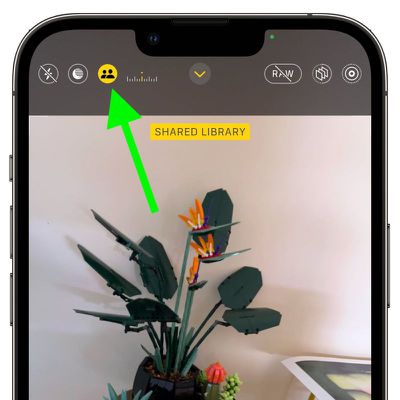
In the Camera app, you can tap a new icon that looks like two people to swap between automatic uploading to the shared library and your personal library. Using Bluetooth, your iPhone can even detect when you're in the same location as other participants in the library and set the Camera app to automatically add photos and videos to the shared library.
If you don't like the Sharing from Camera app option for whatever reason, you can manually disable it, and if you change your mind, you can re-enable it anytime, so long as you still have a Shared iCloud Photo Library active. The following steps show you how it's done on an iPhone running iOS 16.
- Launch the Settings app on your iPhone.
- Scroll down and tap Photos.
- Under "Library," tap Shared Library.
- Tap Sharing From Camera.
- Toggle the switch on or off next to Sharing from Camera.
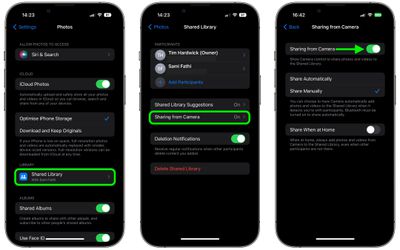
If you choose to enable Sharing from Camera, you can use the same menu of options to set the Camera to Share Automatically or Share Manually, with the latter option allowing you to make use of the new upload button in the Camera app, as outlined above.