Make Your MacBook Battery Last Longer With This Setting - MacRumors
Skip to Content

Make Your MacBook Battery Last Longer With This Setting

by

If you own a MacBook and work from home, it's easy to have your laptop plugged in for hours on end without thinking about the long-term battery life implications. Fortunately, Apple recently added a setting that lets you cap how high your Mac's battery charges, and if you own an iPhone that was released in the last few years, you may already be familiar with it.
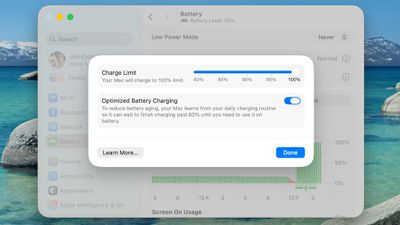
macos 26 4 charge limit
Lithium-ion batteries generally degrade fastest when held at a high state of charge, which means keeping your iPhone or your Mac's battery at 100 percent accelerates the chemical wear that permanently reduces its actual capacity over time.

To mitigate this on iPhone 15 and newer models, Apple lets you set a Charge Limit that prevents your device from charging beyond 80, 85, 90, 95, or 100 percent. And in macOS Tahoe 26.4, Apple has brought over the same Charge Limit feature to Macs for the first time.

This option differs from Optimized Battery Charging, which learns your daily routine and delays charging past 80 percent until you're likely to need a full battery. Depending on your usage, however, your Mac may still regularly reach 100 percent.

Setting a charge limit prevents that. Obviously a lower charge cap means less time you'll be able to work away from a power outlet. But if you mostly sit at a desk with your MacBook plugged in, the trade-off is worth the long-term battery gains. That said, if you regularly rely on your Mac away from power, then you may want to opt for a higher cap, which should hopefully still curb battery wear without leaving you completely stranded. Either way, here's how to set the feature:

Set a MacBook Battery Charge Limit in macOS

  1. Click the Apple symbol () in your Mac's menu bar and open System Settings....
  2. Click Battery in the sidebar.
  3. Click the i button next to Charging.
  4. Drag the Charge Limit slider to your preferred level: 80%, 85%, 90%, 95%, or 100%, then click Done.

That's all there is to it. Your Mac will now stop charging once it hits the level you chose, and Optimized Battery Charging will continue to work in the background unless you switch it off in the same panel.

Note that even with Optimized Battery Charging set to a limit below 100%, your Mac will occasionally charge to 100% so that macOS can maintain accurate battery level estimates, but for the most part it will stick to the specified maximum level.

Top Rated Comments

snipr125 Avatar
7 weeks ago
Ideally there should be the option to completely turn off Battery charging when plugged in.

Score: 31 Votes (Like | Disagree)
tomtad Avatar
7 weeks ago
Why are the window corners comically round?
Score: 26 Votes (Like | Disagree)
crococarbs Avatar
7 weeks ago
I have never had any issues with charging to 100% my phones and macbooks for decades, not sure how much of a difference this would make.

Not denying this "Lithium-ion batteries generally degrade fastest when held at a high state of charge", but just that maybe the difference is not noticeable for most users? I'd like to see some stats/tests about how much more batteries degrade when fully charged vs 80% etc (any info/links are appreciated)
Score: 26 Votes (Like | Disagree)
7 weeks ago
Wasn‘t there a real life experiment on MR with this setting on iPhone that concluded the trade off is not worth it at all? You lose 20% of your battery capacity but gain battery anxiety just to be almost exactly at the same point in the longterm like someone who conveniently used the complete battery capacity to its full extent. Battery degradation is completely natural even without charging so you can’t avoid it over the years by simply limiting yourself and your usage by 20%. Live your life to the fullest, use your devices to the fullest.
Score: 23 Votes (Like | Disagree)
HouseLannister Avatar
7 weeks ago

I have never had any issues with charging to 100% my phones and macbooks for decades
Charging to 100% isn't the problem. Leaving it charged at 100% for days on end is the problem. If you primarily use your laptop plugged in like a desktop, might as well limit it and only charge it to 100% when you are taking it out of the house. For road warriors who are always on battery, you should just charge it to 100%.
Score: 14 Votes (Like | Disagree)
7 weeks ago
The real benefit of this is very little compared to the inconvenience of using it.
Score: 12 Votes (Like | Disagree)

Popular Stories

Apple Watch Ultra 2 Black Titanium

watchOS 27 Will Add These New Features to Your Apple Watch

Sunday May 24, 2026 11:53 am PDT by
Apple will unveil watchOS 27 during its WWDC 2026 keynote on Monday, June 8, and a handful of new features have been rumored already. The first developer beta of watchOS 27 should be available immediately following the keynote, and a public beta typically follows in July. The update should be released to all users with a compatible Apple Watch model in September. Below, we recap watchOS...
iPhone 15 General Feature Green

Apple Preparing 'Most Significant Overhaul in the iPhone's History'

Friday May 22, 2026 1:36 pm PDT by
Apple reportedly plans to unveil its first foldable iPhone in September this year — it may be named "iPhone Ultra" — and expectations are high. In his Power On newsletter, Bloomberg's Mark Gurman said the foldable iPhone will be "the most significant overhaul in the iPhone's history." "iPhone 4, iPhone 6 and iPhone X were clearly a big deal, but this is a whole new design," he said....
imac video apple feature

Apple Released Two New Accessories This Month

Friday May 22, 2026 12:24 pm PDT by
May has been a quiet stretch in terms of new Apple products, but the company did release two accessories on its online store this month. First up was a new Pride Edition Sport Loop for the Apple Watch. The band features a rainbow design with 11 colors of woven nylon yarns. U.S. pricing is set at $49. The band is part of Apple's 2026 Pride Collection, which also includes a new Pride...