

Like the iPhone 17 series, Apple's latest iPhone 18 Pro models include a Camera Control button (located on the lower right-hand side when holding the phone in portrait mode). The button aims to make it easier to adjust photography settings when shooting with the iPhone in both portrait and landscape orientation.
A simple press of the Camera Control button brings up the Camera app when the iPhone is unlocked. Once the Camera app is open, another press takes a picture, while pressing and holding the button records video for as long as you hold it down.
Within the Camera app, a light press on the button engages a haptic click that also allows for adjusting things like manual exposure and zoom, thanks to a handy sliding interface that operates similarly to a camera dial. This gesture also reveals a clean preview of the scene you're capturing by hiding all on-screen Camera app tools.
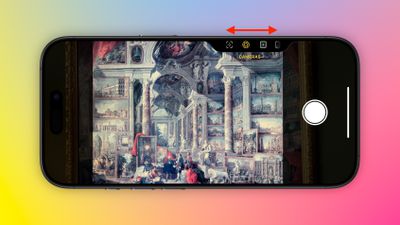
You can also use the button as a touch interface on the menu the Camera Control button brings up: A light double press invokes a range of photographic adjustment tools in a subtle UI. You can swipe through this menu and select individual options with a further light press. You can also choose between multiple styles and adjust the tone. All of these tools are adjustable with a swipe, while a double light press returns you to the main Camera Control menu:
- Exposure
- Depth
- Zoom
- Cameras
- Styles
- Tone
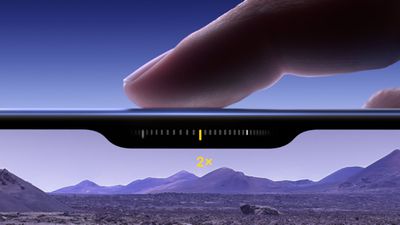
The Camera Control button can also be used to trigger third-party camera apps, giving more flexibility to users who prefer other photography tools. It's also integrated with Visual Intelligence (an aspect of Apple Intelligence) – a simple long press of the Camera Control button allows you to pull up contextual information about objects or scenes in front of the camera.
Lock Auto Exposure and Focus With Camera Control
It's possible to lock the camera's auto exposure and auto focus settings with a light press of Camera Control. The option isn't on by default, but you can enable it in the following way.
- Open Settings ➝ Camera.
- Select Camera Control.
- Under "Controls," toggle on the switch beside Lock Focus and Exposure.
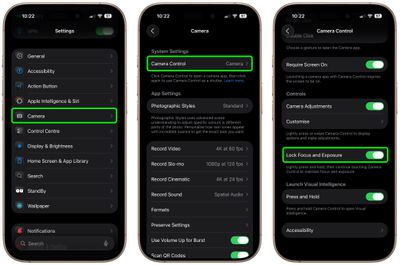 That's all there is to it – the change should take place immediately, allowing you to lock in auto-exposure and auto-focus settings with a light press before you take your shot.
Adjusting Camera Control Pressure
If you're having trouble engaging the light-press functions, or you find that the button is a little too sensitive for you, you can adjust the level of pressure that it responds to. If you feel that it's overly sensitive, you can make it firmer; if it's not sensitive enough, you can make it respond to lighter presses. The following steps show you how it's done.
- Open Settings on your iPhone.
- Tap Accessibility.
- Under "Physical & Motor," tap Camera Control.
- Switch from the Default setting to the Lighter or Firmer options.
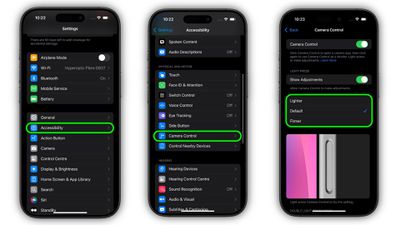
If you stay on this menu screen, you can try out the different pressure levels of the Camera Control button without engaging the Camera app, so make sure you give all three options a try before settling on one.
How to Disable Clean Preview
By default, using the Camera Control button in the Camera app engages Clean Preview mode. This option hides everything in the Camera UI when the Camera Control button is lightly pressed, so you don't need to worry about accidentally touching camera lens adjustments while shooting. Another advantage is that it removes all distractions from the screen, leaving only the image — perfect for composing a shot.
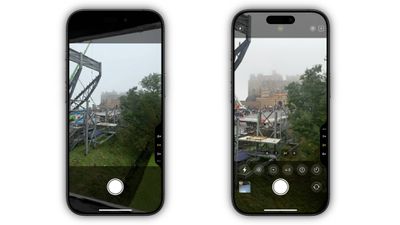
What if you do want to have access to all the various Camera app adjustments while also using Camera Control? Fortunately, there's an easy way to disable Clean Preview and make the other Camera tools visible. The following steps show you how it's done.
- Tap through to Settings ➝ Camera.
- Tap Camera Control.
- Under "Controls," toggle on the Camera Adjustments switch, then tap Customize.
- Toggle off the switch next to Clean Preview at the bottom.

That's all there is to it. To reinstate Camera app features that are hidden by a light press on the Camera Control button, simply toggle back on the Clean Preview option in Settings ➝ Camera ➝ Camera Control.
How to Disable Light Press Adjustments
If you find yourself accidentally engaging the Camera Control adjustments (like inadvertently zooming in or changing exposure settings) when taking a picture in high-motion environments, you can remove light press functionality from the Camera Control button entirely. Here's how it's done:
- Tap through to Settings ➝ Camera.
- Tap Camera Control.
- Under "Controls," toggle on the Camera Adjustments switch, then tap Customize.
- Toggle off the switch next to Light Press at the top.
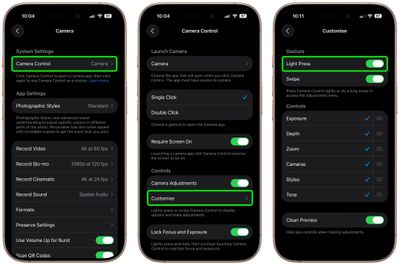
This option removes the Camera Control interface and its corresponding light-press adjustments, so now you don't need to worry about accidentally engaging them while shooting. This essentially makes the Camera Control button a simple shutter button after you have opened the Camera app with the first press.
To reinstate Camera Control adjustments that are activated by a light press, simply toggle back on the Show Adjustments option in Settings -> Accessibility -> Camera Control.
Change Camera Control Launch Camera Gesture
If you find yourself accidentally opening the Camera app by unintentionally pressing the Camera Control button, you can either disable the button entirely (see below), or you can change the single-click gesture that invokes the Camera app to a double-click gesture. The following steps show you how to do the latter:
- On your iPhone, open Settings.
- Tap Camera.
- Tap Camera Control.
- Under "Launch Camera," tap Double Click.
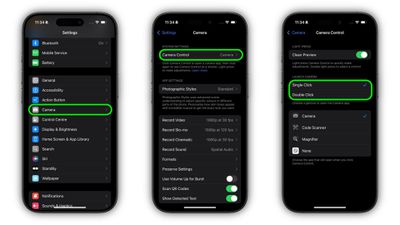
That's all there is to it. A single click of the Camera Control button will now do nothing, while a double click will get you into the Camera app or any other third-party camera app that you have assigned to the button.
Changing Camera Control Functionality
While the new button aims to make it easier to adjust photography settings when shooting, if you want, you can make it work as a simple QR code scanner or a Magnifier.
For people whose job involves frequently interact with QR codes, this Camera Control feature could be a game-changer. In warehouse environments, for example, employees could quickly scan inventory tags without navigating through multiple app screens, significantly speeding up stock checks and order processing. The neat thing is that the Camera Control button retains its zoom function in the app, and it also allows for one-handed operation.
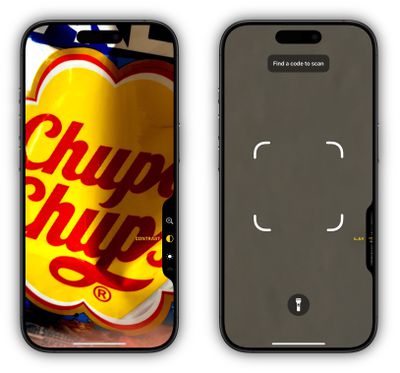
As for Magnifier access, Camera Control could prove invaluable in various scenarios. For people with visual impairments, the feature allows for instant magnification of small text on menus, product labels, or medication instructions without them having to fumble through apps.
Camera Control also retains its zoom adjustment function in the Magnifier tool, and adds a menu that includes Magnifier options for brightness, contrast, filters, torch, and more if you add them via the Magnifier's settings menu.
Here's how to re-assign the Camera Control button for QR code scanning or magnifying:
- On your iPhone, open Settings ➝ Camera.
- Tap Camera Control.
- Under "Launch Camera," tap Camera.
- Select Code Scanner or Magnifier.
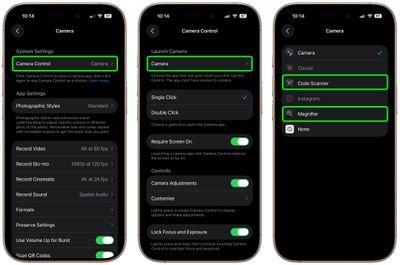
That's all there is to it. Now when you click Camera Control, depending on your preference the QR code scanner app or the Magnifier app will be instantly invoked. Note that you can also assign certain third-party apps like Instagram and Claude to the Camera Control button, effectively making it an app launcher.
Require Screen On
Apple also added a new Camera Control toggle in Settings ➝ Camera ➝ Camera Control. The new toggle is called Require Screen On. When enabled, this setting requires that your iPhone screen is illuminated before a press of the Camera Control button will open the Camera app or a compatible third-party camera app.
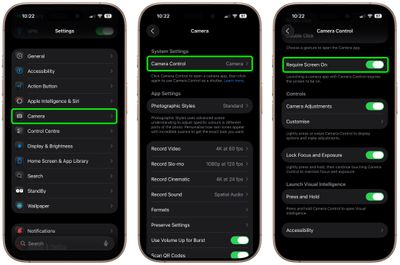
It's a handy option if you find yourself pressing the button accidentally.
How to Disable Camera Control
If you find yourself accidentally opening the Camera app by unintentionally pressing the Camera Control button, or if you just don't find yourself using it for whatever reason, you can turn off the button's functionality completely. The following steps show you how it's done.
- Open Settings on your iPhone.
- Tap Accessibility.
- Under "Physical & Motor," tap Camera Control.
- Toggle off the switch next to Camera Control.
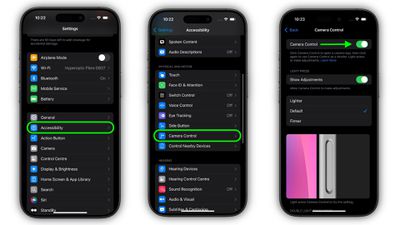
Having done that, the Camera Control button will no longer engage the Camera app and its corresponding functionality, so you no longer have to worry about pressing it – it won't do anything.
To reinstate Camera Control features, simply toggle back on the "Camera Control" switch in Settings ➝ Accessibility ➝ Camera Control.
If you don't quite get on with Camera Control, don't give up on it completely. It can take a while to get used to. Camera Control a two-stage shutter that lets you automatically lock focus and exposure with a light press — so you can re-frame your shot without losing focus on your subject.































![Apple Watch Ultra 3 Drops to Record Low $599.97 on Amazon [Updated]](https://images.macrumors.com/t/99z85mg_XjeuFDPW3me6tOe0oOw=/112x112/article-new/2026/09/apple-watch-ultra-3-new.jpeg)