How to Use the New Continuity Camera Feature in macOS Mojave - MacRumors
Skip to Content

How to Use the New Continuity Camera Feature in macOS Mojave

by

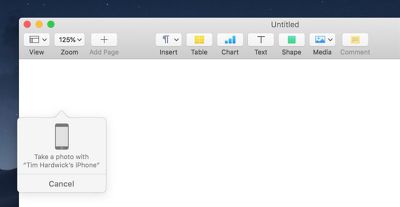
In macOS Mojave, Apple has extended its Continuity features so that now you can use your iPhone or iPad's camera to take a photo or scan a document, and it will be immediately available on your Mac.
continuity camera 2
Continuity Camera works in several native Mac apps, including Pages, Keynote, and TextEdit. The following steps explain how to use it. Bear in mind that both your iOS device and your Mac need to be logged into the same Apple ID for this feature to work.

How to Add a Photo Using Continuity Camera

  1. Launch the app that you want to import a photo into.
  2. Open an existing project or document, or create a new one.
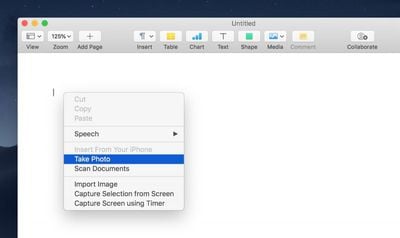
  3. Right-click (or Ctrl-click) the location where you want to insert the photo.
    continuity camera 1
  4. In the contextual menu, click Take Photo under the name of the iOS device that you want to use.
  5. Take the photo on your iPhone or iPad.
  6. Tap Use Photo on your iOS device, and the image will appear in the open project or document on your Mac.
    continuity camera 3

How to Scan a Document Using Continuity Camera

  1. Launch the app you want to use and open a project or document, or create a new one.
  2. Right-click (or Ctrl-click) the space where you want to insert the captured document.
  3. In the contextual menu, click Scan Document under the name of the iOS device that you want to use.
  4. Using your iPhone or iPad's camera, frame the document in the onscreen viewfinder. The document should turn yellow and scan automatically. You can repeat this step to scan several documents if desired.
  5. Tap Save on your iOS device, and your scanned documents will be inserted into the open project or document on your Mac.
Related Forum: macOS Mojave

Top Rated Comments

Benjamid Avatar
107 months ago
Hmm, I don’t get why it can’t just create a document as pdf. It’s already annoying that I have to create a note to scan documents in iOS than move the scan to files and then delete the note...
Score: 5 Votes (Like | Disagree)
104 months ago
Hmm, I don’t get why it can’t just create a document as pdf. It’s already annoying that I have to create a note to scan documents in iOS than move the scan to files and then delete the note...
You can scan docs directly from your iPhone to a file on your Mac. In Finder, Ctrl-click in an empty area in the folder where you want scanned docs to be saved, then choose Import from iPhone or iPad > Scan Documents. This saves as a PDF.

Attachment Image
Score: 4 Votes (Like | Disagree)
BWhaler Avatar
107 months ago
I’m really looking forward to Mohave. Reminds me of old school Apple, where there were new touches which ended up being remarkable useful in your workflow. And quality, the old, “ it just works”

Fingers crossed App,e has learned some good lessons this year. I’m hopeful.
Score: 3 Votes (Like | Disagree)
107 months ago
In macOS Mojave, Apple has extended its Continuity features so that now you can use your iPhone or iPad's camera to take a photo or scan a document, and it will be immediately available on your Mac.


Continuity Camera works in several native Mac apps, including Pages, Keynote, and TextEdit. The following steps explain how to use it. Bear in mind that both your iOS device and your Mac need to be logged into the same Apple ID for this feature to work.

How to Add a Photo Using Continuity Camera
[LIST=1]
* Launch the app that you want to import a photo into.
* Open an existing project or document, or create a new one.
* Right-click (or Ctrl-click) the location where you want to insert the photo.

* In the contextual menu, click Take Photo under the name of the iOS device that you want to use.
* Take the photo on your iPhone or iPad.
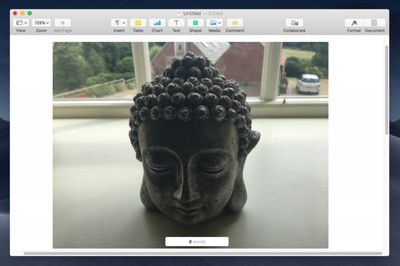
* Tap Use Photo on your iOS device, and the image will appear in the open project or document on your Mac.

How to Scan a Document Using Continuity Camera
[LIST=1]
* Launch the app you want to use and open a project or document, or create a new one.
* Right-click (or Ctrl-click) the space where you want to insert the captured document.
* In the contextual menu, click Scan Document under the name of the iOS device that you want to use.
* Using your iPhone or iPad's camera, frame the document in the onscreen viewfinder. The document should turn yellow and scan automatically. You can repeat this step to scan several documents if desired.
* Tap Save on your iOS device, and your scanned documents will be inserted into the open project or document on your Mac.


Article Link: How to Use the New Continuity Camera Feature in macOS Mojave ('https://www.macrumors.com/how-to/use-continuity-camera-in-macos-mojave/')
[doublepost=1530967502][/doublepost]Note that the camera app must be open/active on your iOS device for it to show the 'Take a photo' and 'Scan document' contextual menu items. If Camera app is NOT open, you get the regular contextual menu without those items.
Score: 2 Votes (Like | Disagree)
107 months ago
Hmm, I don’t get why it can’t just create a document as pdf. It’s already annoying that I have to create a note to scan documents in iOS than move the scan to files and then delete the note...
This gets a photo directly from iOS directly into most Mac apps WITHOUT having to use AirDrop and Copy / Paste. If you need a PDF of ONLY the image ... just Open Photo on iOS device and Save it as a PDF.

Also ... if you already have an image on the Mac -- copy it to the Clipboard -- Open Preview and Save as a PDF.

Having several ways to skin a cat is a big help.
Score: 2 Votes (Like | Disagree)
amaze1499 Avatar
107 months ago
This. I came here to type exactly this.
Because some like to scan directly into a document. This feature makes totally sense to me.
Score: 2 Votes (Like | Disagree)

Popular Stories

iOS 27 Next to iPhone

Here's When iOS 27 Rolls Out Today in Every Time Zone [Update: It's Out]

Sunday September 13, 2026 3:00 am PDT by
Update 10:04 a.m.: iOS 27 is rolling out now, though it may take a bit for all users to see it, so keep checking! Apple is about to release iOS 27, which will finally deliver more advanced Siri AI capabilities as well as a variety of other refinements, improvements, and new features to iPhones. It's Apple's biggest software update of the year, and Apple announced at Wednesday's iPhone event...
iOS 27 Icon iPhone

iOS 27 Available Now With These 8 New Features

Monday September 14, 2026 9:00 am PDT by
Update — 10 a.m. Pacific Time: Apple has released iOS 27. During its iPhone 18 Pro and iPhone Duo event last week, Apple announced that iOS 27 will be released widely on Monday, September 14. iOS 27 should be available around 10 a.m. Pacific Time / 1 p.m. Eastern Time today via the Settings app, under General → Software Update. Below, we have highlighted eight new features and...
Apple iCloud Plus expansion hero

iCloud+ Now Includes Apple TV, Apple Arcade, and Curated Apple Music Stations in Over 100 Countries

Tuesday September 15, 2026 1:43 am PDT by
Apple today announced a new subscription initiative that turns paid iCloud+ subscriptions into a broader services bundle in more than 100 countries. In select countries, Apple says every paid iCloud+ plan, including the cheapest 50GB tier, now includes Apple TV and Apple Arcade "at no additional cost," while family sharing extends the storage, TV and Arcade access to up to five people....