In previous versions of iOS, relying on your iPhone to automatically track down duplicate photos in your Photo Library wasn't an option, and if you wanted to purge your device's storage of duplicates you had to download a third-party app to do it for you.

In iOS 16, however, that's no longer the case, because the Photos app will now automatically detect any duplicates in your library and collate them together for your inspection.
Finding duplicates is easy, since Apple has added a new Duplicates album under the "Utilities" section of the Photos app. Simply tab the Albums tab and scroll down to find it. (Bear in mind that the album only appears if you do indeed have duplicate images on your iPhone.)
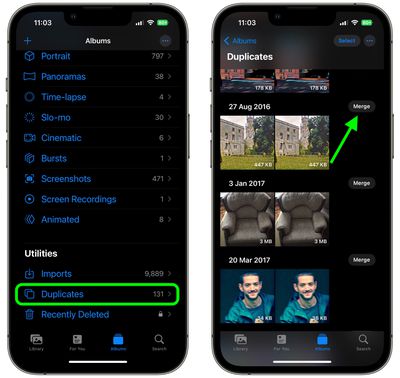
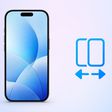
Inside the Duplicates album, you'll see duplicates listed in chronological order, with a Merge button beside each set. You can tap this button to merge duplicate sets into an individual photo. Even if you take two photos together that are very similar, Apple's merging feature will intelligently keep the highest detail and the most metadata, creating the best possible image.
If, for example, you have one copy of a photo that's high resolution and a second copy that has more metadata, the Photos app will combine the best qualities from both photos into a single image.
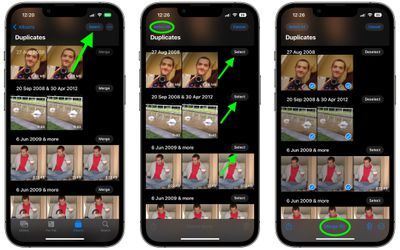
You can also merge several sets of duplicates – or all the duplicates in your Photo Library – simultaneously, by following these steps.
- In the Duplicates album, tap Select at the top of the screen.
- Individually tap the duplicates that you want to merge, or tap Select All at the top-left of the screen.
- Tap Merge at the bottom of the interface. Alternatively, you can delete the duplicates using the trash icon at the bottom-right.
Note that after updating to iOS 16, your iPhone will continually scan for duplicates, so duplicate images may show up over time and may not be available right when the update is installed.