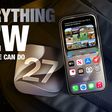
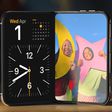
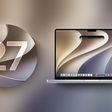
With iOS 26, Apple introduced a radically new design material called Liquid Glass which focuses on transparency in order to let the content on your display shine through the controls. Not everyone likes it though – so Apple has responded by adding a new toggle in iOS 26.1 that lets you tone down the effects.
Any major design change can create controversy as people get used to the new look, but Apple's debut of Liquid Glass in iOS 26 proved particularly divisive, with its buttons and menus that change color and refract digital light like they're physical objects. Some people appreciate the translucent effects, while others find them distracting or harmful to readability.
Fortunately, Apple has listened, and in its first iOS 26.1 point update now available, the company has introduced a new toggle that should hopefully ease some of the criticism. Apple says that the new setting was added after user feedback during the beta testing period suggested that some people would prefer to have a more opaque option for Liquid Glass.
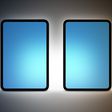
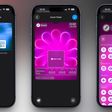
The toggle lets you select from a clear look for Liquid Glass, or a tinted look. Clear is the current Liquid Glass design, which is more transparent and shows the background underneath buttons, bars, and menus, whereas tinted increases the opacity of Liquid Glass and adds more contrast.
Tone Down Liquid Glass in iOS 26.1
If you're not a fan of the look, or are having trouble with readability, then make sure that you update to iOS 26.1 when it's released (likely early November) and then follow these steps.
- Open the Settings app on your iPhone or iPad.
- Tap Display & Brightness.
- Tap Liquid Glass.
- Tap Tinted to increase opacity and add contrast, or Clear for more transparency.
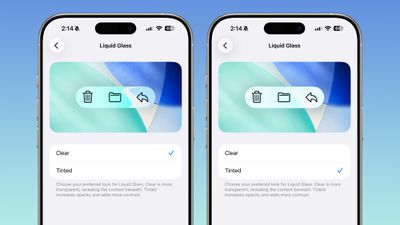
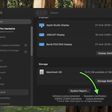
That's all you need to do – the change is applied immediately. If you're on macOS Tahoe 26.1, you can find the same setting available on your Mac in System Settings ➝ Appearance.