In iOS 15, Apple updated its Intelligent Tracking Prevention feature in Safari to prevent trackers from accessing your IP address in order to build a profile about you.
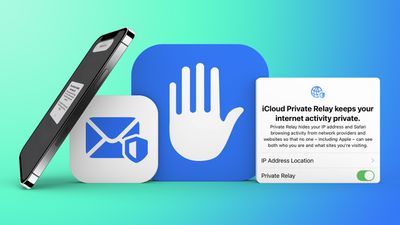
Intelligent Tracking Prevention, which Apple began implementing in 2017, is a privacy-focused feature meant to make it harder for sites to track users across the web, preventing browsing profiles and histories from being created.
Intelligent Tracking Prevention does not block ads; it simply stops websites from being able to track users' browsing habits without their permission. And now Apple gives you the option to hide your IP address from them, too. Here's how to activate the function.
- Launch the Settings app on your iPhone or iPad.
- Scroll down and tap Safari.
- Scroll down, and under "Privacy and Security" section, tap Hide IP address.
- Select Trackers and Websites or Trackers Only.
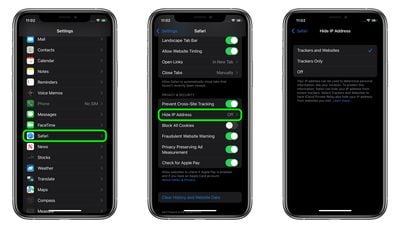
If you have the new iCloud Private Relay feature enabled in iOS 15, Safari will automatically block trackers and websites from knowing your IP address, but the option outlined above means you can still hide you IP from trackers even if you don't have a paid iCloud+ plan.
















![Apple Pulls Keynote, Pages and Numbers From App Store [Update: Back]](https://images.macrumors.com/t/Okb7kitB_gNr6qe5Pex9nQIysD8=/112x112/article-new/2026/01/Apple-Creator-Studio-iWork-suite.jpg)