Apple has expanded the Background Sounds feature in iOS 26, adding eight new ambient soundscapes to help you focus, relax, or mask distracting environmental noise. Here's how to make the most of them.
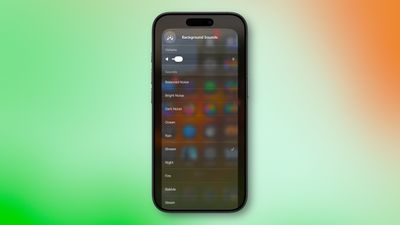
Background Sounds is an accessibility feature designed to minimize distractions and help you stay focused or calm. The sounds play continuously in the background, masking unwanted environmental noise without completely blocking out your surroundings.
The feature can be set up to work seamlessly with other audio – when you play music or a podcast or watch a video, the background sounds automatically pause.
Background Sounds in iOS 26
- Balanced Noise
- Bright Noise
- Dark Noise
- Ocean
- Rain
- Stream
- Night
- Fire
- Babble
- Steam
- Aeroplane
- Boat
- Bus
- Train
- Rain On Roof
- Quiet Night
Enabling Background Sounds on iPhone and iPad
The following steps explain how to enable Background Sounds on iPhones and iPads running iOS 15/iPadOS 15 and later.
- Launch the Settings app on your iPhone or iPad.
- Tap Accessibility.
- Under "Hearing," tap Audio/Visual.

- Tap Background Sounds.
- Tap the switch to turn on Background Sounds.
- Tap Sound to choose a sound effect. (You can also toggle Use When Media Is Playing from this menu.)
- Choose a background sound from the list.
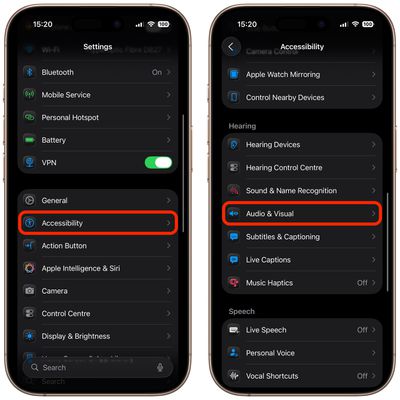
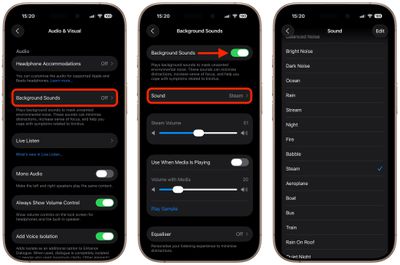
Your device will need to download individual sound effects when you play them for the first time, so make sure you have an internet connection, but after that you can play the background sound whether or not you're online.
Control Center Access
Once you have downloaded the background sounds, you can get fast access to them from the Control Center. To do this, you need to add the Background Sounds control.
- Open Control Center by dragging down diagonally from the top-right of your device's screen.
- Long press on a space between the controls, then tap Add Control.
- Search for "Background Sounds" in the controls menu, then tap the control to add it.
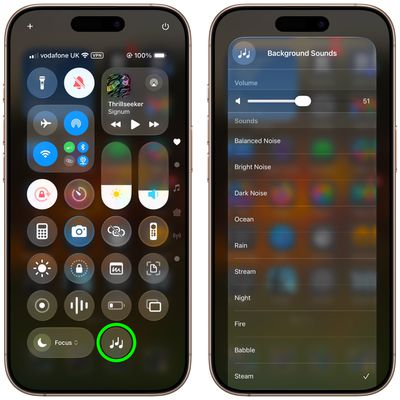
Tap the Background Sounds button in your Control Center to start playing. You can change the playing sound by choosing another one from the list, and adjust the volume using the slider.
Background sounds are also available on Macs running macOS Ventura or later. Check out our dedicated how-to article for all the details.