

In iOS 10, Apple is making it even easier to use emojis with an all-new replacement and predictive system that replaces key words and phrases with relevant emoji characters. Although still short of a full-featured search functionality -- which many have asked for -- the new emoji replacement ability turns text messages into emoji-filled communications that are fun alternatives to basic blocks of text.
Using Emoji Replacement
To insert a few emojis into texts for yourself, follow these steps:
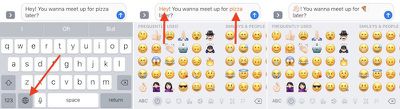
- Open Messages.
- Tap on the person you want to chat with.
- Type a message as normal, but don't hit the send arrow yet.
- Long-tap on the Globe icon to bring up your list of installed keyboards, and choose "Emoji."
- Tap any orange-highlighted word directly in your text message to turn it into an emoji. If no highlighted words appear, Apple didn't find any potential emoji replacement opportunities in your message.
- Tap the send arrow when you're finished.
Some emojis have multiple potential keywords, and for these you'll be presented with a pop-up box where you choose the emoji you want to use. The word "confused," for example, is associated with both the "confused" and "neutral" faces.
Using Emoji Prediction
Emoji predictions also begin as you type your message out, thanks to the predictive text box in the iOS keyboard. Follow these steps to make sure you have the setting enabled, and then start sending out emojis faster than ever.
- Open Settings and go to "General." Then scroll down to "Keyboard" and tap it.
- Scroll down to the bottom of Keyboard settings to find "Predictive," and toggle it on if it isn't already.
- Open Messages and navigate to the person you want to chat with.
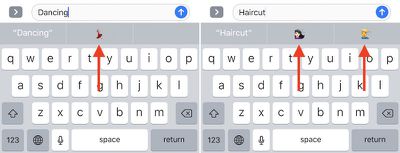
- Type a word connected to an emoji, like "Happy," "Beach," or "Sheep" to see its related emoji pop up in one of the three predictive text boxes.
- Tap the emoji to replace the typed word with a character.
- Keep typing out your message, and tap the send arrow when you're finished.
This predictive feature has the potential to be used as a search function for simply-titled emojis, mainly emotional ones like "Sad" or things related to the weather, but complex characters are still tough to propagate. Words in the ballpark of "Smiling Imp" and "Information Desk Woman" never successfully call up the relevant emojis, but as long as you're searching for basic characters emoji prediction is yet another useful and fun feature addition in iOS 10's new Messages app.
















Top Rated Comments