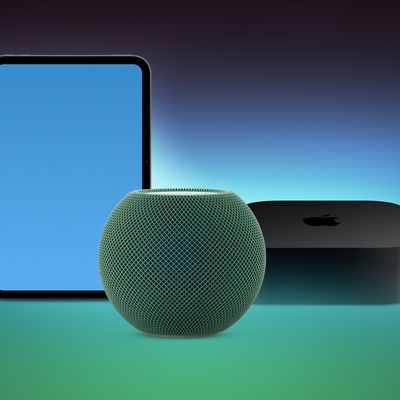
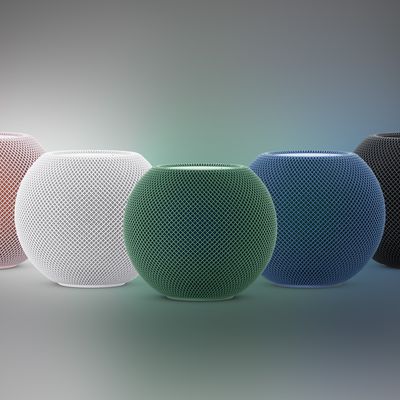
Adding a second HomePod to your setup enables stereo sound to create a wider soundstage for richer, more enveloping sound.
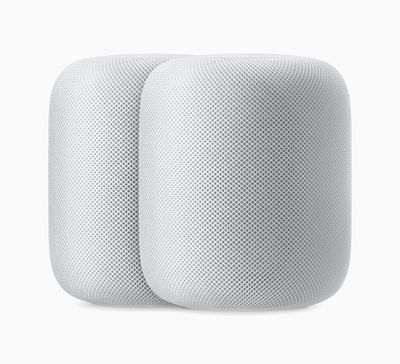
Each HomePod is able to play its own audio channel — left or right — while separating out both the ambient and direct energy. This provides a wide, almost three dimensional soundstage for a more immersive listening experience anywhere in the room. A HomePod stereo pair also creates greater bass extension, resulting in a deeper, more accurate reproduction of low frequencies.
Both the HomePod and HomePod mini support stereo pairing, but be aware that you cannot pair a HomePod mini and an original HomePod together. You can only pair two original HomePods or two HomePod minis as stereo speakers. It's also worth bearing in mind that when two HomePod speakers are joined, only one responds to Siri requests, plays alarms, and acts as a speakerphone.
You can join two HomePod speakers as a stereo pair when you initially set up HomePod, or you can later join two speakers that you’ve already set up using the Home app.Keep reading to learn how it's done.
How to Create a HomePod or HomePod Mini Stereo Pair
- Launch the Home app on your iPhone or iPad.
- Make sure both HomePod speakers are in the same room.
- Touch and hold one of the HomePods.
- Swipe up and tap the cog icon in the bottom-right corner of the screen.
- Tap Use as Stereo Pair and follow the onscreen instructions.
Once you've paired the two HomePod speakers, you'll see a single pane in the Home app representing the stereo pair. If you touch and hold it and tap the cog icon, you'll see an Audio Settings option. You can switch the left and right channels by tapping it and following the onscreen instructions.
How to Unlink a HomePod or HomePod Mini Stereo Pair
- Launch the Home app on your iPhone or iPad.
- Touch and hold the HomePod pair.
- Swipe up and tap the cog icon in the bottom-right corner of the screen.
- Tap Ungroup Accessories.
Tip: If you own an Apple TV 4K, you can create a theater experience with Dolby Atmos or surround sound right in your home. Click here to learn how.