

Apple in October 2019 debuted the AirPods Pro, a new higher-end version of its existing AirPods with an updated design, noise cancellation technology, a customizable fit with silicone ear tips, and a more expensive $249 price tag.


We've collected 14 of our favorite AirPods Pro tips to help you get the most out of Apple's latest and greatest wireless earbuds. Check out our video, keep reading, and you might discover a new trick or two.
1. Take Out Your AirPods Pro the Right Way
Have you found yourself getting frustrated trying to wrestle each AirPod Pro out of the case? Well, we're here to tell you "you're holding it wrong."
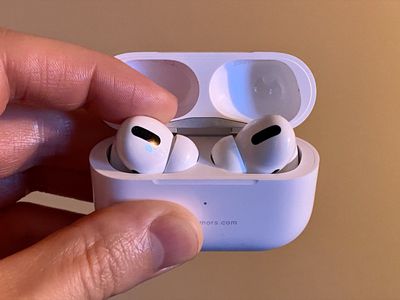
Apple has designed them in such a way that you simply have to push on the back of each earbud and it will swivel right out between your thumb and forefinger.
2. Enable Noise Cancellation for Better Audio
AirPods Pro are Apple's first in-ear headphones with Active Noise Cancellation (ANC), which adapts to the shape of your ear and blocks out the outside world so you can focus on what you're listening to.
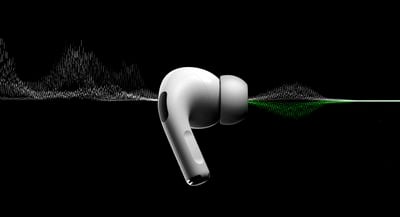
ANC relies on a feature called Ambient EQ, which Apple says adjusts the sound signal 200 times a second to optimize audio for your specific ear shape through the use of an internal-facing microphone.
When you turn off noise cancellation, Ambient EQ is also disabled, meaning sound quality is slightly degraded. So for the best Airpods Pro audio experience, it's better to keep noise cancellation on. By default, pressing and holding either AirPod Pro stem will cycle between Noise Cancellation and Transparency, or you can control the noise functions on your iPhone or iPad.
- Open Control Center on your iOS device.

- Press and hold the Control Center volume bar (a pair of earbuds will be visible inside of it to indicate the AirPods Pro are connected.)
- Tap Noise Cancellation in the strip at the bottom of the screen.
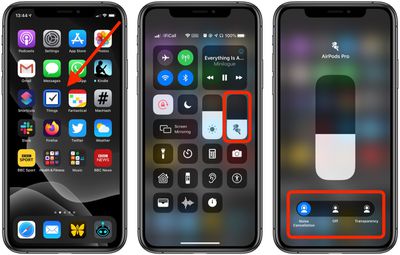
You can also control Noise Control functions by going to Settings -> Bluetooth and tapping the information icon (the circled "i") next to your AirPods Pro. And if you've got your AirPods connected to a Mac running macOS Catalina, you can control it from the volume icon in the menu bar.
3. Tap to Check Wireless Charge Status
AirPods Pro come with a wireless charging case, and you can charge it on most Qi-compatible third-party charging mats. The case also includes a neat new function for checking its charging status at any time.
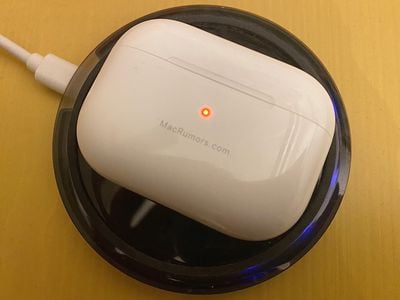
- Place the charging case face up on a charging mat – the light will turn on for a few seconds, then turn off as it starts to charge.
- To check the charging status at any time, tap the case with your finger to make the light come on.
- Take notice of the light's color: An amber light means it's still charging, and green means it's fully charged.
4. Activate Noise Cancellation on One AirPod
You can use noise cancellation when using only one AirPod Pro, which is useful if you like to take calls using just the one earbud.
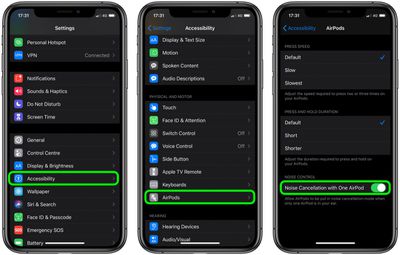
- Launch the Settings app on your iPhone or iPad.
- Tap Accessibility -> AirPods.
- Tap the toggle next to Noise Cancellation on One AirPod.
5. Access Noise Controls via Apple Watch
Most Airpods Pro users will know they can flip between the noise control features or turn them off entirely from iPhone's Control Center. It's less well-known that you can access the same functions on Apple Watch, too.
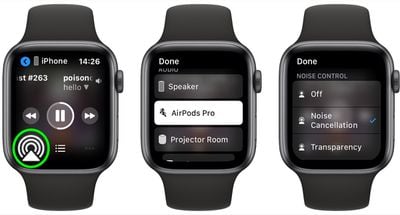
- Make sure your Airpods Pro are connected to your iPhone and audio is playing.
- Raise your wrist to wake your Apple Watch.
- On the Now Playing screen, tap the icon with the triangle and three circles in the lower left corner.
- Tap your AirPods Pro in the list.
6. Use AirPods Pro as a Remote Mic
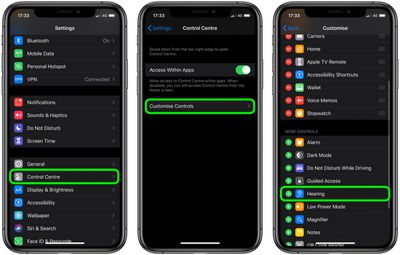
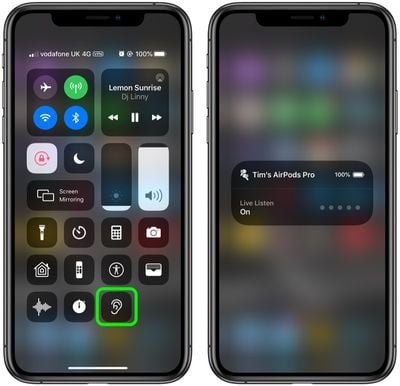
AirPods Pro support Apple's Live Listen feature, which uses your iPhone as a microphone and relays what the iPhone picks up to the earbuds, even if the AirPods are in another room.
- Open the Settings app on your iPhone.
- Select Control Center -> Customize Controls.
- Tap the "+" button next to Hearing.
- Launch Control Center by swiping down from the top-right corner of the screen (on iPhone 8 or earlier, swipe up from the bottom of the screen).
- Tap the Hearing icon.
- Tap Live Listen.
- Place your iPhone close to the person(s) you want to hear...
7. Share Audio Between Two Pairs of AirPods
If you're running iOS 13.1 or later, Apple's Audio Sharing feature lets you share your device's Bluetooth audio with a second pair of AirPods, so two of you can listen to music together while running, or enjoy a movie on a plane without disturbing those around you.
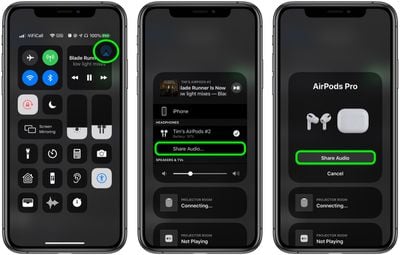
- With your AirPods on, start playing audio on your iPhone or iPad.
- Launch Control Center by swiping down from the top-right corner of the screen or up from the Home button on devices with a Home button.
- In Control Center's audio playback controls, tap the icon with the triangle and three circles.
- Bring your friend's AirPods inside their case close to your device and flip the lid open.
- You should see a prompt on your device's screen offering to Share Audio with the second pair of AirPods.
8. Use One AirPod to Extend Listening Time
AirPods Pro offer excellent stereo audio output, but Apple has designed the wireless Bluetooth earphones so that you can also use them one at a time.

- Insert one AirPod in your preferred ear and leave the other AirPod in the charging case – the H1 chip will automatically detect which one is in use.
- When you hear the low battery tone from the AirPod you're wearing, swap it out with the fully charged one in your Charging Case.
- Keep switching between them like this to continue listening for as long as your Charging Case has juice.
Note that when you use just a single left or single right AirPod, stereo signals are automatically converted to mono output, so you won't miss a thing.
9. Adjust Force Sensor Duration
If you're having difficulty engaging the AirPods' Force sensor by squeezing it between your fingers, try adjusting the duration to see if it makes it any easier.
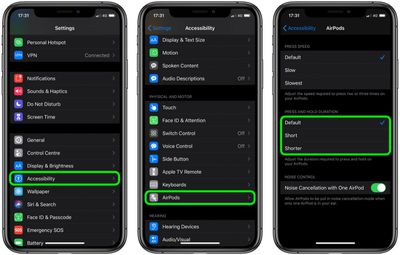
- Launch the Settings app on your connected device.
- Select Accessibility -> AirPods.
- Under "Press and Hold Duration," select Default, Short or Shorter.
10. Change AirPods Press Speed
The controls on AirPods Pro allow you to press once to play, pause or answer a phone call, press twice to skip forwards, and press three times to skip backwards. Like the press-and-hold gesture, if you're having trouble engaging these functions then you can adjust the press speed to make it slower.
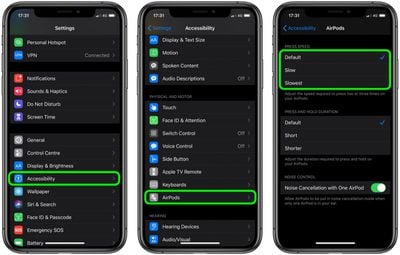
- Launch the Settings app on your connected device.
- Select Accessibility -> AirPods.
- Under "Press Speed," select Default, Slow, or Slowest.
11. Find Your Misplaced or Lost AirPods Pro
If you lose or misplace your AirPods Pro, you can find their last known location in the Find My app.
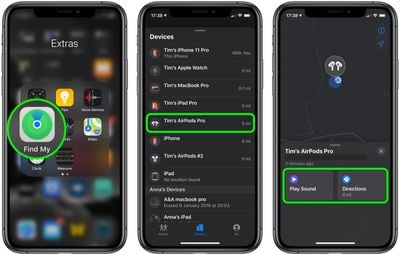
- Open Find My app on your iOS device (or access it in any browser via iCloud.com).
- Tap the Devices tab at the bottom of the screen.
- Tap your Airpods Pro in the list.
- Tap Play Sound if you're fairly sure your AirPod(s) are somewhere within earshot. If you don't know where you lost your AirPod(s), the last place they were connected will be shown on the map – tap Directions to get directions to the last known location.
12. Have AirPods Pro Announce Your Calls
If you receive a call on your iPhone (or an Apple Watch with cellular) when your Airpods Pro are connected, the ringing tone will interrupt whatever it is you're listening to.
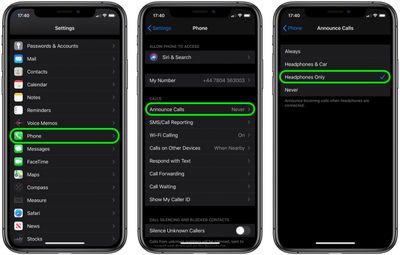
To find out who's calling, normally you'd have to take out your iPhone or look at your Apple Watch, but you can have Siri announce who it is over your AirPods, saving you the trouble.
- On your iPhone, launch the Settings app.
- Tap Phone in the list.
- Tap Announce Calls under the Calls heading.
- Tap Headphones Only so that a tick appears alongside the option.
13. Check AirPods Battery Life
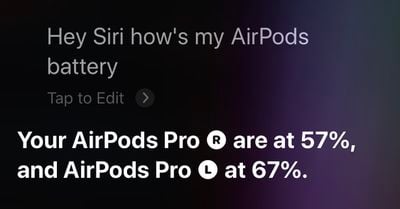
You can check the charge status of your AirPods using the Batteries widget in your iPhone's Today View, but when you're wearing your AirPods, just ask Siri "How is my AirPods' battery?" and you'll get an individual percentage level for each earbud. If you just opened your charging case, you'll get a percentage for that too.
You can also check the battery level of your AirPods from Apple Watch, whether they're paired with your iPhone or directly with your watch. To do so, swipe up on a watch face or when in an app to bring up Control Center, then tap the Apple Watch battery icon, indicated by a percentage.
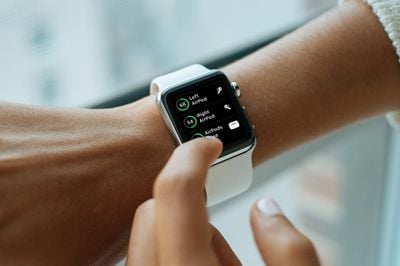
Your AirPods' battery level will be displayed as a ring below the Apple Watch battery percentage, and if you place an AirPod in its charging case, you'll see individual percentage charges for the lot.
14. Reset Your AirPods Pro
If your AirPods aren't working as they should be – if you can't connect to them or if they won't charge, for example – you can reset them by following these steps.
- Put your AirPods in their case and close the lid.
- Wait 30 seconds, then open the lid.
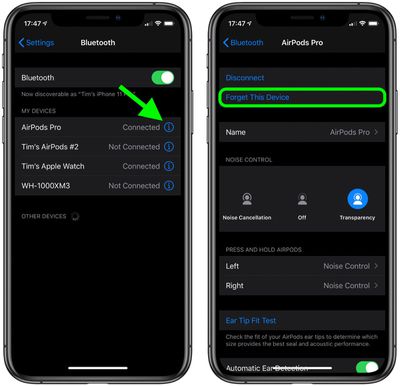
- On your iOS device, go to Settings -> Bluetooth and tap the circled "i" icon next to your AirPods.
- Tap Forget This Device, and tap again to confirm.
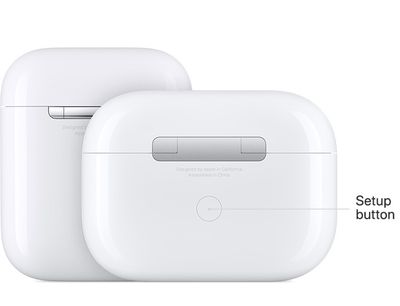
- With the AirPods case lid open, press and hold the button on the back of the case for about 15 seconds until you see the status light flashing amber.
- With the case lid open, place your AirPods close to your device and follow the steps on your device's screen to reconnect your AirPods.
Got any more AirPods tips or tricks we've not covered here? Let us know in the comments below.




































![Apple Pulls Keynote, Pages and Numbers From App Store [Update: Back]](https://images.macrumors.com/t/Okb7kitB_gNr6qe5Pex9nQIysD8=/112x112/article-new/2026/01/Apple-Creator-Studio-iWork-suite.jpg)






