Apple released iOS 26 in mid-September, bringing a range of new features and changes to iPhones across the globe. But not all of the included improvements have been showcased with Apple's typical fanfare, and many are likely to have been overlooked.
Below, we've highlighted 26 lesser known additions and enhancements that could potentially change how you use your iPhone on a daily basis. Got any favorite iOS 26 tips we haven't covered here? Let us know in the comments section at the end of this article.
1. New Background Sounds
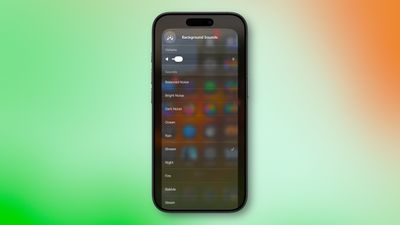
Apple has added eight new Background Sounds in iOS 26, including Babble, Steam, Airplane, Boat, Bus, Train, Rain On Roof, and Quiet Night. Add the Background Sounds control to Control Center to try them out, or go to Settings ➝ Accessibility ➝ Audio & Visual ➝ Background Sounds.
2. Tint Icons to Match iPhone Color
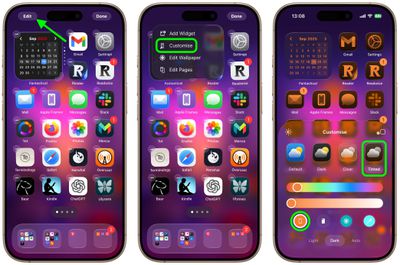
Apple's Home screen customization options can match the color of your app icons with the physical color of your iPhone. Long press a space on your Home screen and tap Edit ➝ Customize. Then Choose Tinted and tap the far-left iPhone button under the two horizontal color sliders.
3. Reduce Loud Sounds
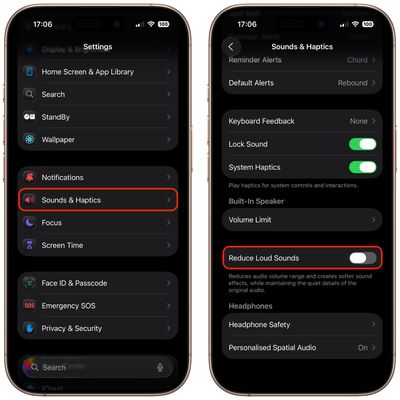
A new "Reduce Loud Sounds" option in Settings ➝ Sounds & Haptics compresses your iPhone speaker's volume range, making loud sounds softer while preserving quieter details. If you frequently switch between apps with wildly different volume levels or watch videos with inconsistent audio mixing, it could be worth enabling the toggle to improve your listening experience.
4. Selectively Copy Messages Text
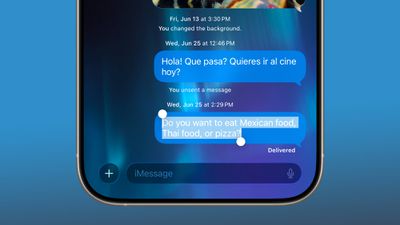
When you tap and hold on any message bubble, a new "Select" option now appears alongside the familiar copy and reaction choices, finally solving one of Messages' most persistent frustrations. It allows you to highlight specific portions of text within a message rather than copying the entire message.
5. Send Photos Faster
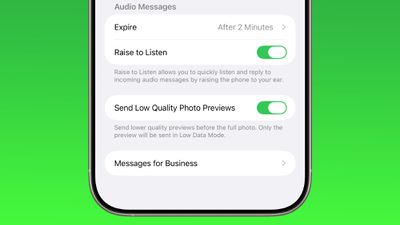
Apple quietly added a neat new option that lets you send smaller-sized previews of images over Messages so that recipients get them right away, before the full-resolution images arrive. Find the option in Settings ➝ Apps ➝ Messages ➝ Send Low-Quality Photo Previews. If you're traveling with limited cellular data or using a metered data connection, the recipient only gets a compressed preview version – ensuring the original high resolution image doesn't hoover up your data.
6. Ask ChatGPT About Onscreen Content
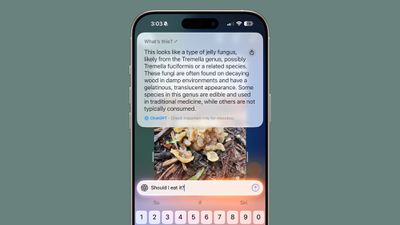
Start by taking a screenshot: Quickly press and release the iPhone's Side button and the Volume Up button at the same time. Then tap Ask to open a text box where you can pose a question to ChatGPT about the screenshot's contents. For example, you can ask for an explanation of a term or details about an object.
7. Get a Callback Reminder for a Missed Call
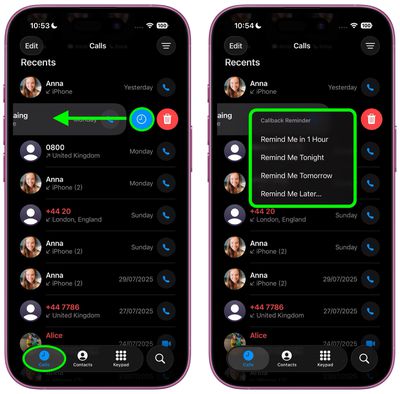
Keeping track of missed calls can be challenging if you're juggling several tasks during the day. In iOS 26, you can set callback reminders directly from the Phone app, making it less likely that you'll forget to return important calls. Tap the Calls tab, scroll down to Recents, then swipe left across a missed call and tap the blue clock icon. Choose one of the following: Remind Me in 1 hour, Remind Me Tonight, Remind Me Tomorrow, Remind Me Later...
8. Screen Messages From Unknown Senders
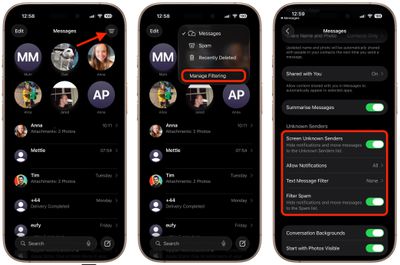
Apple in iOS 26 provides more control over unwanted texts, separating spam messages from unknown senders into distinct categories. In the Messages app, tap the filter menu icon in the top-right corner and Select Manage Filtering, then toggle on Screen Unknown Senders in Messages' settings. Once filtering is active, messages from contacts not saved in your address book automatically go to the Unknown Senders section. You'll see a number in brackets next to Unknown Senders in the filter menu indicating new messages, but you won't receive disruptive alerts.
9. Set a Custom Ringtone
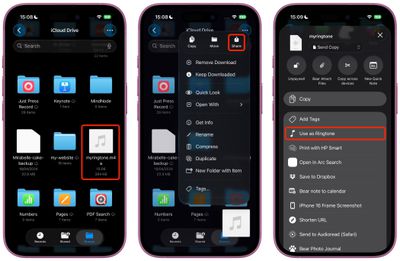
Setting custom ringtones on your iPhone is dramatically easier in iOS 26. Open the Files app, long press an MP3 or M4A audio file that's less than 30 seconds long, tap Share, then choose Use as Ringtone. The change will be made immediately.
10. See Your Gaming Achievements
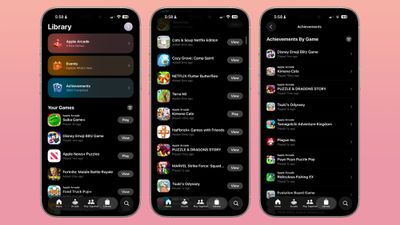
The new Games app is split into four tabs, including Home, Arcade, Play Together, and Library. The Library tab includes all of the games that you have played across all of your devices. The Library lets you see all of your achievements in one place separated by game, with filters to separate them by platform.
11. Move Widgets to Bottom of Lock Screen
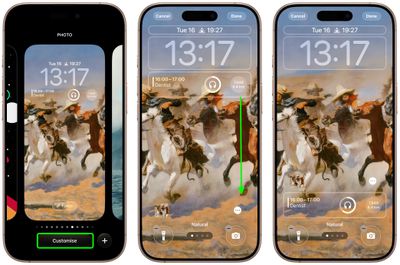
In iOS 18, the row of widgets on your Lock Screen was literally locked in place right below the clock. In iOS 26, however, Customize mode lets you drag them down to the bottom of the screen. The new optional positioning makes tapping a widget during one-handed use a lot easier.
12. Use AirPods as Microphone When Shooting Video
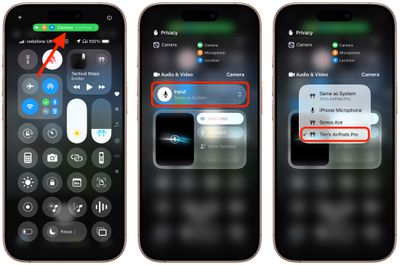
You can use AirPods 4, AirPods Pro 2, or AirPods Pro 3 as a wireless microphone in the Camera app. With your AirPods in your ears, open the Camera app, switch to Video mode, and open Control Center. Tap Camera Controls at the top, tap Input, then select your AirPods from the pop-up menu. When you're ready, press the stem on your AirPods to begin recording video. When you're done, press your AirPods stem again to end the shoot.
13. Restore Safari's Old Layout
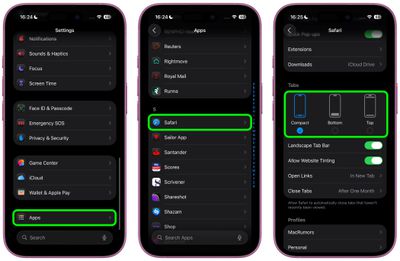
iOS 26 introduces a new "Compact" Safari design as the default, but Apple has included two additional layout options that essentially restore the iOS 18 experience. Go to Settings ➝ Apps ➝ Safari, scroll down to the "Tabs" section, then select either Bottom or Top instead of Compact. Both the Bottom and Top options function exactly like the Safari tab bar layouts from iOS 18, so you don't need to relearn how to navigate between tabs or access your bookmarks.
14. Add a Reminder With Action Button
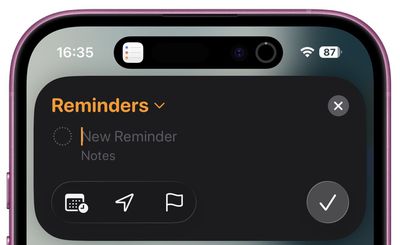
A "New Reminder" control lets you create tasks without opening the Reminders app. If you have an iPhone 15 Pro or newer, you can assign it to the Action button: Open Settings ➝ Action Button, then swipe to Controls and choose New Reminder from the list of available actions. When you activate the New Reminder control, the Reminders app isn't actually opened. Instead, iOS 26 displays a compact popup panel that includes everything you need to create a task: you can select the Reminders List, add a note, the date, location, and a flag.
15. Keep iPhone Camera Lens Clean
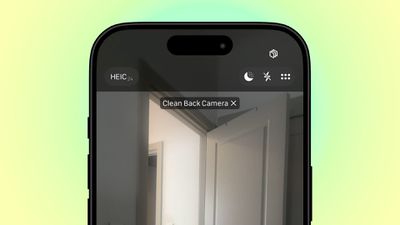
Apple has a helpful new feature that notifies you when your iPhone's camera lens needs cleaning – something Android devices have offered for years. Go to Settings ➝ Camera and toggle on Lens Cleaning Hints. Now whenever your iPhone's camera is active, it will monitor the incoming light for signs of reduced clarity or smudging that could indicate a dirty lens. When triggered, you'll see a discrete alert suggesting you clean your camera lens to improve image quality.
16. Control Game Settings
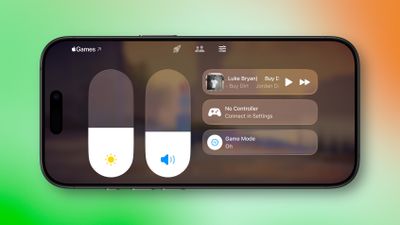
When you start a game, Game Mode is activated. If you tap into Control Center within Game Mode, you'll see an "Overlay" option. Tap that and you can see leaderboards, invite friends to play, and control game settings like sound level, display brightness, and controller parameters.
17. Save Physical Card Details in Wallet
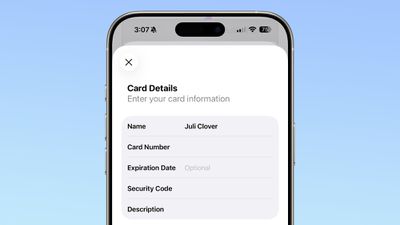
Apple's Wallet app now lets you store physical card information alongside your digital payment cards. Open the Wallet app on your iPhone, then tap one of your stored cards. Alternatively, add a new card using the + button, then select it in Wallet. Tap the "123" card symbol at the top, then authenticate with Face ID or your passcode. Select Add Physical Card Information, and fill in your card details including name, number, expiry date (optional), and security code. It's a simple addition in iOS 26, but it brings the Wallet app closer to being a comprehensive card management tool, filling the gap that third-party apps like 1Password typically fill.
18. Check Remaining iPhone Charge Time
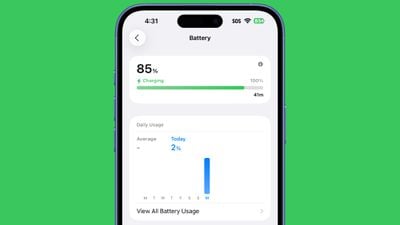
Instead of waiting around or checking your battery percentage every few minutes, you can now see exactly how much time remains until your device reaches 100% when charging. Open Settings ➝ Battery, and look for the time estimate displayed next to the charging indicator. The estimate appears as a simple readout like "18m" or "45m," giving you an immediate answer to how long you'll need to wait for a full charge.
19. Make Your Favorite Podcasts Easier to Hear
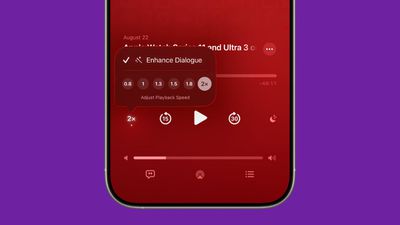
Apple has finally caught up with rival podcast apps like Overcast by adding an Enhance Dialogue feature to the Podcasts app. The new audio processing option isolates voices and makes them sound clearer, which should prove ideal for any mumbled true crime episodes or echo-heavy interview shows you listen to. In the Podcasts app, open the fullscreen playback controls, tap the playback speed button (1x) in the bottom left, then tap the Enhance Dialogue toggle. The Podcasts app remembers your preference for each individual podcast, so you won't need to toggle it on and off every time you switch between shows with different audio quality standards.
20. Use Folders to Manage Music Playlists
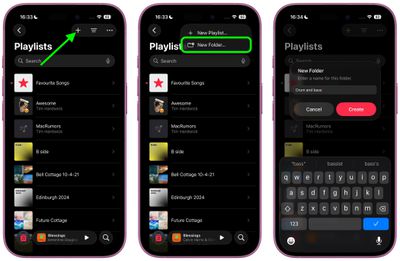
Apple Music now has playlist folders, bringing the same organizational power that's long been available for photos and notes to your music collection. In the Playlist section, tap the + icon at the top, choose New Folder... from the popup menu, give your folder a name, then tap Create. To move playlists into the folder, simply long press one, choose Move to... from the popup menu, thence the folder from All Playlists, then tap the red Move button.
21. Remix the Classic iPhone Ringtone

The iconic "Reflection" ringtone – introduced in 2017 alongside the iPhone X – now has multiple alternate versions in iOS 26. While the original tone retains its familiar pellucid xylophone melody, there are six new variants that bring new energy to the classic, including Buoyant, Dreamer, Pond, Pop, Reflected, and Surge. You can find and select the new ringtones in Settings ➝ Sound & Haptics ➝ Ringtone. Tap the chevron next to Reflection to expand the list and reveal the new versions. In an extra Easter egg, Apple also added a new ringtone called Little Bird, which is distinct from the new Reflection options.
22. Control iPhone Camera With AirPods
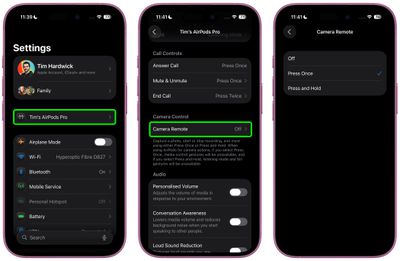
In iOS 26, AirPods 4 and AirPods Pro 2 come with the ability to control iPhone photo and video capture using AirPods stem gestures. To enable the feature, connect your AirPods to your iPhone, open Settings, and tap your AirPods name. Scroll down to "Camera Control," then tap Camera Remote and choose your preferred gesture: Press Once or Press and Hold. Once enabled, the feature works seamlessly with the built-in Camera app. Wearing at least one paired AirPod, simply open the Camera app and select either Photo or Video mode, then frame your shot as you normally would. When you're ready to capture, use your chosen AirPods gesture to trigger the camera remotely.
23. Block Sensitive Content in FaceTime
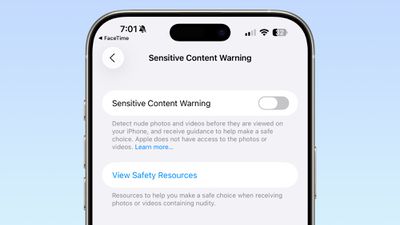
In iOS 26, the Sensitive Content Warning and Communication Safety features are available for FaceTime video calls. When nudity is detected, the FaceTime video will pause and a warning about nude content will be displayed. To enable the feature, go to the Privacy & Security section of the Settings app and toggle on Sensitive Content Warning. Adults can also opt to turn on Communication Safety in the Screen Time section of the Settings app.
24. Choose Time Zone for a Reminder
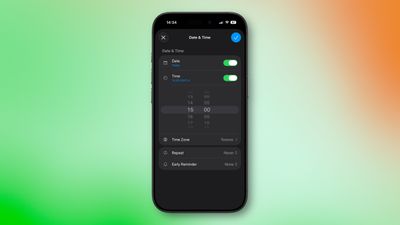
The Reminders app now lets you choose time zones. To set one for all reminders, go to Settings ➝ Apps ➝ Reminders ➝ Time Zone, turn on Set Manually, then tap Time Zone and search for your preferred location. You can also assign a different time zone to individual reminders. When creating a new reminder, tap Time, then select the desired time zone for that reminder.
25. Ask Reason for Calling
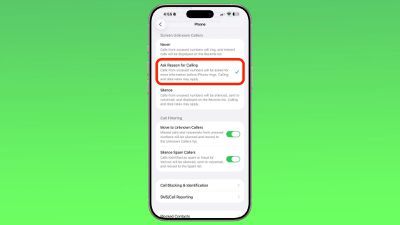
Apple has expanded call screening functionality in iOS 26, and there is an option to ask unknown callers (aka people who you don't have saved in your Contacts list) for their name and reason for calling. Your iPhone can intercept an incoming call, request the person's name and a short reason for calling. The information is transcribed to text and relayed to you, and you can decide whether to ask for more information, accept the call, or decline the call. To enable the feature, go to Settings ➝ Apps ➝ Phone, then toggle on Ask Reason for Calling.
26. Stop Maps Tracking Your Visited Places
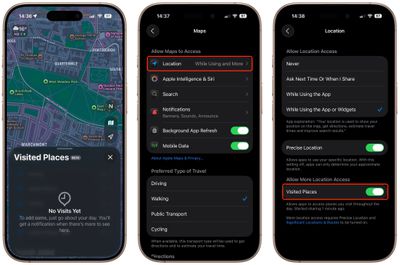
Apple Maps is able to keep track of the places that you've visited, either in your hometown or while traveling. It can track the restaurants, shops, parks, and landmarks that you go to, so you can look back and remember where you've been. You can see your Visited Places by opening up the Maps app, tapping on your profile picture, tapping on Places, and then tapping into Visited Places. After you upgrade to iOS 26, the Maps app pops up an alert letting you know about the new feature, so that you can opt in or opt out. If you opted in but now find it creepy, turn it off by going to Settings ➝ Apps ➝ Maps ➝ Location, and toggling off Visited Places.