Gmail Now Able to Be Set as Default Mail App on iPhone and iPad in iOS 14
Apple in iOS and iPadOS 14 is allowing third-party apps to be set as alternatives to the default browser apps on the iPhone and the iPad, and now one of the most popular third-party email apps, Gmail, can be set as the default email app on your iOS devices.
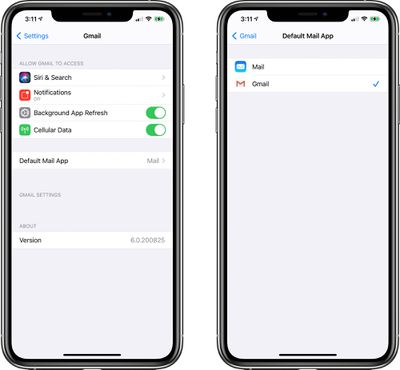
With the latest Gmail for iOS update available in the App Store as of today, Gmail can serve as a replacement for the Mail app.
You can set Gmail as the default email app on your iPhone or iPad by downloading it from the App Store, opening up the Settings app, scrolling down to Gmail in the apps list and then tapping on Default Mail App.
Google previously updated Chrome with the default browser function so it can be set to replace Safari on the iPhone and iPad. Those who prefer Google's apps can now have a mostly Google-centric experience on the iPhone, at least when it comes to browser and email.
It's worth noting that there is currently a bug that resets the default apps that have been set to replace Safari and Mail every time a device is rebooted, so Gmail may have to be updated as the default email app whenever you restart your iPhone until Apple fixes the issue.
Popular Stories
Apple is launching five new products on Friday, November 6, following pre-orders that opened last week, including its first touchscreen MacBook Pro models.
The following new products will be available from today:
iPad mini with OLED display and A20 Pro chip
iMac with M6 chip
14-inch MacBook Pro with M6 chip
14-inch MacBook Pro with OLED touchscreen
16-inch MacBook Pro with OLED...
Apple today announced that its Festival Place store in Basingstoke, England will be permanently closing on Saturday, November 21.
Apple Festival Place
Apple had already announced that the store would be closing in November, but it had not provided the public with a specific date until now.
Apple's store inside the Festival Place shopping center opened in 2011, so it had a 15-year run....
Apple is sending email surveys to some iPhone Duo buyers to get feedback on display size, crease, under-display camera, and other features.
The first question asks why the buyer chose the iPhone Duo now, with answers like "I wanted to try Apple's first foldable," "It was an impulse purchase," and "I expect smartphone prices to increase."
Other questions ask about the size of the iPhone...