10 Useful iPhone Tips and Tricks You Might Not Know About - MacRumors
Skip to Content

10 Useful iPhone Tips and Tricks You Might Not Know About

Over the years, the iPhone's operating system has gotten complicated. Apple adds new features with every version of iOS, and many of them aren't always obvious, leading to hidden iPhone capabilities you might not be aware of.

10 Useful iPhone Tips and Tricks Feature 2

Turn an App Into a Widget

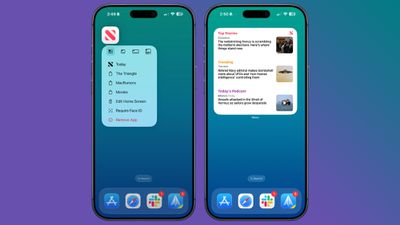
You can turn most app icons into widgets right from the iPhone's Home Screen. Just long press on an app icon, and select one of the squares from the top to choose a widget size. It works with any Apple or third-party app that has a widget option. Long press again and select the top left icon with four squares to turn it back into a standard app icon.
app icons to widgets

See Where You've Been

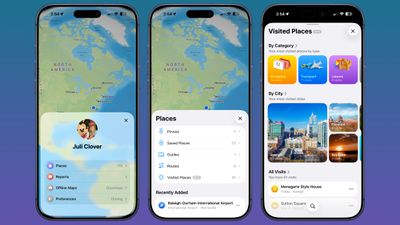
In the Maps app, you can look back at your location history to see places that you've visited. It's useful if you've been on a weekend trip, found a great restaurant, and want to remember where it was the next time you visit.
maps app visited places
You can get to this feature by opening up the Maps app, tapping on your profile, selecting Places, and then choosing Visited Places. Places are organized by category like leisure or shopping, and by city.

You can clear your history by scrolling down to the bottom of the interface, or select a period of time for visits to be kept. Go to Settings > Maps > Location > Visited Places to turn it off entirely.

Set Custom Vibrations

You probably know you can set custom sounds for people that call or text, but you can also do the same thing for vibration patterns if you keep your iPhone on silent all the time, as civilized people do.
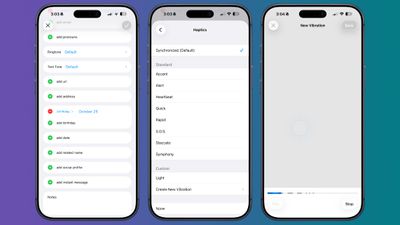
contacts app custom vibration
Important people you message can each have a different vibration pattern, so you know who is texting without having to look at your phone.

To set a vibration pattern for someone, open up the Contacts app and select them. Tap Edit in the upper right corner, then tap on Text Tone or Ringtone. Tap on Haptics and then select Create New Vibration. From there, you can use taps and presses to make your own vibration patterns.

Back Tap Gestures

Back Tap has been around for a long time, but it's easy to forget it exists. You can use it to set a tap on the back of the iPhone to do whatever you want, from snapping a screenshot to activating the flashlight. It even works with Shortcuts you've created.
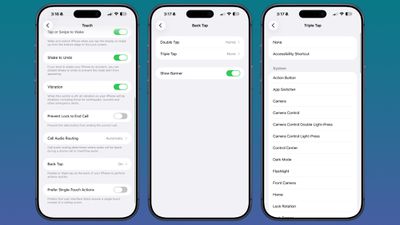
backtap iphone options
Go to Settings > Accessibility > Touch and then scroll down to Back Tap to set it up. You can set actions for a double tap or a triple tap.

Screenshot a Webpage

When you press the side button and volume buttons to take a screenshot, the default is a capture of what's currently on your display. If you want to screenshot a whole webpage or a PDF, there is a way to do it. Take the screenshot as normal, then tap it (if you have full-screen previews off). Select "Full Page" at the top of the interface, and then choose where to save your extra long screenshot.
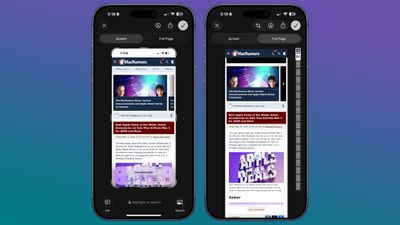
screenshot whole websites

Hide Apps

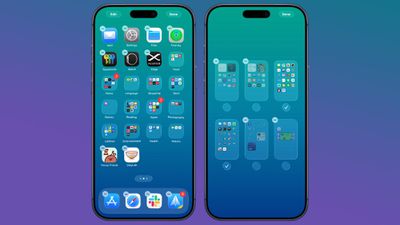
If you have apps that you don't want to show up on the ‌Home Screen‌, you can hide them one by one by long pressing and tapping the Face ID option, or you can hide a whole app page at once. To hide an app page, long press on the ‌Home Screen‌ to enter jiggle mode.

hide app pages
Tap on the dots at the bottom of the display, and then select the app page you want to hide from view. Apps hidden this way don't show up in the Hidden folder in the App Library. You can still find them through Spotlight Search and they're visible in their appropriate App Library category. To unhide a page, follow the same steps and tap the checkbox to bring it back.

Rate Your Pictures

iOS 27 includes support for adding keywords and star ratings to your photos and videos, which makes them easier to find later via search or filters.
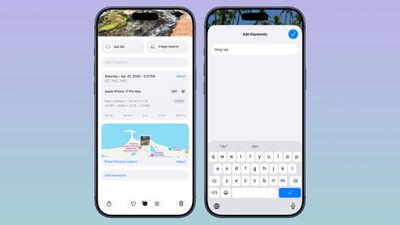
ios 27 photos metadata
You can add any keyword or rate images from one to five stars.

Remove Photos Location Data

If you're sending a photo to someone, you might want to remove metadata like location first. To do so, select an image in the Photos app, swipe up, and tap on Adjust Location. From there, you can choose No Location.
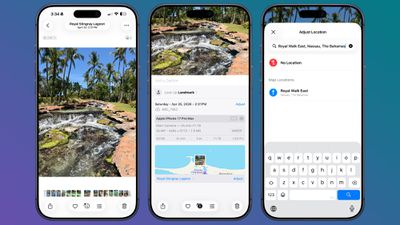
photos app remove metadata 1
Alternatively, when you go to share a photo, you can turn off metadata there. Select a photo, and tap on the Share button. Tap on Options, and toggle off Location.
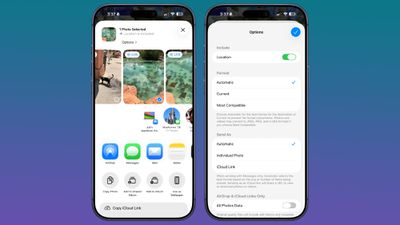
photos app remove metadata 2

Use a Timer to Turn Off Media

You can use timers to control how long music, podcasts, audiobooks, and other media play for, which is useful if you only want to listen for a short period at night.
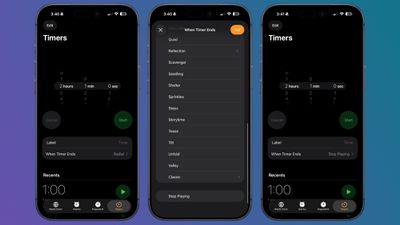
timers stop playing media
In the Clock app, tap on Timers. Set a time period, and then tap on the When Timer Ends option. Scroll down and select Stop Playing. When your timer goes off, any media you have playing will stop.

Save a Still From a Video

In ‌iOS 27‌, there's a new feature that lets you save a still from a video without having to capture it as a screenshot. Just open up a video in the ‌Photos‌ app, navigate to the frame you want to save, then tap on the three-dot icon in the upper right of the display. Select the "Save Video Frame as Photo" option to save the image.

More Tips

Have a favorite iPhone tip that most people don't know about? Let us know in the comments below.

Popular Stories

M5 MacBook Pro

RIP, MacBook Ultra

Monday October 19, 2026 9:37 am PDT by
Apple today sent out invites for an experience in Los Angeles on Wednesday, October 28, and the "Pro and tell" tagline on the invitation likely means that the rumored MacBook models with touch-enabled OLED displays will stick with MacBook Pro branding instead of the once-rumored "MacBook Ultra" name. The long-rumored "iPhone Ultra" ended up being named iPhone Duo, so speculation that Apple...
iPhone Duo Trio

Here's What Apple's Apps Look Like on the iPhone Duo

Tuesday October 20, 2026 11:12 am PDT by
With just three days to go until the iPhone Duo is released, Apple is getting ready for the launch. Behind the scenes, the App Store now has screenshots of Apple's built-in apps running on the Duo. We've seen some apps in marketing materials, but images of the ones we haven't seen give us an idea of what it will be like using the iPhone Duo day to day. Many apps are shown in landscape...
apple pro tell logo

Apple Announcing New Products Next Week: 'Pro and Tell'

Monday October 19, 2026 9:05 am PDT by
Apple's Greg Joswiak today hinted at new product announcements coming next week, sharing a social media post that says "Can't wait to pro and tell next week." Rumors suggest Apple is planning to debut the new MacBook Pro with an OLED touchscreen display, an M6 entry-level MacBook Pro, an M6 iMac, an iPad mini with an OLED display. Can't wait to pro and tell next week....

Top Rated Comments

Mr_Ed Avatar
23 weeks ago

I doubt anyone who follows an Apple page doesn’t know this already…
TBF, there are new iPhone users (and MR members) all the time, so I expect all levels of knowledge in the crowd. Even with long-time users, most won’t explore and read about all the ins and outs of every feature. Whenever MR posts this type of article I find I do know about most of it, but always find something I had not explored.
Score: 14 Votes (Like | Disagree)
23 weeks ago

I doubt anyone who follows an Apple page doesn’t know this already…
I'm what you would call a power iPhone user. I learned several things I didn't know with these. I don't have time to read through all the documentation about every feature on the phone. I'd be highly surprised if many people know everything about every possible phone feature.
Score: 10 Votes (Like | Disagree)
Unami Avatar
23 weeks ago
Nice Tips, as always - keep them coming. I totally forgot about the back tap gesture.

I remember, there once was a long article containing lots of those tricks in one place. Maybe a permanent section with a regularly updated collection (not spread over multiple articles, the comments and the forum) would be a nice feature for the macrumors-site?
Score: 9 Votes (Like | Disagree)
AusMness Avatar
23 weeks ago
One of my favourite neat tips is dialing *3001#12345#* in the phone app to open FTMinternal for cell info
Score: 7 Votes (Like | Disagree)
23 weeks ago
I liked learning you can do a "screen" shot of an entire web page. Probably won't use this much but nice to know I can easily.
Score: 6 Votes (Like | Disagree)
tonywalker23 Avatar
23 weeks ago

TBF, there are new iPhone users (and MR members) all the time, so I expect all levels of knowledge in the crowd. Even with long-time users, most won’t explore and read about all the ins and outs of every feature. Whenever MR posts this type of article I find I do know about most of it, but always find something I had not explored.
Amen. To quote my profession, no matter how much seminary training you get, never forget to preach to the person who just walked in and sits in the back pew.

Score: 5 Votes (Like | Disagree)
Latest Stories
Giant iPhone Duo Displays Coming to Four Apple Stores
31 minutes ago
Apple Pulls Keynote, Pages and Numbers From App Store
1 hour ago
Apple Updates More Apps With iPhone Duo Support
2 hours ago
Apple Will Label Apps 'Made for iPhone Duo' in App Store
5 hours ago
Amazon Takes $49 Off iPad With Prices Starting at $399.99
5 hours ago
F1 on Apple TV Now Available in Dolby Atmos
6 hours ago
Apple Reveals More Than 50 Apps That Will Be Updated for iPhone Duo
6 hours ago
Apple Blocks Certificates That Could Help Attackers Fake Websites
8 hours ago
Giant iPhone Duo Installations Spotted at Apple Fifth Avenue
8 hours ago
iPhone Duo 2 Prototypes Include Under-Display Face ID
9 hours ago
Tesla App Gains iPad and iPhone Duo Support
13 hours ago
Apple Reportedly Boosts iPhone Duo Orders by 44%
13 hours ago
Fortnite Returning to Australian App Store After Court Ruling
13 hours ago
Apple Ordered to Open iPhone to Rival App Stores in Australia
14 hours ago
Apple Suppliers Face Hurdles Cutting Circuit Board Emissions
14 hours ago
Things Updated for iPhone Duo With Adaptive Layout
15 hours ago
Simplicity and Siri AI Are HomeView's Killer Features, Apple Says
15 hours ago
iPhone Duo Reviewers Really Miss Face ID
20 hours ago
Does the iPhone Duo Run Hot? Here's What Reviews Found
21 hours ago
Apple Music's New Look is Now Live on Apple's Website
22 hours ago
Anthropic Launches Claude Duet, a Proactive AI Agent
22 hours ago
What 32,000 Folds Did to the iPhone Duo's Hinge
23 hours ago
iPhone Duo's Hidden FaceTime Camera Takes 'Trash' Photos
1 day ago
iPhone Duo Has 'Edge Light' Feature That Debuted on Macs Last Year
1 day ago
Apple Support App Updated for iPhone Duo's Larger Display
1 day ago
Amazon Sweetens the Deal on Entry-Level 16-Inch MacBook Pro With $570 Off
1 day ago
iPhone Duo Tips Over on MagSafe Stands When Unfolded
1 day ago
Apple Music's New Look Officially Announced
1 day ago
iPhone Duo Supports Apple Pencil Starting With iOS 27.2
1 day ago
iPhone Duo Accessories Roundup: Cases and Screen Protectors From OtterBox, ZAGG, and More
1 day ago