In iOS 26, Apple has extended its Sensitive Content Warning protection to FaceTime video calls. Previously the feature only worked in Contacts, Messages, AirDrop, and shared photo albums. When the feature's enabled, your iPhone uses on-device machine learning to detect nudity during live FaceTime calls and pauses the video feed before displaying potentially sensitive content.
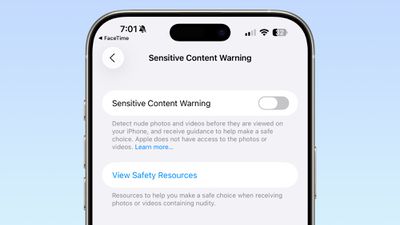
The way it works in FaceTime is different to other apps. Rather than simply blurring an image, FaceTime freezes both audio and video when nudity is detected, giving you the option to resume or end the call. All processing happens locally on your device, so Apple never receives indication that nudity was detected and doesn't access your video.
Enabling Sensitive Content Warning for FaceTime
By default, Sensitive Content Warning is turned off for adult accounts. Here's how to enable it:
- Open the Settings app on your iPhone.
- Tap Privacy & Security.
- Scroll down and tap Sensitive Content Warning.
- Toggle on Sensitive Content Warning at the top.
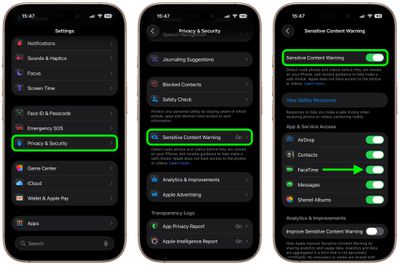
Once you've done that, scroll down to the "App & Service Access" section and make sure the toggle next to FaceTime is turned on. In iOS 26, this replaces the previous "Video Messages" option from earlier iOS versions.
How the Feature Works
When Sensitive Content Warning detects nudity during a FaceTime call, the app immediately pauses both audio and video. You'll then see a warning message and a suggestion to end the call if you're uncomfortable.
From this screen, you can choose to Resume Audio and Video or End Call. The warning only appears the first time nudity is detected during a call – if you choose to continue, you won't receive further warnings during that session.
Communication Safety for Children
For child accounts under 18, Communication Safety provides similar protection but is managed through Screen Time. Parents can enable this in Settings ➝ Screen Time ➝ Communication Safety, where it cannot be disabled without parental permission.