iOS 14 Home Screen: Everything You Need to Know - MacRumors
Skip to Content

iOS 14 Home Screen: Everything You Need to Know

by

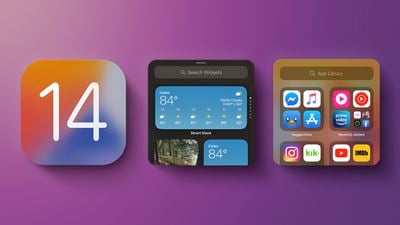
Apple in iOS 14 redesigned the Home Screen for the first time in a long time, introducing an App Library that lets you hide apps, widgets that can be placed among apps, and more.
ios14 and Home Screen 3
This guide walks through all of the new Home Screen changes from widgets to the App Library, and includes how tos with walkthroughs on using all of the new features.

Quick Start Video

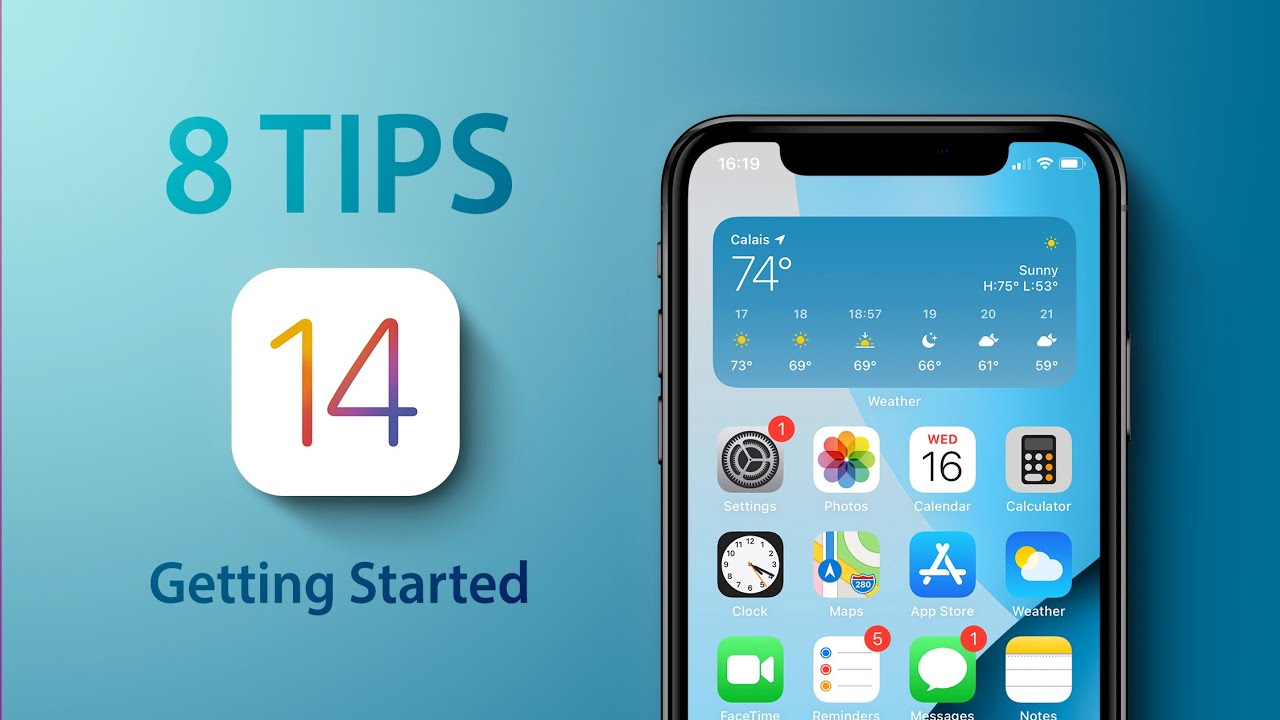
Our hands-on video of iOS 14 shows you how to quickly set up your home screen to your specifications, and also dives into other topics of interest in iOS 14:
Widgets

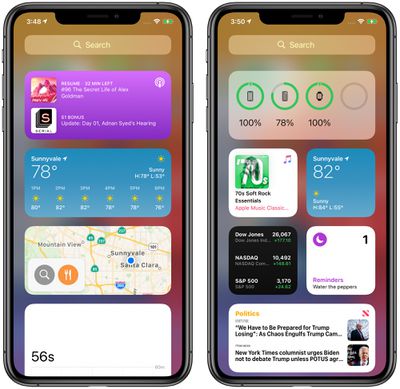
Widgets have been available in the Today View, which can be accessed by swiping from left to right on the Home Screen, but in iOS 14, widgets got a design and functionality overhaul.
widgetsios14
Apple overhauled all of its widgets, introducing a fresh design that uses less transparency, more spacing, and richer content to make widgets more useful. The redesign was implemented because for the first time, widgets can move out of the Today View and right onto the Home Screen.

Widget Sizes and Functions

Widgets can be customized with up to three sizes: small, medium, and large. A different amount of information is provided with each widget size.
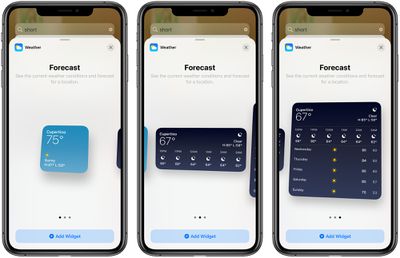
ios14widgetsizes
In the Apple News app, for example, a small widget shows just one headline, but a large widget shows three. A small Weather app widget shows the current temperature, the medium version shows the full daily forecast, and the large version shows the weekly forecast. Not all widgets have all three sizes, but most do, and you can also create multiple widgets of the same app.

Some apps also have different widget options based on function. In the ‌Apple News‌ widget, you can choose to see relevant news from the day or get stories about a specific topic of interest.

Developers will be able to create widgets using the new sizes and widget design language for widgets that will blend better with Apple's new options.

Widget Stacks

Multiple widgets can be stacked on top of one another so you can put all of your favorites together and then swap between them with an upward or downward swipe of the finger.
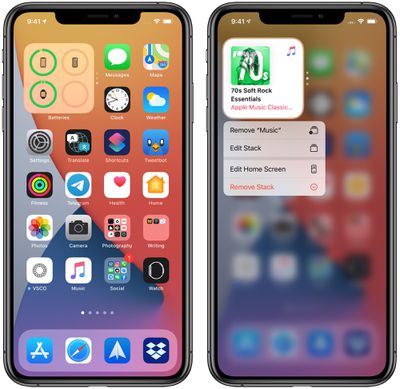
ios14stacks
Apple has also added a special "Smart Stack," which is a widget stack that uses Siri Intelligence to surface the most relevant and useful widget based on your iPhone usage habits.

If you often order coffee in the morning, for example, the widget for a coffee app might pop up. If you always listen to a podcast on the way home from work and have the Podcast app widget in your stack, the iPhone will surface the widget at the appropriate time.

Siri Suggestions Widget

There's a separate ‌Siri‌ Suggestions widget that on the surface sounds similar to Smart Stack, but is in fact different. The ‌Siri‌ Suggestions Widget surfaces app suggestions based on your iPhone usage habits, similar to what shows up under ‌Siri‌ Suggestions when you use the iPhone's search function.

There's also an option to have the ‌Siri‌ Suggestions widget display Shortcut suggestions based on your most used Shortcuts and Shortcut usage patterns.

Adding and customizing widgets can be done through the Widget Gallery, accessible by long pressing on the Today View of the widget list and then tapping the "+" button in the upper left corner.
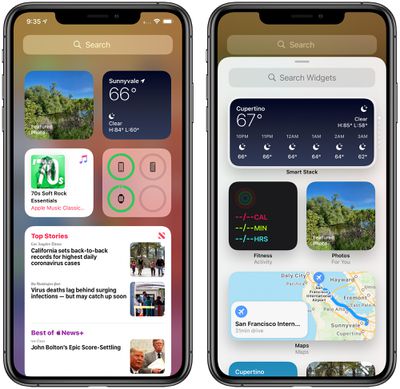
ios14widgetgallery
From there, you can search for a specific widget or scroll through the available options. Tapping on a widget in the list lets you see the size and content options that are available for the widget. Adding a widget to the Today View can be done by tapping the "Add Widget" option.

If you long press on the Today View screen and do not tap the "+" button, you can rearrange widgets, delete widgets, or scroll down to the "Edit" option that lets you see all of your widgets in a quick view list, including those from third-party developers.

Widgets on the Home Screen

Any widget that's available in the Today View can also be added to the Home Screen. You can drag them out from the Today View or long press on the Home Screen to get to the interface editing options.
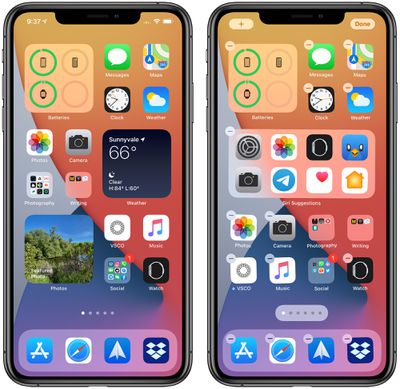
ios14homescreenwidgets
In this view, tap on the "+" button to get to the Widget Gallery to put a new widget right on the Home Screen. Widgets on the Home Screen behave just like app icons, they're just a bit bigger.

Widgets can be placed on the Home Screen right alongside apps. A small widget takes up the space of four apps in a square shape, a medium widget takes up the space of eight apps in a rectangle shape, and a large widget takes up the space of 16 apps in a square shape.

You can have widgets next to apps or a screen that's all widgets, and everything can be rearranged by long pressing on the Home Screen to get to jiggle mode and then just dragging icons around.

App Library

Along with widget redesign and the option to add widgets to the Home Screen, Apple added an App Library, designed to let you see all of the apps that you have in one easy to access place.
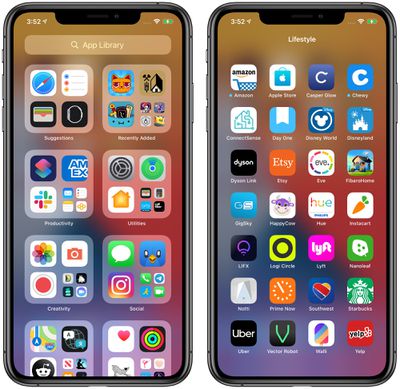
applibrary
App Library can be accessed by swiping from right to left through all of the Home Screen app pages until you get to the end. The App Library features smart organization, and all of the apps installed on your iPhone are separated into smart folders.

Some of the folder options include Productivity, Utilities, Social, Creativity, Reference & Reading, Health & Fitness, Entertainment, Lifestyle, Games, Apple Arcade, and Education.

There is no way to change the organization of the folders because it's automatic. Each folder displays your top three most used apps along with a collection of four app icons that you can tap on to see all of the other apps in that particular folder.

Apple has also added a "Suggestions" folder based on your app usage habits that houses apps you might want to use at a particular time. There's also a "Recently Added" folder to make it easy to find your newest apps. If you want your App Library apps to show notification badges, open up the Settings app, choose "Home Screen" and then toggle on the "Show in App Library" option under Notification Badges.
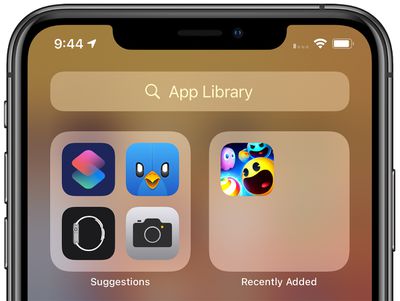
ios14applibrarysuggestions
Long pressing on the main App Library page causes the apps to jiggle, letting apps be deleted right from the App Library. Alternatively, you can also long press on any app icon and select the "Delete app" option.

The App Library has another view, which is an alphabetical list of all of the apps you have installed. You can get to it by tapping on the search bar at the top of the App Library interface.
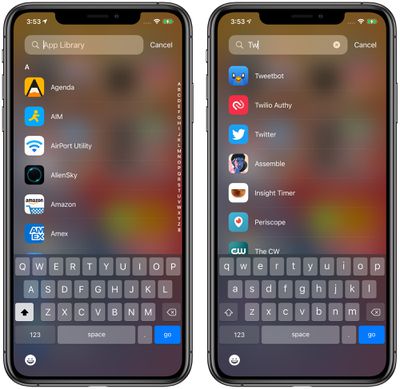
applibraryalphabet
In the alphabetical list, you can scroll through all of the apps, search for an app, or use the letter bar at the right side of the app to skip to a specific app. You can launch apps from the alphabetical list in the App Library, but you can't delete apps from that location.

Hiding Home Screen Pages and Apps

With all apps available in the App Library, there's no longer a need to have apps on your Home Screen or Home Screen pages if you'd rather have a cleaner look for your iPhone.
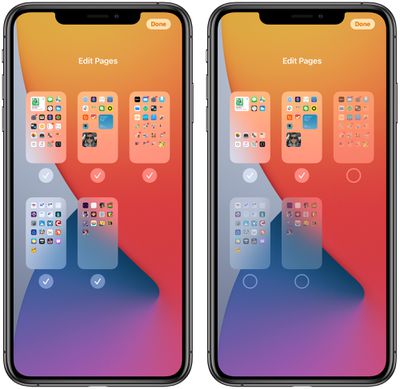
apppagesios14
In fact, you can hide entire app pages (the pages you swipe between to get to different screens of apps) or you can hide specific apps one by one. To hide whole app pages, long press on the Home Screen or any app page to enter the jiggle editing mode, then tap on the icon at the bottom that has a series of dots representing each page of apps.

From here, you can check or uncheck any app page that you want to hide. You can hide all but one app page, because at least one needs to be visible.

If you want to hide a specific app rather than an entire page, just long press on the app's icon, tap "Edit Home Screen," tap on the "-" icon on the app, and then choose the "Remove from Home Screen" option. If you want to add the icon back to the Home Screen, find the app in App Library, long press on the icon, and then choose the "Add to Home Screen" option.
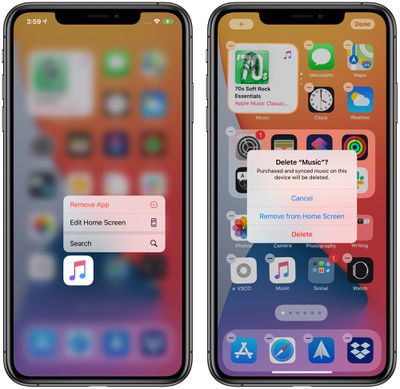
removeappsfromhomescreen
To download all new apps to the App Library rather than the Home Screen, go to Settings > Home Screen and tap the "App Library Only" option under New App Downloads.

Guide Feedback

Have questions about the iOS 14 Home Screen changes, know of a feature we left out, or want to offer feedback on this guide? Send us an email here.
Related Forum: iOS 14

Related Articles

Apple TV Remote Icon

iOS 27 Lets You Add Apple TV Remote to Your iPhone's Home Screen

Thursday June 11, 2026 11:51 am PDT by
Starting with iOS 27, the virtual Apple TV remote can be added to the iPhone's Home Screen again, rather than being limited to Control Center. To do so, swipe down on the Home Screen and search for "remote." Next, tap and hold on the Remote app and drag it to your Home Screen. Alternatively, you can find it in the App Library. Apple used to offer an Apple TV Remote app in the App Store, but...
Roku 2026 Home Screen

Roku Unveils Redesigned Home Screen

Wednesday May 27, 2026 2:29 pm PDT by
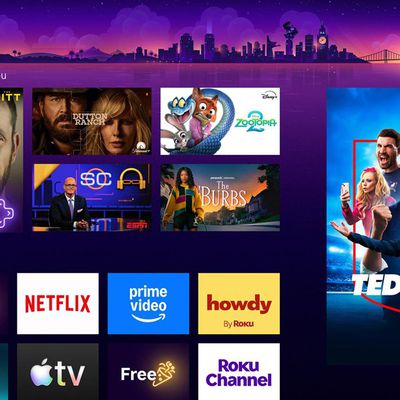
Roku today announced that its home screen is receiving its biggest redesign in more than a decade. The new home screen will begin rolling out to Roku TVs and streaming devices across the U.S. starting today, with more countries to follow later. The changes will appear automatically, with no software update required. At the top of the home screen, a new "Top Picks for You" section provides...

iOS 27 on iPhone 17 1

iOS 27 to Change How You Customize Your iPhone Home Screen

Monday April 20, 2026 4:16 am PDT by
If you regularly spend time reshuffling your iPhone's Home screen, you'll likely welcome a couple of new options reportedly coming in iOS 27. According to Bloomberg's Mark Gurman, Apple's next major software update will add Undo and Redo buttons to the Home Screen customization menu. Long-press the screen, and alongside the existing Add Widget, Customize, Edit Wallpaper, and Edit Pages...
Apple Intelligence General Feature 2

Apple Considered AI-Powered iPhone Home Screen

Monday January 26, 2026 7:53 am PST by
Apple considered introducing a new Apple Intelligence feature that would dynamically re-arrange apps on the Home Screen. The detail emerged in a report last week from The Information, which said that subordinates of software chief Craig Federighi approached him with proposals for an AI-powered iPhone Home Screen. The feature would dynamically change the locations of apps on the Home Screen...
iPhone Home Screen Gradient Blank Spaces 1

Sources: iOS 18 Lets Apps Be Placed Anywhere on Home Screen Grid

Sunday March 24, 2024 1:33 pm PDT by
iOS 18 will give iPhone users greater control over Home Screen app icon arrangement, according to sources familiar with the matter. While app icons will likely remain locked to an invisible grid system on the Home Screen, to ensure there is some uniformity, our sources say that users will be able to arrange icons more freely on iOS 18. For example, we expect that the update will introduce...
ios14widgetsandcustomicons

Apps for Customizing iOS 14 Home Screens Installed on 15% of US iPhones

Friday November 20, 2020 2:17 am PST by
With the launch of iOS 14 in September, Apple introduced Home Screen widgets for the first time, ushering in an unprecedented wave of customization for the iPhone. Several apps quickly emerged allowing users to personalize their Home Screen with custom widgets and icons, and new research by Sensor Tower reveals that almost 15% of iPhone users in the U.S. have installed at least one app to...
shortcuts home screen banner

Custom App Icons on Home Screen No Longer Route Through Shortcuts App in iOS 14.3 Beta 2

Wednesday November 18, 2020 11:43 am PST by
Apple in iOS 14.3 is streamlining the Home Screen customization process by simplifying the way that app shortcuts work. With the launch of iOS 14, users quickly discovered that Shortcuts could be used to replace traditional app icons to create an entirely customized Home Screen look. Unfortunately, while these Home Screens created with Shortcuts looked fantastic, the experience was less than ...
launch center pro

Launch Center Pro Lets Users Customize App Icons in iOS 14 Without Shortcuts

Tuesday October 20, 2020 3:58 am PDT by
Customizing the home screen has become popular since the release of iOS 14, and many users have been adding custom app icons to their home screen using the Shortcuts app to create unprecedented levels of personalization. The only problem with this method is that it kicks you to and from the Shortcuts app whenever you open an app with a custom icon, which isn't a great way to optimize usage...
Latest Stories
Top Stories: Apple Smart Home Launch on October 13, iPhone Duo Production Issues, and More
2 hours ago
Apple Says iPhone 18 Pro Max Users With AT&T Cellular Issue Need to Have Device Replaced
12 hours ago
Apple Announces 'Full Disk Access' Changes on macOS Due to AI Agents
19 hours ago
AT&T and Apple Just Took Steps Toward Fixing iPhone 18 Pro Max Issue
19 hours ago
AT&T on iPhone 18 Pro Max Issues: 'We Are Working With Apple'
23 hours ago
Upgrading From an Older Apple Watch? Here's How the New Features Stack Up
23 hours ago
Beats 360 Cushion Kits and Apple Accessories See Early Prime Day Price Drops
1 day ago
Apple Store in UK Reopening on iPhone Duo Launch Day
1 day ago
AT&T Acknowledges iPhone 18 Pro Max Issues: Update 'Immediately'
1 day ago
New 'AirFly Drive' Accessory Turns Wired CarPlay Into Wireless CarPlay
2 days ago
Apple Shares Photos Shot on iPhone Duo
2 days ago
Apple Says iPhone Duo Has Replaceable 'Cover Layer'
2 days ago
Apple's Smart Home Camera Will Apparently Have 'No Video Recording'
2 days ago
Apple TV Just Updated Its Selection of 'Bonus' Movies
2 days ago
iPhone 18 Pro Colors Buyer's Guide: Which Should You Choose?
2 days ago
Early Prime Big Deal Days: Best Discounts on Accessories, TVs, and More at Amazon
2 days ago
MacBook Pro With OLED Touch Screen Rumored to Launch in October or November
2 days ago
Apple's All-New Home Hub Rumored to Launch in These Four Colors
2 days ago
iPhone 18 Pro Aperture Control Goes Fully Manual in Halide 3.2
2 days ago
Apple Stores Receive 'Do Not Open' Boxes Ahead of Smart Home Products Launch
2 days ago
iPhone 18 Pro Sales Jump in China Ahead of iPhone Duo Launch
2 days ago
Apple TV Still Down for Some Users Following Apple Services Outage
2 days ago
Microsoft 365 Work Accounts May Stop Syncing in Apple Mail
1 day ago
Apple's Smart Home Hub: Everything We Know So Far
3 days ago
Apple's Home Hub Borrows From the iPhone Duo's StandBy Mode
3 days ago
Apple Invites App Updated With Three New Features
3 days ago
Apple Event on October 13?
3 days ago
Apple Watch SE 3 vs. Series 12 Buyer's Guide: Which Should You Buy?
3 days ago
iPad Mini 8 to Offer These 10 New Features
3 days ago
DoorDash Unveils AI Food Ordering Through Apple's Messages App
3 days ago