In iOS 26, Apple has introduced enhanced message filtering that gives you more control over unwanted texts, separating spam messages from unknown senders into distinct categories. Here's how to set up and use these new filtering options to keep your Messages app clutter-free.
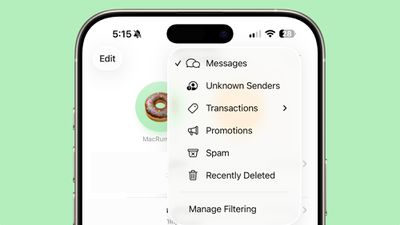
ios 26 messages filtering

Enable Message Filtering Settings

Before you can filter messages from unknown senders in iOS 26, you need to enable the filtering options in your Messages settings.

  1. Open the Messages app on your iPhone.
  2. Tap the filter menu icon (three horizontal lines) in the top-right corner.
  3. Select Manage Filtering. This takes you directly to the Messages section in Settings.
  4. Toggle on Screen Unknown Senders to enable filtering.
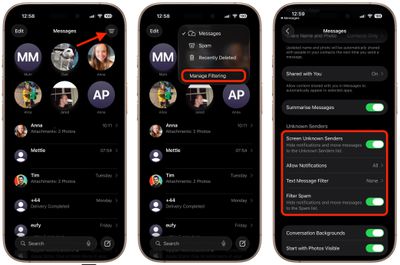
messages

Once activated, "Unknown Senders" will appear as an option in the Messages app's filter menu.

Configure Additional Filtering Options

While you're in the message filtering settings, you'll find several other options worth configuring:

  • Allow Notifications lets you choose whether to receive alerts for certain messages from unknown senders, such as verification codes.
  • Text Message Filter provides additional screening options (this setting may not appear unless you have a third-party app with message filtering extensions installed, depending on your region and carrier).
  • Filter Spam is enabled by default and automatically routes suspected spam to a separate folder.
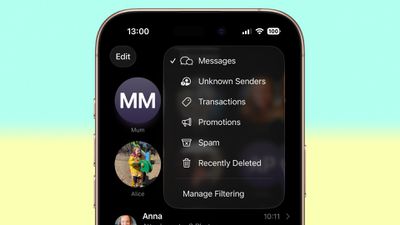
messages filter menu full ios

If the Text Message Filter option appears, selecting it will add "Transactions" and "Promotions" to your filter menu, giving you even more granular control over business-related messages.

Review Messages From Unknown Senders

Once filtering is active, messages from contacts not saved in your address book automatically go to the Unknown Senders section. You'll see a number in brackets next to Unknown Senders in the filter menu indicating new messages, but you won't receive disruptive alerts.

To access these filtered messages, tap the filter menu icon and select Unknown Senders. From here, you can review messages and take action on legitimate senders.
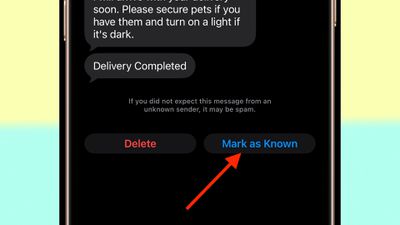
unknown message sender mark as known
Tap any message thread to view its contents. At the bottom of the conversation, you'll see a blue Mark as Known button. Tapping this ensures future messages from that number appear in your main Messages list.

Alternatively, tap the phone number at the top of the conversation to add the sender directly to your Contacts app. Both approaches prevent future messages from this sender being filtered to Unknown Senders.

Recover Spam Messages

By default, messages that iOS 26 classifies as spam are automatically moved to the Spam folder.

To recover a legitimate message that was incorrectly filtered, open the Spam section from the filter menu, tap the message you want to recover, then tap Not Spam. The message will move back to your main Messages list, and future messages from that sender won't be filtered as spam.

If spam filtering isn't working for you as intended, you can turn off the Filter Spam toggle in the Messages app's Settings menu.

Top Rated Comments

Fynd Avatar
17 weeks ago
Too bad it doesn't work like this with the Apple Watch, defeating the purpose.... My phone hides these like I want but the notifications still fly into my wrist.0

Score: 3 Votes (Like | Disagree)
gatorvet96 Avatar
17 weeks ago

Too bad it doesn't work like this with the Apple Watch, defeating the purpose.... My phone hides these like I want but the notifications still fly into my wrist.0
Agreed. If I’m wearing my Apple Watch I get spam phone calls and texts but not on the phone. I turned off all messages and calls on watch for now as I rarely use my watch for texts or calls anyway. The check box that says mirror phone doesn’t help either.
Score: 2 Votes (Like | Disagree)
WarmWinterHat Avatar
17 weeks ago
Thanks for the article.. I was a bit confused with the changes in iOS 26.

Question for anyone, what are the Transaction and Promotion categories? I have never seen anything be put in either of the groups. Do they actually do anything?
Score: 1 Votes (Like | Disagree)
nepalisherpa Avatar
17 weeks ago
I love this feature. I do have to check the filtered list every once in a while and mark numbers as "known" but it has worked great so far.
Score: 1 Votes (Like | Disagree)
MNWildFan Avatar
17 weeks ago

Thanks for the article.. I was a bit confused with the changes in iOS 26.

Question for anyone, what are the Transaction and Promotion categories? I have never seen anything be put in either of the groups. Do they actually do anything?
They do

If it's some promotional text I get, instead of just coming into my main incoming messages folder, it will get filtered into there

For the most part, they're just spam so I'll just go to there and hit the report spam button and then choose the delete and report spam option that appears after that

Oddly enough, though I don't get most of them on my primary number, on my secondary number I have for T-Mobile's satellite plan I have alongside my regular service (though with another carrier) I get a ton of them
Score: 1 Votes (Like | Disagree)
svish Avatar
17 weeks ago
Think it will be very useful for me especially taking control of notifications from unknown senders. Will have to try it out after updating.
Score: 1 Votes (Like | Disagree)

Popular Stories

Apple Logo Spotlight

Apple Expected to Unveil Five All-New Products This Year

Wednesday January 21, 2026 10:54 am PST by
In addition to updating many of its existing products, Apple is expected to unveil five all-new products this year, including a smart home hub, a Face ID doorbell, a MacBook with an A18 Pro chip, a foldable iPhone, and augmented reality glasses. Below, we have recapped rumored features for each product. Smart Home Hub Apple home hub (concept) Apple's long-rumored smart home hub should...
airpods pro 3 purple

New, Higher End AirPods Pro Coming This Year

Tuesday January 20, 2026 9:05 am PST by
Apple is planning to debut a high-end secondary version of AirPods Pro 3 this year, sitting in the lineup alongside the current model, reports suggest. Back in September 2025, supply chain analyst Ming-Chi Kuo reported that Apple is planning to introduce a successor to the AirPods Pro 3 in 2026. This would be somewhat unusual since Apple normally waits around three years to make major...
airtag prime day 2

Apple Developing AirTag-Sized AI Pin With Dual Cameras

Wednesday January 21, 2026 12:31 pm PST by
Apple is working on a small, wearable AI pin equipped with multiple cameras, a speaker, and microphones, reports The Information. If it actually launches, the AI pin will likely run the new Siri chatbot that Apple plans to unveil in iOS 27. The pin is said to be similar in size to an AirTag, with a thin, flat, circular disc shape. It has an aluminum and glass shell, and two cameras at the...
smaller dynamic island iphone 18 pro Filip Vabrous%CC%8Cek

iPhone 18 Pro Leak: Smaller Dynamic Island, No Top-Left Camera Cutout

Tuesday January 20, 2026 2:34 am PST by
Over the last few months, rumors around the iPhone 18 Pro's front-panel design have been conflicted, with some supply-chain leaks pointing to under-display Face ID, reports suggesting a top-left hole-punch camera, and debate over whether the familiar Dynamic Island will shrink, shift, or disappear entirely. Today, Weibo-based leaker Instant Digital shared new details that appear to clarify the ...
M5 MacBook Pro

MacBook Pro to Receive Up to Six New Features by Next Year

Thursday January 22, 2026 9:31 am PST by
Apple is expected to release MacBook Pro models with M5 Pro and M5 Max chips soon, but you might want to pass on them, as bigger changes are around the corner. It has been reported that the MacBook Pro will be receiving a major redesign in late 2026 or in 2027. Six new features have been rumored so far, including an OLED display, touch capabilities, a Dynamic Island, M6 Pro and M6 Max chips...